10. Click on the point of an outer petal from
the first layer to highlight that object.
11. Click twice on the Object button.
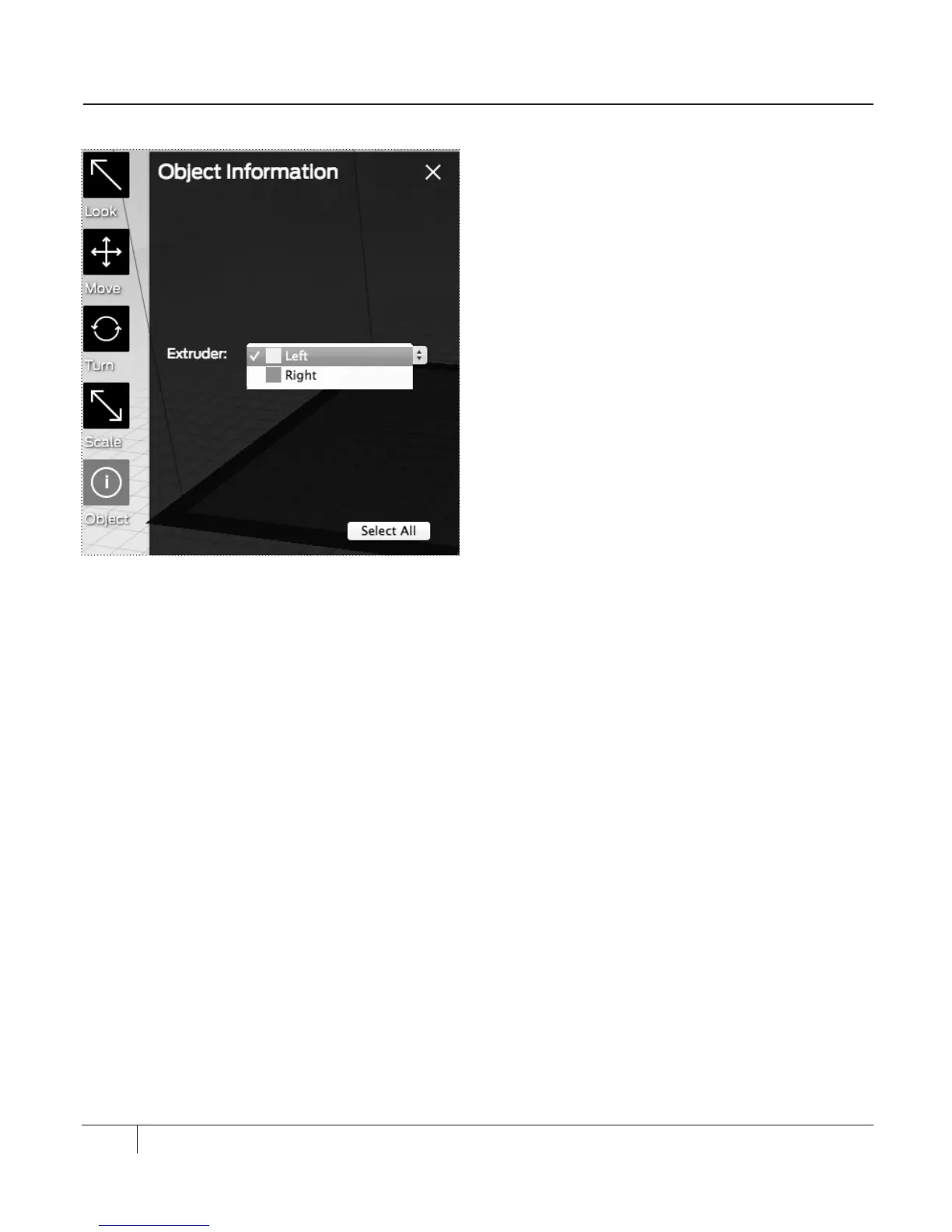
12. In the Object Information submenu, in
the Extruder field, select an extruder to
print Lotus_color1.stl. [Fig. 9.4]
13. Click on the point of an outer petal from
the second layer to highlight that object.
14. Click twice on the Object button.
15. In the Object Information submenu,
in the Extruder field, select an extruder
to print Lotus_color2.stl.
16. To keep the two STL files linked together
and assigned to extruders, save the
object as a .thing file. To do this:
• In the File menu, choose Save As.
• Save the le as a .thing le.
17. Choose the File menu and choose Make
It or click the Make button.
18. In the Make dialog box, select the Export
to a File radio button.
19. In the Make dialog box, click the Export!
button. Save your STL file to an SD card.
PRINTING WITH BOTH EXTRUDERS CONTINUED
66
Fig. 9.4




 To Next Page