REFERENCE
REFERENCE
22
23
MAKERBOT PRINTSHOP
™
MAKERBOT MOBILE
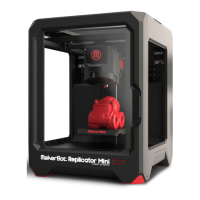
MakerBot PrintShop is a free app that allows you to design and customize prints, explore
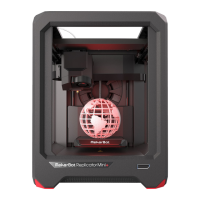
and print from Thingiverse, and monitor and control your MakerBot Replicator Mini, all from
your tablet.
MakerBot Printshop has three features: Makers, Explore, and My Stu.
With the Maker tools, you can customize designs such as signs and bracelets using base
models provided by the app.
In Explore, you can browse a selection of ready-to-print items from Thingiverse.
In My Stu, you can access all recent prints initiated from MakerBot Printshop, as well as
your saved customized designs.
Once you initiate a print with MakerBot PrintShop, you can monitor that print as it’s
happening. The onboard camera on your MakerBot Replicator Mini will periodically take
photos of the build area, viewable right on your tablet. You can also pause and cancel prints
directly from MakerBot PrintShop.
To learn more about MakerBot Printshop, go to makerbot.com/printshop
MakerBot Mobile is a free app that allows you to monitor and control your MakerBot
Replicator Mini on your smartphone. You can start, pause, and cancel prints directly from
MakerBot Mobile, as well as receive notifications about your print, such as print completion
and any errors that may occur.
MakerBot Mobile gives you access to your MakerBot Cloud Library and Thingiverse. You can
print any sliced file via MakerBot Mobile and then monitor the print as it’s happening.
To learn more about MakerBot Mobile, go to makerbot.com/mobile
Firmware is the soware that runs on your MakerBot Replicator Mini. Keeping your firmware
up to date will help ensure that your MakerBot Replicator Mini is in the best possible working
order. Firmware updates allow MakerBot to add new features to your MakerBot Replicator
Mini and improve old ones.
MakerBot Desktop will let you know if there’s a firmware update available. To upgrade to the
new version, just select Update Firmware from the Devices menu. The soware will walk
you through the steps to bring your MakerBot Replicator Mini up to date.
UPDATING FIRMWARE


 To Next Page