REFERENCE
REFERENCE
14
15
ABOUT MAKERBOT DESKTOP
PRINTING WITH MAKERBOT DESKTOP
10. Save
• • Click Save to open a Save dialog.
• • If you are logged into your MakerBot account, you can choose to save to your Library
or to your local computer. See makerbot.com/support for more information on
your MakerBot Cloud Library.
• • If you are not logged into your MakerBot account or if you are working oine, you
will be able to save your file only to your local computer.
• • If you are working in an existing Thing file, you can rearrange the models on the
plate and save this new layout to the Thing file without overwriting earlier layouts.
•
11. Print
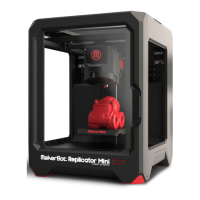
• • Click Print to slice the model and send the print file to your MakerBot Replicator Mini.
• • Within the Print dialog, click Print Preview to open a preview of the sliced model.
•
12. Status
• • The status bar displays the connection status of any connected MakerBot
Desktop 3D Printer.
• • The status bar displays the progress of the current print.
• • Click the menu icon at the right side of the status bar to open a print monitor panel,
which will display more detailed information about your MakerBot Replicator Mini
and any print in progress, including a feed of images from the onboard camera.
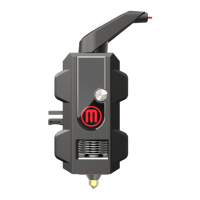
• • Open the print monitor panel to pause or cancel a print, change filament, or change
Smart Extruder.
1 CHOOSING YOUR MODEL
You can download a model from Thingiverse or the MakerBot Digital Store, open a 3D
printable STL file from any source, or access objects that are already saved in your MakerBot
Cloud Library.
FINDING A MODEL ON THINGIVERSE
1. In MakerBot Desktop, click on the Explore tab. Click Explore at the right to browse
available models, or use the search bar to look for something specific.
2. Click the thumbnail or name of any Thing to go to the Thing page.
3. On the Thing page, scroll down and click on Thing Files to see available files.
4. Choose which part or version you want to print and click the Prepare button next
to the file name.
5. MakerBot Desktop will open the file and take you to the Prepare tab. The file you selected
will appear on the build plate.
6. To add an additional model from the same Thing to your layout, return to the Explore tab and
click Prepare next to the name of the additional file. The new model will be added to the plate.
Aer you’ve made your first print with the help of the Setup Assistant, you can continue
printing with your MakerBot Replicator Mini by following these simple steps:
1. Choose a Model
2. Prepare to Print
3. Print Your Model
4. Post Print Steps


 To Next Page