REFERENCE
REFERENCE
12
13
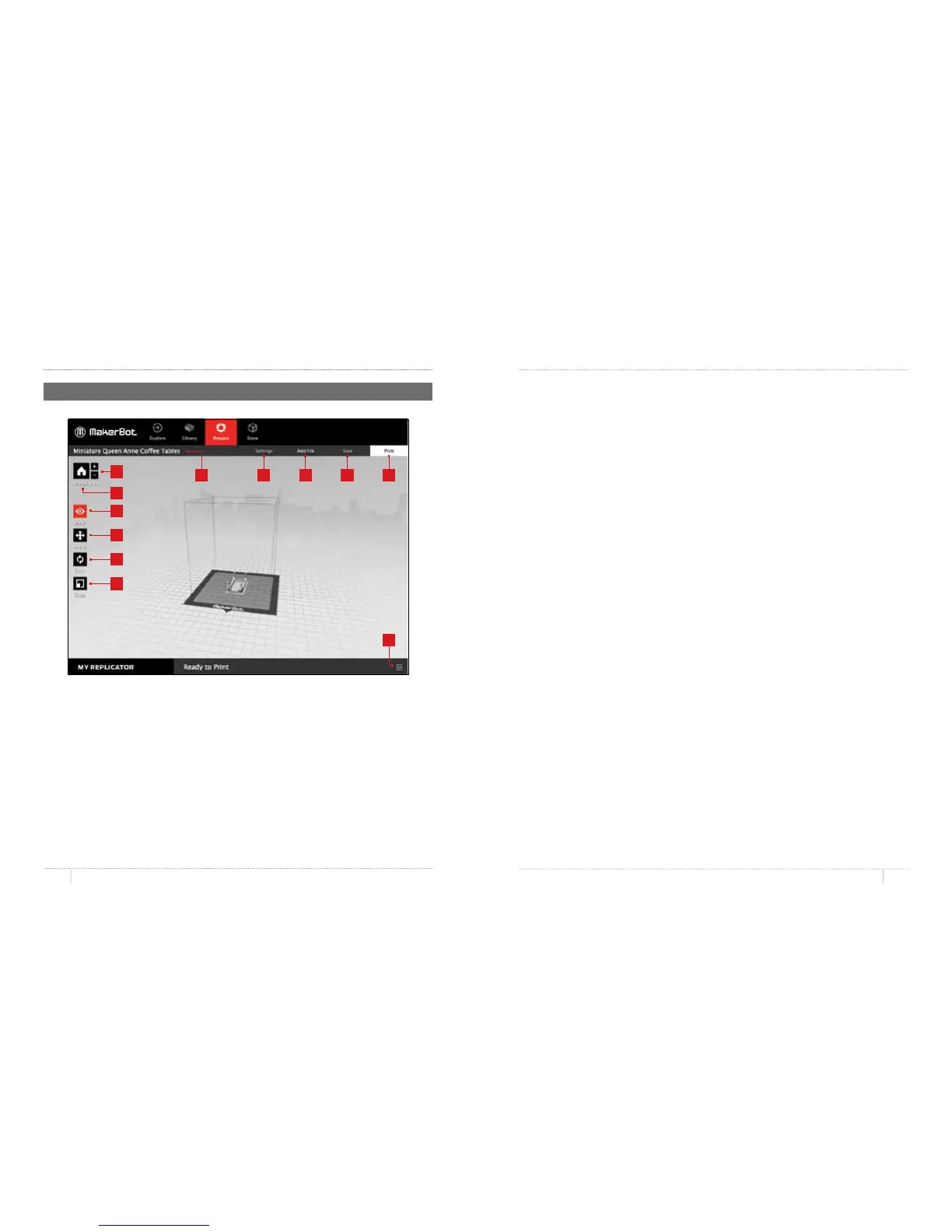
1. +/–
• • Click the Plus and Minus buttons to zoom in and out.
• • You can also zoom using a track pad or the scroll wheel on your mouse.
•
2. Home View
• • Click the Home View button to return to the default view of the build plate.
•
3. View
• • Click the View button or press the V key to go into View mode.
• • In View mode, click and drag with your mouse to rotate the build plate.
• • In View mode, hold the Shi key and click and drag with your mouse to pan.
• • Click the View button again to open the Change View submenu and access preset views.
ABOUT MAKERBOT DESKTOP
ABOUT MAKERBOT DESKTOP
THE PREPARE SCREEN
4. Move
• • Click the Move button or press the M key to go into Move mode.
• • In Move mode, click and drag with your mouse to move your model around
on the build plate.
• • In Move mode, hold the Shi key and click and drag with your mouse to move your
model up and down along the z-axis.
• • Click the Move button again to open the Change Position submenu and move your
object by a specific distance along the x-, y-, or z-axis.
•
5. Turn
• • Click the Turn button or press the T key to go into Turn mode.
• • In Turn mode, click and drag with your mouse to rotate your model around the z-axis.
• • Click the Turn button again to open the Change Rotation submenu and rotate your
object by a specific number of degrees around the x-, y-, or z-axis.
6. Scale
• • Click the Scale button or press the S key to go into Scale mode.
• • In Scale mode, click and drag with your mouse to shrink or enlarge your model.
• • Click the Scale button again to open the Change Dimensions submenu and scale
your object by a specific amount along the x-, y-, or z-axis.
•
7. File Name
• • The file name bar displays the name of the file or layout currently open. Thing files
can include multiple layouts, or arrangements of models on the plate.
8. Settings
• • Click Settings to open the settings dialog.
• • Use the dialog to change print settings for the current model or layout.
9. Add File
• • Click Add File to open an Open File dialog.
• • Navigate to the location of any STL, OBJ, or Thing file and select the file to add
• a model to the build plate.
• • Add as many models to the plate as you like.
• • Duplicate models already on the plate using the Copy and Paste options in the Edit
menu or the keyboard shortcuts Ctrl/Command+C and Ctrl/Command+V.
12
3
1
2
4
5
6
8 9 10 117


 To Next Page