REFERENCE
REFERENCE
16
17
PRINTING WITH MAKERBOT DESKTOP PRINTING WITH MAKERBOT DESKTOP
CHOOSING A MODEL FROM YOUR MAKERBOT CLOUD LIBRARY
1. In MakerBot Desktop, click on the Library tab.
2. Click one of the folders at the le side of the screen to see items available in your Library.
3. Click on a list item and then click Prepare. MakerBot Desktop will open the file and take
you to the Prepare tab. The file you selected will appear on the build plate.
1.
FINDING A MODEL IN THE MAKERBOT DIGITAL STORE
1. In MakerBot Desktop, click on the Store tab.
2. Browse the Digital Store collections or use the search bar to find a model by name.
3. Once you’ve found a model or series you’d like to purchase, click BUY NOW.
4. If you haven’t already, set up your billing information.
5. Confirm your purchase. A print file for your purchased model will appear in your
MakerBot Cloud Library.
IMPORTING A MODEL FROM YOUR LOCAL COMPUTER
You can open any 3D-printable STL or OBJ file in MakerBot Desktop.
1. In MakerBot Desktop, click on the Prepare tab.
2. Click Add File.
3. Navigate to the location of your file and click Open. The model will appear on the build plate.
2 PREPARING YOUR MODEL
Use the Prepare Screen to manipulate your model, such as changing its orientation or
scaling it to a new size. You can also add more models to the layout. Then, to change
any print settings before you print, click the Settings button.
SETTINGS
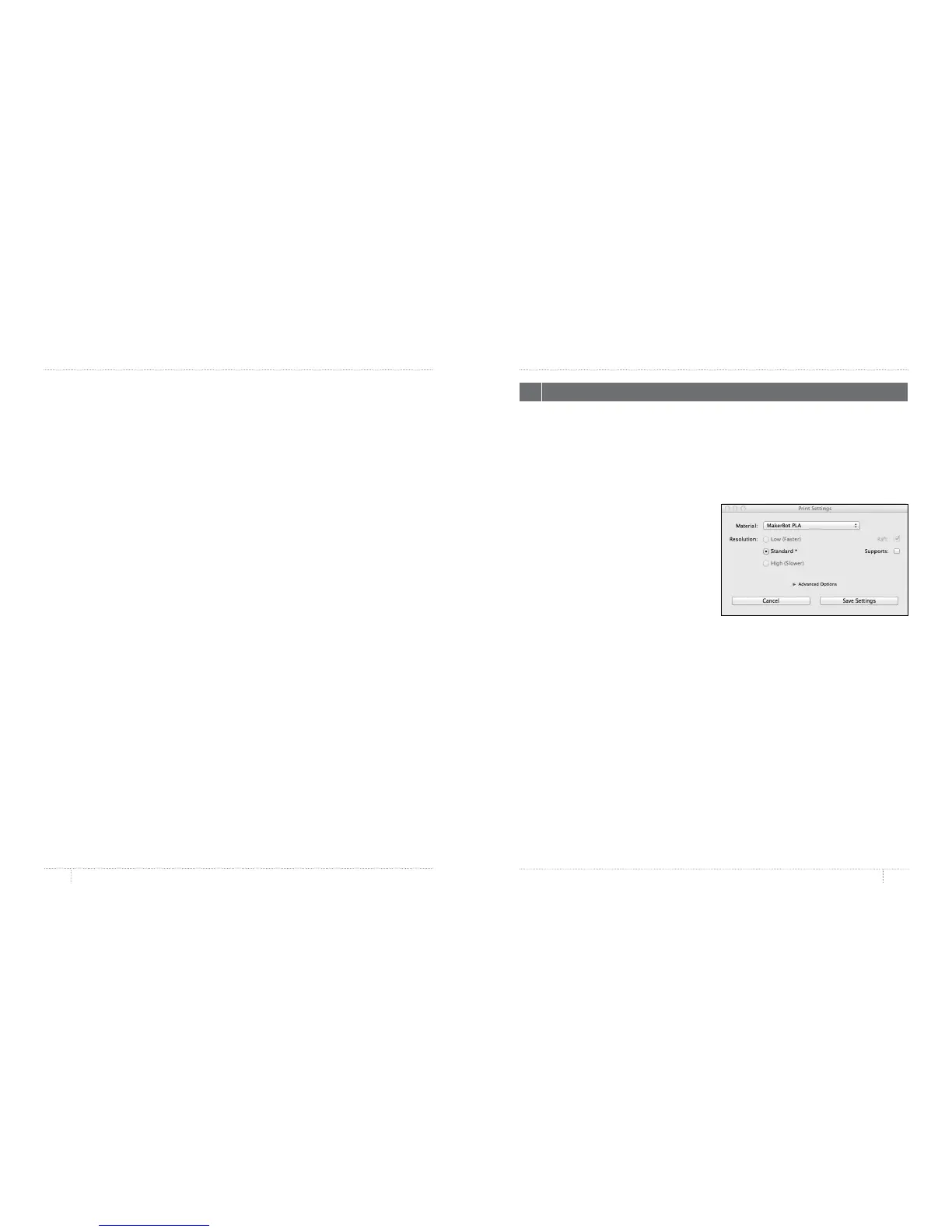
The Settings dialog allows you to select options that will aect the quality of your printed object.
1. Supports. Select this checkbox to have
your object printed with support structures.
MakerBot Desktop will automatically
generate supports for any overhanging
sections of your object. Supports will be
easily removable once you remove your
finished object from the build plate.
2. Advanced Settings. Some options have
been grayed out to make your printing
experience with the MakerBot Replicator
Mini as simple and as easy as possible.
You can still access additional options
by clicking on Advanced Options. For
information on what the advanced
settings are and how to use them, go to
makerbot.com/support/makerbot-desktop.


 To Next Page