33
ENGLISH
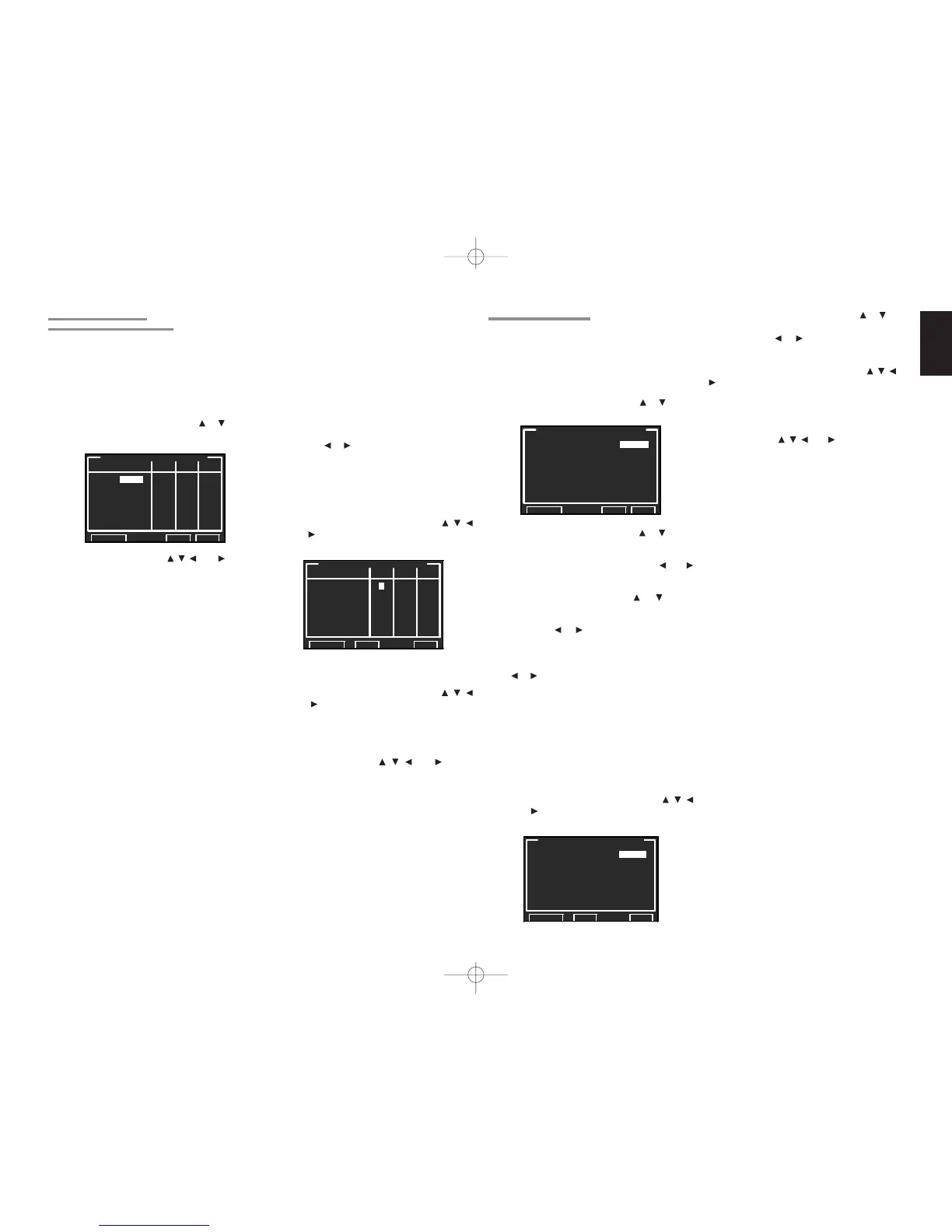
1-1 FUNC INPUT SETUP
(ASSIGNABLE DIGITAL INPUT)
The 8 and F (Front) digital inputs can be assigned
to a desired source.
HDMI and COMPONENT inputs can be assigned
to the preferred source.
Use this menu to select which digital input jacks
are to be assigned to which input source.
1.
Select “FUNC INPUT SETUP” from the
1.INPUT SETUP menu with the
or cursor
buttons and press the OK/ENTER button.
2.
Select a setting with the , , , and cursor
buttons, and assign a mode and input jack
(DIG, HDMI, COMP).
MODE
AUTO:
Select “AUTO”, for automatic detection of the
digital input signal condition.
If there is no digital signal, but there is an analog
signal present, the analog signal will be played.
"AUTO" is the initial setting of all input sources.
DIG. X:
Select “DIG. X”, when only a digital signal will be
used.
ANA:
Select “ANA” for input sources for which no
digital input jacks are used.
HDMI:
Select “HDMI1” or “HDMI2”.
i.LINK:
Select a number that can be set to i.LINK.
“i.LINK” appears only when an i.LINK device
has been assigned as an input source as
explained in “i.LINK SETUP”. (See page 34)
DIG
8 and F(Front) digital inputs can be assigned to
a desired source.
Assign the number of a digital input jack to the
device.
HDMI
Assign the number of an HDMI input jack to the
device.
COMP
Assign the number of a component video input
jack to the device.
3.
Press the OK/ENTER button.
4.
Select each mode setting and input terminal
with the
or cursor buttons.
5.
Press the OK/ENTER button.
6.
Repeat steps 2-5 until all items are set.
7.
After you complete this portion of the setup,
move the cursor to “NEXT” with the
, ,
and cursor buttons and then press the OK/
ENTER button to go to the next page.
8.
Repeat steps 2-5 until all items are set.
After you complete this portion of the setup,
move the cursor to “RETURN” with
, ,
and cursor buttons and press the OK/
ENTER button.
To return to the Func Input Setup 1 menu from
the Func Input Setup 2 menu, move the cursor
to "BACK" with the
, , and cursor
buttons and press the OK/ENTER button.
1-2 7.1 CH INPUT SETUP
This menu is for adjusting the speaker levels for
7.1-channel input sources.
Here you will adjust the volume for each channel so
that they are all heard by the listener at the same
level.
1.
Select “7.1 CH INPUT SETUP” from the
1.INPUT SETUP menu with the or cursor
buttons and press the OK/ENTER button.
2.
Select “INPUT MODE” with the or cursor
buttons.
3.
Select “7.1 CH” or “5.1 CH” with the and
cursor buttons.
4.
Select “VIDEO IN” with the or cursor
buttons.
5.
Using the or cursor buttons, select the
video input source to be played through the
MONITOR OUT jack.
The input source is switched by pressing the
or cursor buttons as follows;
LAST ↔ DVD ↔ LD ↔ TV ↔ DSS ↔ VCR1
↔ VCR2 ↔ AUX1 ↔ V-OFF ↔ LAST ↔...
Notes:
•
When “LAST” is selected, the source is set to the
source selected before the 7.1 ch input menu was
activated.
• When
“
V-OFF
” is selected,
no signal is emitted
from MONITOR OUT jack.
6.
After you complete this portion of the setup,
move the cursor to “NEXT” with the , ,
and cursor buttons and press the OK/
ENTER button to go to the next page.
7.
Select desired channel with the or cursor
buttons.
8.
Using the or cursor buttons, adjust the
volume level of each channel.
Move the cursor to “RETURN” with the
, , and
cursor buttons, and press the OK/ENTER button
to go to the 1.INPUT SETUP menu.
To return to the 7.1 Ch Input Setup 1 menu from the
7.1 Ch Input Setup 2 menu, move the cursor to
“BACK” with the
, , and cursor buttons and
press the OK/ENTER button.
Note:
• The volume level can be set between -12 dB and
+12 dB in 0.5 dB increments on all channels
except the subwoofer (SUB W), which can be set
from -18 dB to +12 dB in 0.5 dB increments.


 To Next Page