34
ENGLISH
1.
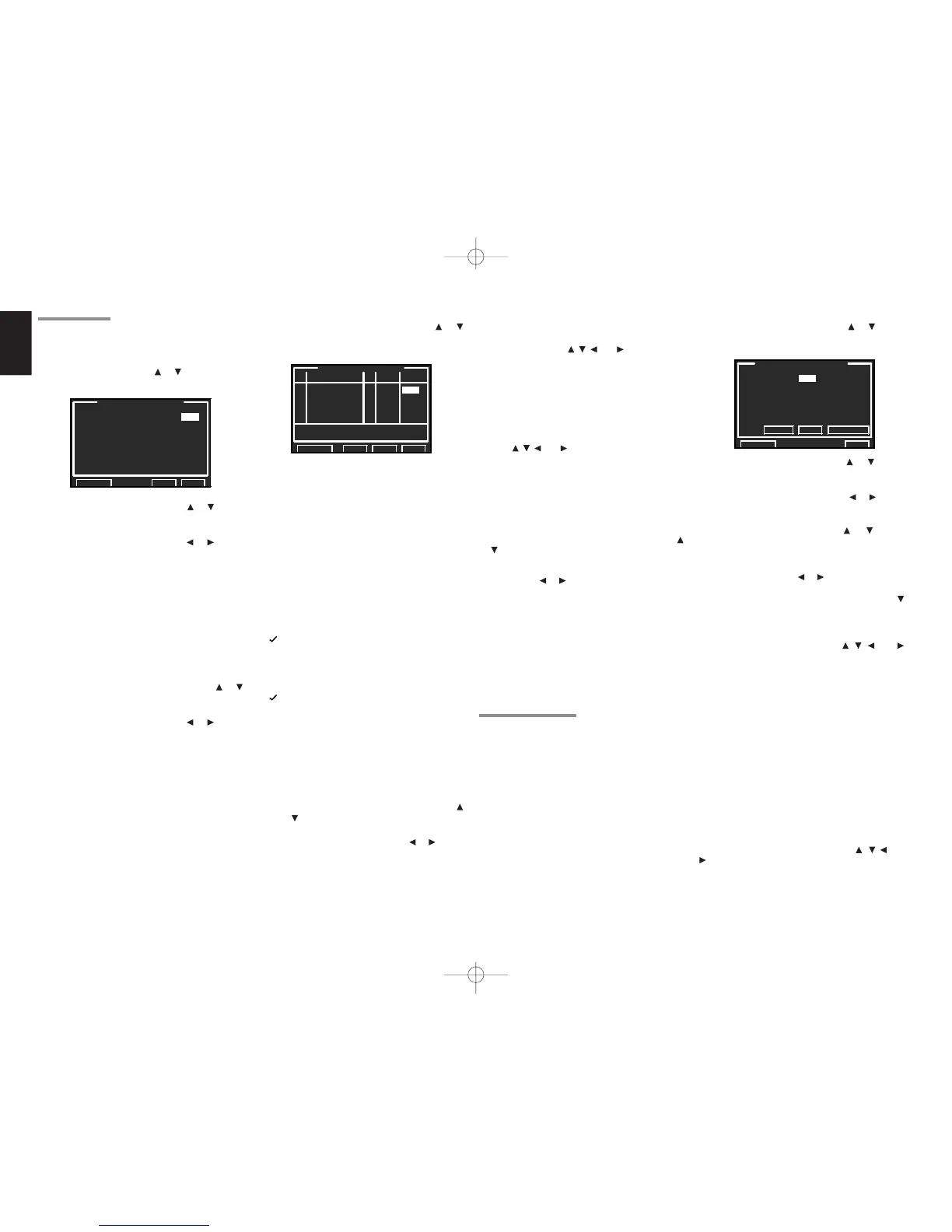
Select “FUNCTION RENAME” from the 1.
INPUT SETUP menu with the or cursor
buttons and press the OK/ENTER button.
2.
Select “FUNCTION” with the or cursor
buttons.
3.
Select an input source with the or cursor
buttons.
4.
Select “RENAME” with the or cursor
buttons.
5.
Move the cursor to the character (1st to 10th)
to change with the
or cursor buttons.
6.
Move the cursor to the character list with the
cursor button. (Move the cursor to the letter
“A” to begin with.)
7.
Select a character with the , , and
cursor buttons.
8.
Press the OK/ENTER button to enter the
selected letter.
9.
Repeat steps 5-8 until the new name is input.
BACK:
Deletes the character left of the cursor in the
“RENAME” area one character at a time.
DEFAULT:
Restores the name in the “RENAME” area to the
name in the “FUNCTION” area.
SPACE:
Inserts a space at the cursor point of the
“RENAME” area.
Move the cursor to "RETURN" with the
, , and
cursor buttons and press the OK/ENTER button
to go to the 1. INPUT SETUP menu.
6.
After you complete this portion of the setup,
move the cursor to “NEXT” with the or
cursor buttons and press the OK/ENTER
button to go to the next page.
This menu is for viewing the connected status of
i.LINK components and assigning i.LINK
component information to each one. i.LINK
components are registered from No. 1 to No. 15 in
the order in which they are detected by this receiver.
• MODEL NAME
The model name of the i.LINK component is
automatically acquired from the component.
(When a model name cannot be acquired, “NO
NAME” is displayed.) Model names longer than
9 characters are cut off after the ninth character.
• LINE
Displays the connected status of the i.LINK
component in real-time.
Connected
-
Disconnected
(Or power to the device is not on.)
• AUDIO
Displays the audio support of i.LINK components.
Audio supported
-
The component does not support i.LINK
audio or not a source component.
• FUNC
When "---" is displayed, the component can be
assigned as an input source.
When "✽✽✽" is displayed, the device cannot be
assigned as an input source.
7.
Select the input MODEL NAME, press the
or cursor buttons.
8.
Assign an input source with the or cursor
buttons.
9.
When 6 or more i.LINK devices are registered
with this receiver, after you complete this
portion of the setup, move the cursor to
“NEXT” with the
, , and cursor buttons
and press the OK/ENTER button to go to the
next page.
10.
Make settings on the i.LINK SETUP 3 and 4
menus in the same way.
To return to the i.LINK Setup 1 menu from the
i.LINK Setup 2 menu, move the cursor to “BACK”
with the
, , and cursor buttons and press the
OK/ENTER button.
REMOVING REGISTERED i.LINK COMPONENTS:
A registered i.LINK component can be removed
from the registered components list if “
-
” appears
under LINE.
Move the cursor to the FUNC item of the
component indicated by “
-
” under LINE with the
or cursor buttons, and press the OK/ENTER
button.
The message “DELETE? YES NO” appears. Select
“YES” with the or cursor buttons and press the
OK/ENTER button. This cancels registration and
removes the component from the list. After a
component has been removed from the list, other
registered components move up to fill its spot.
Note:
•
Linkage to and operation of all i.LINK devices are
not guaranteed. Not all components may work over
the i.LINK interface. Operation has only been
verified between Marantz components.
1-4 FUNCTION RENAME
Input sources can be registered under any name.
This menu is for renaming input source.
This menu is for renaming function name. Names
can be up to 10 characters long, including spaces.
(Characters are selected from those appearing on
the display.) This name appears on the receiver's
FL display and the OSD, but it does not appear in
the OSD Setup menu.
1-3 i. LINK SETUP
This menu sets communication between i.LINK-
connected components and the SR9600.
1.
Select “i.LINK SETUP” from the 1.INPUT
SETUP menu with the or cursor buttons
and press the OK/ENTER button.
2.
Select “AUTO PLAY” with the or cursor
button.
3.
Select “ON” or “OFF” with the or cursor
buttons.
AUTO PLAY:
Select whether or not to automatically play an
i.LINK component when it is selected by this
receiver.
ON:
The play command is sent to the i.LINK component.
(With some i.LINK components, it is necessary
to set auto play on the component itself.)
OFF:
Play is manually controlled.
4.
To select “AUTO INPUT SEL”, press or
cursor button.
5.
Select “ON” or “OFF” with the or cursor
buttons.
AUTO INPUT SEL:
Select whether to automatically set the SR9600
to the i.Link component when the component is
set to play from the component itself.
ON:
The i.LINK component is selected when play
operation is detected on the component.
(With some i.LINK components, it is necessary
to set auto play on the component itself.)
OFF:
The SR9600 does not select the i.LINK
component.
(With some i.LINK components, it is necessary
to set the component for auto i.LINK control on
the component itself.)


 To Next Page