14
ENGLISH
Playing BD and DVD-Video
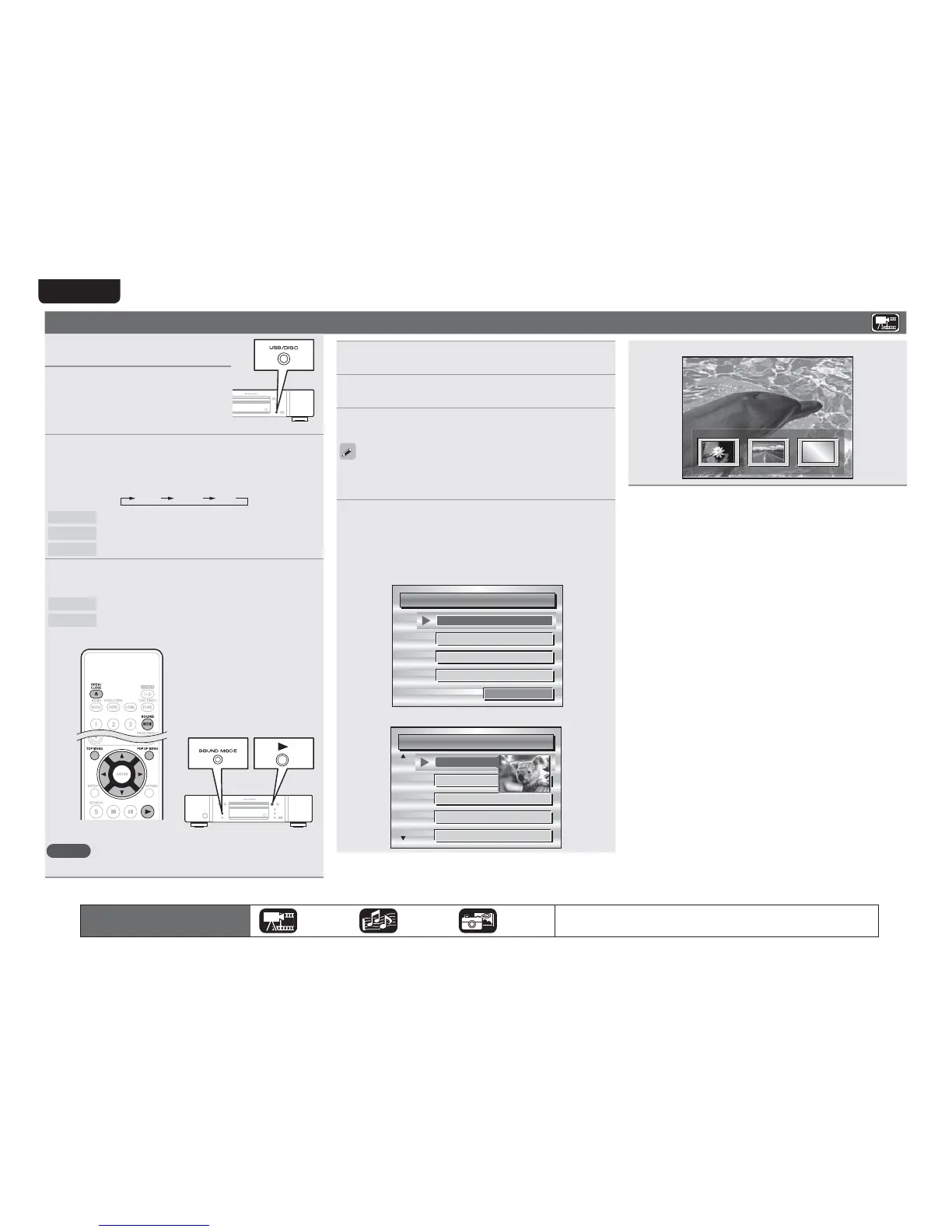
1
Turn onthe power of the unit.
2
Press
USB/DISC
on the unit to
select “DISC MODE”.
3
Select “BD ” with SOUND MODE.
tThe Media changes each time SOUND MODE is pressed for 2
seconds.
Multi Video BD
Multi
Super Audio CD
Video
DVD-Audio
BD Hybrid BD
4
Select “BD layer” or “DVD layer” for SOUND
MODE
for playback of a hybrid BD disc (vpage 47).
BD
Plays the BD layer of the BD hybrid Disc.
DVD Plays the DVD layer of the BD hybrid Disc.
tThe above setting is necessary only for BD hybrid discs.
NOTE
Select the disc layer before a disc is inserted.
5
Insert a disc.
Press 5 to open/close the disc tray.
6
Press 1 .
Playback begins.
7
During DVD-Video playback, press TOP MENU or
POP UP MENU to display the menu.
tIf the menu continues, press uio p to get to the next part.
tWith BD, depending on the disc, you can select title and chapter
from the pop up menu.
8
Make the settings shown below on the disc menu.
tSubtitle language
tAudio language
tAudio format etc.
GExampleH
n Disc menu
DiscMenus
AudioSetup
Angle
SubStory
TopMenu
Subtitle
n Top menu
Title1 Topmenu
Chapter3
Chapter4
Chapter5
Chapter6
Chapter2
n Pop up menu
Popupmenu
Title1 Title2 Bonustitle
Ifyouhaveso
methingtosa
y,seethispict
urebeforeyou
n Pausing (vpage17)
n Stopping (vpage17)
n Skipping to a desired chapter/track/fi le (vpage17)
n Fast-forward/fast-reverse (vpage17)
n Finding specifi c sections with search modes (vpage18)
n Memorizing locations to replay (Marker function)
(vpage18)
n Playing repeatedly (Repeat playback) (vpage19)
n Playing repeatedly between specifi ed points (A-B repeat)
(vpage19)
n Playing images frame by frame (vpage19)
n Slow-forward/slow-reverse (vpage19)
n Switching primary audio (vpage19)
n Changing the primary subtitle (vpage20)
n Switching the angle (vpage20)
The icons show the category of
content applicable to each operation.
Video Audio Photo
For details of the media corresponding to each icon, see “Playable Media”
(vpage45).


 To Next Page