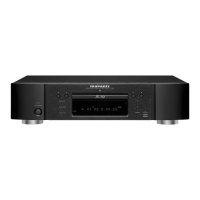
How do I enable interactive audio output on my Marantz UD7006 Blu-ray Player?
- CcrystalcoxSep 15, 2025
If interactive audio is not output from your Marantz Blu-ray Player, set “BD Audio Mode” to “Mix Audio Output” using the Mode setting menu.
How do I enable interactive audio output on my Marantz UD7006 Blu-ray Player?
If interactive audio is not output from your Marantz Blu-ray Player, set “BD Audio Mode” to “Mix Audio Output” using the Mode setting menu.
How to reset forgotten rating password on Marantz CD Player?
To reset the forgotten password for the rating level on your Marantz CD Player, perform the “System” – “Initialize” procedure on the GUI menu.
How to fix a Marantz UD7006 when the power does not turn on?
First, make sure the power cord of your Marantz Blu-ray Player is properly connected to both the player and the power outlet. If it is, the safety protection device may have been activated. Unplug the power cord, wait 5-10 seconds, and then plug it back in.
What to do if my Marantz UD7006 Blu-ray Player won't read a playable disc?
If a playable disc is not being read by your Marantz Blu-ray Player, the pickup lens may be dirty. Before requesting servicing, try cleaning the laser pickup with a commercially available lens cleaner.
How do I fix multi-channel audio output on my Marantz UD7006?
If multi-channel audio is not output from your Marantz Blu-ray Player, and multi-channel audio is supported by a disc, press AUDIO on the remote control to switch to multi-channel audio. Also, check if the unit is connected to the multi-channel audio input terminal of the AV receiver. If it is connected, perform settings that match with the connected speakers using the “Speaker Setting” – “Configuration” on the GUI menu.
Why no picture appears on my Marantz CD Player?
If your Marantz CD Player is not displaying a picture, try these steps: * Ensure the TV's input setting is switched to the external input connected to the player. * If the Pure Direct function is set to “Pure Direct 1” or “Pure Direct 2”, set it to “Off”. * Check the connection of the video/component video cable. * If it is set to “24p Output On” by pressing HDMI MODE on the remote control, no video signals are output from the video and component video terminals during playback of certain discs. * Ensure the setting of resolution matches the connected device’s resolution. You can set it by pressing RESOLUTION on the remote control. * Make sure the video cable is securely connected. * Note that DVI connection does not support HDCP and the video is not output correctly, if the...
Why does the picture freeze on my Marantz UD7006 Blu-ray Player?
If the picture freezes momentarily during playback on your Marantz Blu-ray Player, clean the disc or replace it with a non-scratched disc if it is scratched or contaminated with fingerprints. There may also be a problem with the data recorded on the disc.
How to troubleshoot network connection issues on a Marantz UD7006?
If your Marantz Blu-ray Player cannot connect to the network, ensure the LAN cable is connected correctly. Verify that the IP address is correct in the network settings. Also, check if the connection is being blocked by a firewall and allow communication with the unit.
Why does my Marantz UD7006 Blu-ray Player have no picture?
If no picture appears on your TV when using the Marantz Blu-ray Player, first ensure that your TV's input setting is switched to the external input connected to the player. Check the connection of the video/component video cable to ensure it is secure. Also, verify that the Pure Direct function is set to “Off”. Finally, make sure that the resolution setting on the Blu-ray player matches the connected device’s resolution.
Why does the picture freeze on my Marantz CD Player?
If the picture on your Marantz CD Player freezes momentarily during playback, clean the disc or replace it with a non-scratched disc.
Lists 15 essential safety guidelines for operating the unit to prevent hazards.
Details compliance with FCC rules for US customers and Canadian ICES-003.
Provides warnings about temperature, handling, moisture, and ventilation.
Advises on proper placement for heat dispersion and ventilation.
Lists items supplied with the product, including the User Guide, power cord, and cables.
Explains symbols and conventions used in the manual for easier navigation and understanding.
Highlights key capabilities like universal playback, network support, 3D video, and high-fidelity audio.
Details how to connect the unit to TVs, AV receivers, and audio systems using various cables.
Explains how to play discs, navigate menus, and use basic playback controls.
Covers fundamental settings for display brightness, audio quality, and HDMI control functions.
Guides on connecting to USB memory devices and networks for file playback.
Describes playback of files from USB/network sources and operating the Home menu.
Explains configuration of system, video, audio, and network settings via the GUI menu.
Identifies and explains front panel buttons, rear panel connectors, and display indicators.
Lists playable discs, file formats, USB device compatibility, and region codes.
Provides details on digital audio output, copyright protection, and trademarks.
Offers solutions to common operational problems with audio, video, USB, network, and playback.
Alphabetical listing of topics and their corresponding page numbers for quick reference.
Lists 15 essential safety guidelines for operating the unit to prevent hazards.
Details compliance with FCC rules for US customers and Canadian ICES-003.
Provides warnings about temperature, handling, moisture, and ventilation.
Advises on proper placement for heat dispersion and ventilation.
Lists items supplied with the product, including the User Guide, power cord, and cables.
Explains symbols and conventions used in the manual for easier navigation and understanding.
Highlights key capabilities like universal playback, network support, 3D video, and high-fidelity audio.
Details how to connect the unit to TVs, AV receivers, and audio systems using various cables.
Explains how to play discs, navigate menus, and use basic playback controls.
Covers fundamental settings for display brightness, audio quality, and HDMI control functions.
Guides on connecting to USB memory devices and networks for file playback.
Describes playback of files from USB/network sources and operating the Home menu.
Explains configuration of system, video, audio, and network settings via the GUI menu.
Identifies and explains front panel buttons, rear panel connectors, and display indicators.
Lists playable discs, file formats, USB device compatibility, and region codes.
Provides details on digital audio output, copyright protection, and trademarks.
Offers solutions to common operational problems with audio, video, USB, network, and playback.
Alphabetical listing of topics and their corresponding page numbers for quick reference.
| 3D | Yes |
|---|---|
| Depth | 331 mm |
| Width | 440 mm |
| Height | 107 mm |
| Weight | 5100 g |
| Device type | Blu-Ray player |
| HDMI version | 1.4a |
| Product color | Gold, Silver |
| Audio decoders | Dolby Digital, Dolby Digital Plus, Dolby TrueHD, DTS, DTS 96/24, DTS-HD |
| Audio (L/R) out | 5 |
| Cables included | AC |
| Internal memory | 1024 MB |
| Blu-ray region code | A |
| Disc types supported | BD, BD-ROM, CD, CD-R, CD-RW, DVD, DVD+RW, DVD-R, DVD-RW |
| Dynamic range (1kHz) | 105 dB |
| Playback disc formats | Blu-Ray video, CD audio, SACD |
| Supported video modes | 1080p |
| Card reader integrated | No |
| USB 2.0 ports quantity | 1 |
| Audio formats supported | AAC, FLAC, MP3, WAV, WMA |
| Image formats supported | JPG |
| Video formats supported | AVCHD, DIVX, H.264, MPEG, WMV |
| Digital audio optical out | 0 |
| Power consumption (standby) | 0.3 W |
| Power consumption (typical) | 40 W |
| Signal-to-Noise Ratio (SNR) | 120 dB |
| Smart TV | - |
| Network streaming services supported | Netflix, YouTube |
| Audio output channels | 7.1 channels |