21
Advanced versionSimple version Information
Basic version
3
(QWHUVHDUFKFRQGLWLRQV RU PDNH
VHWWLQJV RQ WKH VHDUFK PRGH
VHWWLQJEDU
Once an entry is finalized, it searches for
the specified location.
0 – 9, +10 ·································· Number entry
ui ······················································Select
ENTER ·············································· Playback
CLEAR ···················································· Clear
• Entering numbers
To enter 3 ················································
3, ENTER
z
To enter 26 ···················· 2, 6, ENTER
z
or +10, +10, 6
To enter 138 ···································· 1, 3, 8, ENTER
z
z Depending on number of recorded songs or chapters, you may
not need to use
ENTER.
• Time search works with title and chapters playback time.
• When an input is not correct, press
CLEAR. The previous status is
retrieved.
GSearch mode-compatible media and filesH
Contents
Search mode
Title search
S
Chapter search
S
Title Time search
SS
Chapter Time search
S
NOTE
• The search modes do not operate during
program or random playback. Use
8,
9 to cue.
• Search modes may not operate with some
discs.
• When the entry mode for title/chapter/title time/chapter time search
continues for about 5 seconds with no operation, it is cancelled.
• When the power is set to standby or the disc is removed, the set
marker is deleted.
Memorizing locations to replay
(Marker function)
You can attach a marker to a location you want to view or hear again,
so that playback begins at that location.
1
3UHVV
SEARCH
WRVHOHFWD0DUNHU
VHDUFK
The Marker search mode setting bar is
displayed at the top of the screen.
5JUMF $IBQUFS 5JNF
2
3UHVV ENTERGXULQJSOD\EDFN
• The location is registered for the selected marker number.
• The marker numbers “01” to “12” are registered in this order.
• The registered number is displayed in white letters.
• The elapsed playing time at the set location is displayed.
5JUMF $IBQUFS 5JNF
To play back memorized
locations
Use o p to select the marker number, then
press
ENTER.
To erase markers
Each time CLEAR is pressed, the marker
number is erased from up to date registered.
• Subtitles may not appear depending on the locations you have
memorized.
• The markers you have set will be erased if you turn the power to
standby or eject the disc.
• The marker function does not operate across titles and groups.
• Marker search can only be performed during playback.
• The marker function does not work depending on the disc.
Operations enabled during playback
The icons show the category of
content applicable to each operation.
Video Audio Photo
For details of the media corresponding to each icon, see “Playable media”
(vpage48).
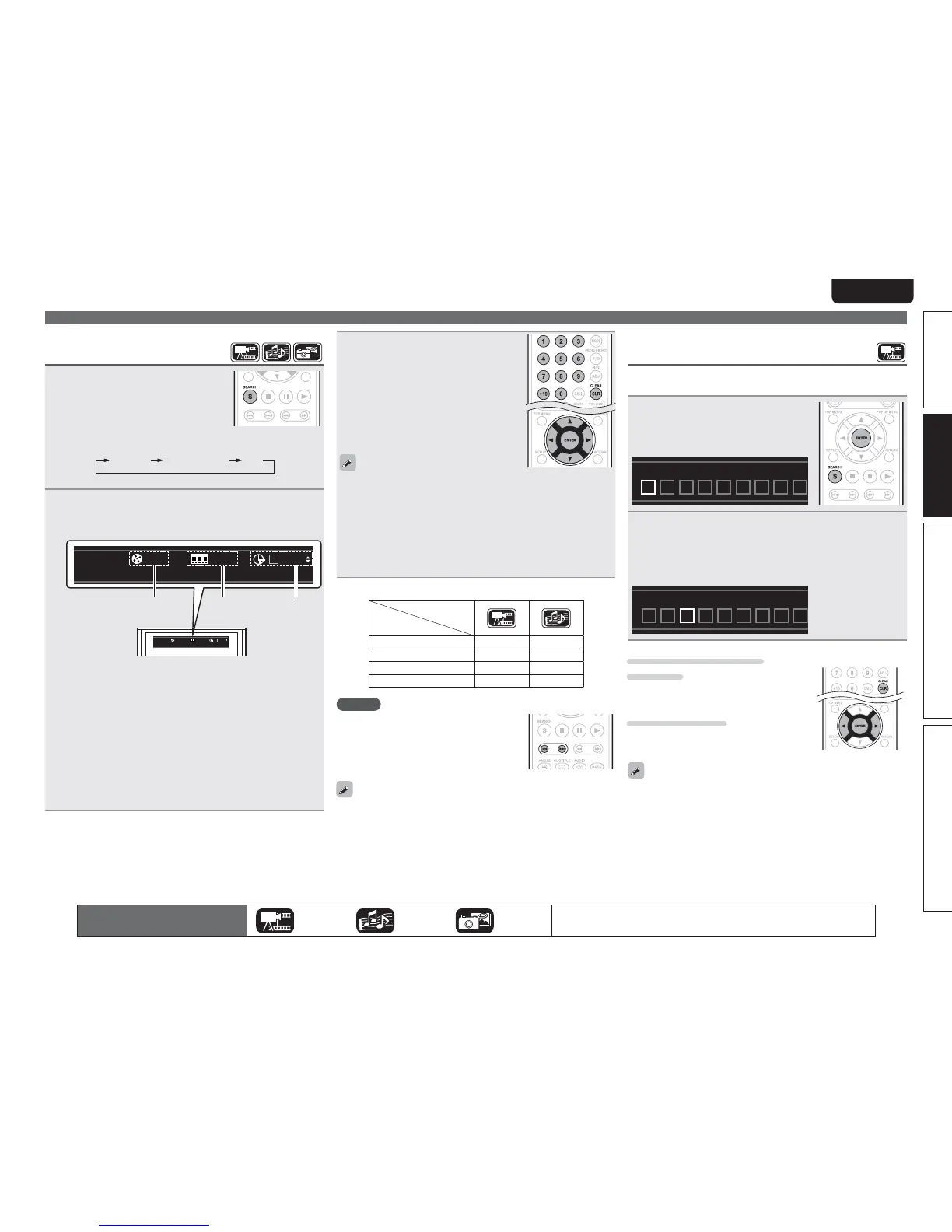
Finding specific sections
with search modes
1
3UHVV
SEARCH
WRVHOHFWDVHDUFK
The search mode setting bar is
displayed at the top of the screen.
• The search mode changes each time the button is pressed.
Search Marker Search Off
2
0RYH WKH EOXH FXUVRU DWWKH XSSHUSDUW RI WKH VFUHHQ
WRWKHPRGHWREHVHDUFKHGIRUXVLQJ
o
p
WKHQSUHVV
ENTER
w req
q Title/Group search display
w Chapter/Track search display
• Enter the time, using the number buttons or
o
p
, then
press
ENTER
.
• The playback of the designated part begins.
e Title Time search display
r Chapter Time search display
• Select “Title Time search“ or “Chapter Time search“,
using
ui
, then press
ENTER
.
• Then enter the time using the number buttons or
o
p
,
then press
ENTER
.
• The playback of the designated part begins.


 To Next Page