24
Changing the brightness of the display
(Dimmer control)
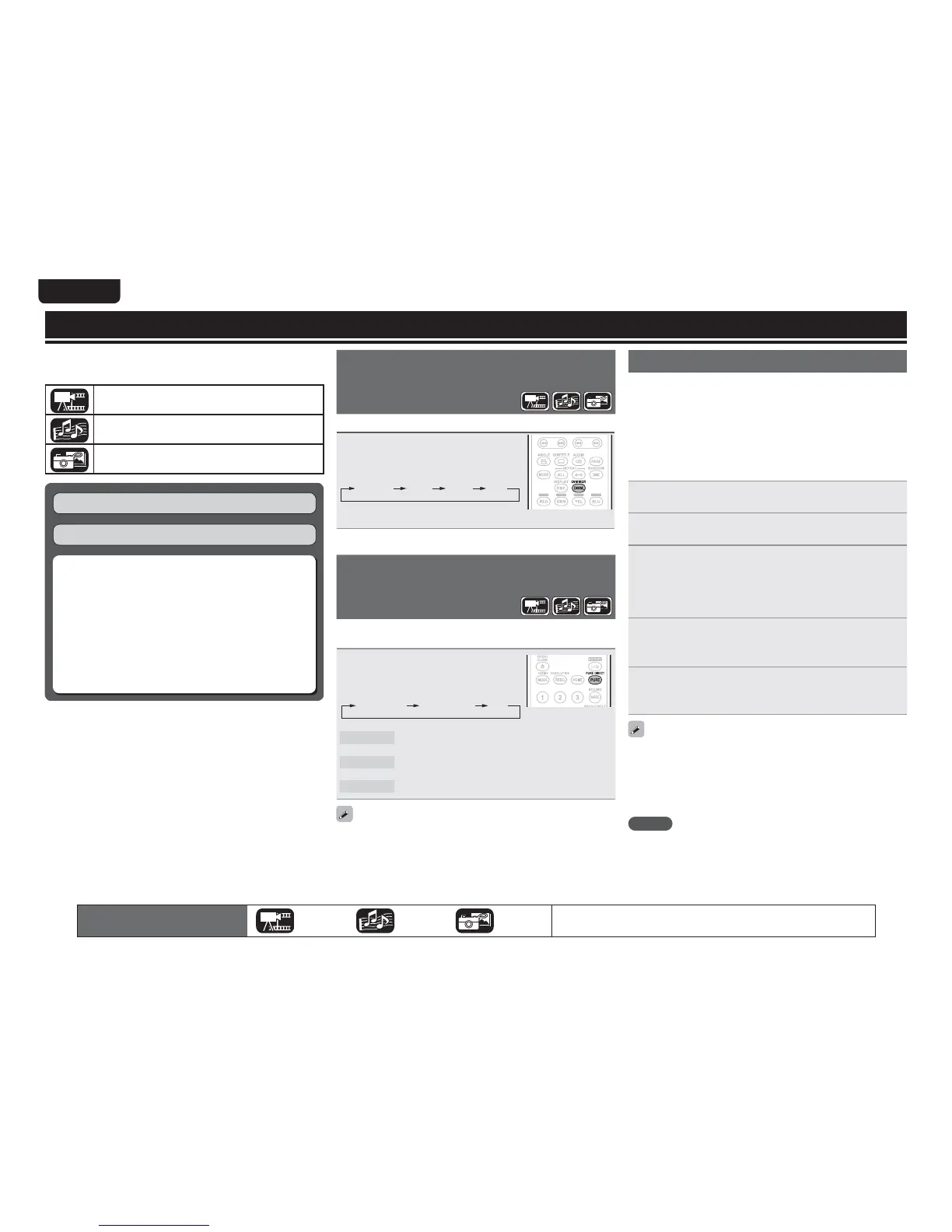
The brightness of the display can be changed.
3UHVVDIMMER
• The brightness changes each time the
button is pressed.
Normal DarkDim Off
• When the dimmer is set to off, the FL OFF indicator lights red.
Playing high-quality audio
(Pure direct function)
This enables you to play high quality audio by stopping the video
signal, etc., output, and outputting the analog audio signal only.
3UHVV
PURE DIRECT
ZKLOHVWRSSHG
• The Pure Direct mode changes each time
the button is pressed.
Pure Direct1 Pure Direct2 Off
Pure Direct 1
This turns off the digital audio output, video output,
and display. And the FL OFF indicator lights red.
Pure Direct 2
This turns off the digital audio output and video
output.
Off This turns off the pure direct function.
• You cannot use PURE DIRECT while the GUI menu is displayed.
• The pure direct setting returns to “Off” when the unit is put in
standby mode.
Basic settings
This section describes the setting operations for basic settings
available with the remote control.
The icons show the category of content applicable to each operation.
Video : Blu-ray Disc, DVD-Video, DivX plus HD,
MPEG, AVI, WMV, AVCHD
Audio : Super Audio CD, CD, DVD-Audio, MP3,
WMA, AAC, LPCM
Photo : JPEG
Basic connections (vpage10)
Playback (Basic operation) (vpage16)
n Changing the brightness of the display
(Dimmer control) (vpage24)
n Playing high-quality audio
(Pure direct function) (vpage24)
n HDMI control functions (vpage24)
n Video resolution (vpage25)
n Adjusting the picture quality (Picture control)
(vpage26)
n Mode setting (vpage27)
HDMI control functions
When you make HDMI connections with a TV or AV receiver
compatible with this unit and HDMI control functions, you can perform
the following operations by setting up the HDMI control functions of
each device.
• TV or AV receiver power is turned on by operating the unit and
functions change with this unit input.
• Turning off the TV’s power turns the unit’s power to standby.
• Operating the unit via the TV’s remote control.
(When the TV’s remote control has player operation buttons)
1
6HWWKH+'0,FRQWUROIXQFWLRQWR³2Q´
GUI menu “System” – “HDMI Control” (vpage37).
2
7XUQRQDOOWKHHTXLSPHQWFRQQHFWHGE\+'0,FDEOH
3
6HW WKH +'0, FRQWURO IXQFWLRQ IRU DOO HTXLSPHQW
FRQQHFWHGE\+'0,FDEOH
• Please refer to the user guides of connected devices for how to
make settings.
• Carry out steps 2 and 3 if any of the equipment was unplugged.
4
7R HQVXUH WKDW WKH XQLW¶V +'0, YLGHR RXWSXW LV
SURMHFWHGRQWKH79VFUHHQFKDQJHWKHLQSXWIXQFWLRQ
RIWKH79DQG$9UHFHLYHU
5
:KHQ \RX WXUQ WKH 79¶V SRZHU WR VWDQGE\ FKHFN
WKDWWKHSRZHURIWKHXQLWDQG$9UHFHLYHUDOVRJRHV
RQVWDQGE\
If the HDMI control function does not operate properly, check the
following points.
• Is the TV or AV receiver compatible with the HDMI control function?
• Are the HDMI control function settings of all equipment correct?
(Step 3)
• After setting, did you add another HDMI device connection or make
any changes in the connections? If so make the settings again.
NOTE
• Some functions may not operate depending on the connected TV
or AV receiver. Check the user guide of each device for details
beforehand.
• When “HDMI Power Off Control” (vpage37) is set to “Off”, the
unit does not go to standby even if the connected device is in the
standby mode.
The icons show the category of
content applicable to each operation.
Video Audio Photo
For details of the media corresponding to each icon, see “Playable media”
(vpage48).


 To Next Page