19
Advanced versionSimple version Information
ENGLISH
Basic version
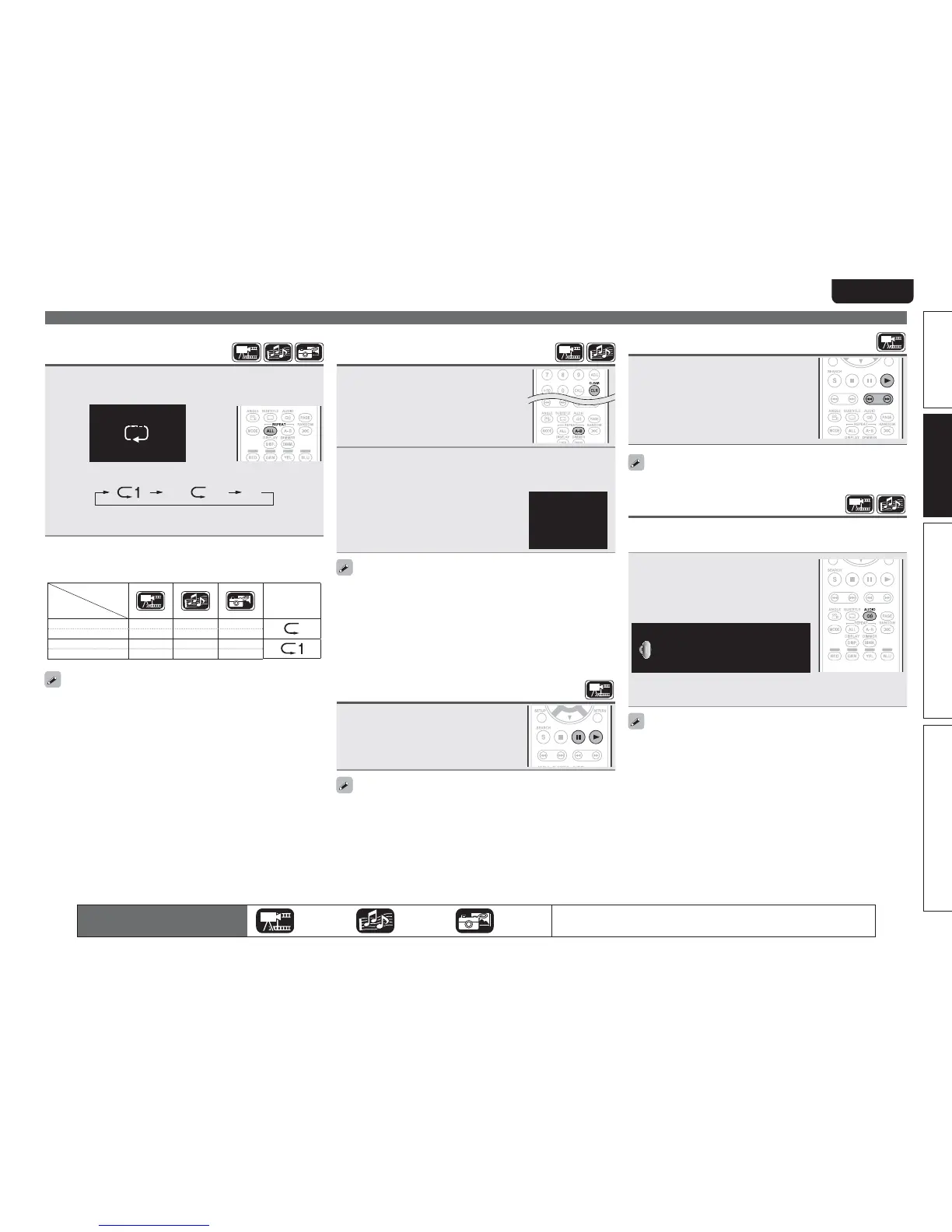
Playing repeatedly
(Repeat playback)
Press
ALL
during playback.
The repeat mode icon is displayed at the top of the screen.
$)$)
tThe repeat mode changes each time the button is pressed.
Off
tTo resume normal playback, press ALL, and select “Repeat Off”.
GAbout repeat modesH
The available repeat modes vary depending on the disc or file you
are playing.
Contents
Mode
Display
Title repeat
S
All repeat
SS
Chapter repeat
S
Track repeat
SS
tSome repeat modes may not be accessible depending on some
discs.
tWith some discs, even when set to repeat playback, the disc may
not return to the start of title or chapter, and may advance to the
next scene.
tRepeat playback is not available during A-B repeat playback.
Playing repeatedly between
specified points (A-B repeat)
1
During playback, press
A – B
at
the desired starting point (A).
The “A–” indicator will light on the
display.
tTo cancel the starting point (A), press
CLEAR.
2
Press
A – B
again at the desired ending point (B).
The “B” indicator will light on the display, and A-B repeat
playback will start.
tThe A-B repeat mode icon is displayed on
the top of the screen.
tTo resume normal playback, press
A – B,
and select “Repeat Off”.
"#
tYou cannot skip a title/file with A-B repeat.
tIf you perform a search operation during A-B repeat playback, A-B
repeat playback is cancelled.
tA-B repeat playback may not be available with some scenes.
tA-B repeat playback is not available during repeat playback.
tA-B repeat playback may not be available with some DivX
®
files.
tA-B repeat playback is not available with BD-J (Blu-ray Disc Java)
compatible discs.
Playing images frame by frame
Press 3 while paused.
The disc advances frame by frame each time
the button is pressed.
tResume normal playback by pressing
1.
Frame by frame reverse playback is not available with the unit.
Slow-forward/slow-reverse
Press 6 or7 while paused.
The speed changes in the sequence of 1/16,
1/8, 1/4, 1/2, and normal speed each time the
button is pressed.
tResume normal playback by pressing
1.
Audio is not output during slow-forward/slow-reverse playback.
Switching primary audio
With discs and files that have multiple audio track recording, you can
change the audio during playback.
Press AUDIO during playback.
tThe audio number currently being played is
displayed.
tEach time
AUDIO is pressed, the audio
supported by a disc is changed.
&OHMJTI %54)%."
tIf multiple audio items are recorded, the current audio number/
number of recorded audio items is displayed.
tDepending on the disc, audio switching may be restricted to
operation of the disc menu. In this case, switch the audio on the
disc menu.
tWith a DivX
®
file, “MP3” or “Dolby Digital” audio formats and the
number of recorded audio modes are displayed. “– – –“ appears for
audio other than these.
tWith DTS-CD (5.1 music disc), you cannot switch audio modes.
Operations enabled during playback
The icons show the category of
content applicable to each operation.
Video Audio Photo
For details of the media corresponding to each icon, see “Playable Media”
(vpage45).


 To Next Page