29
Basic versionSimple version Information
ENGLISH
Advanced version
3
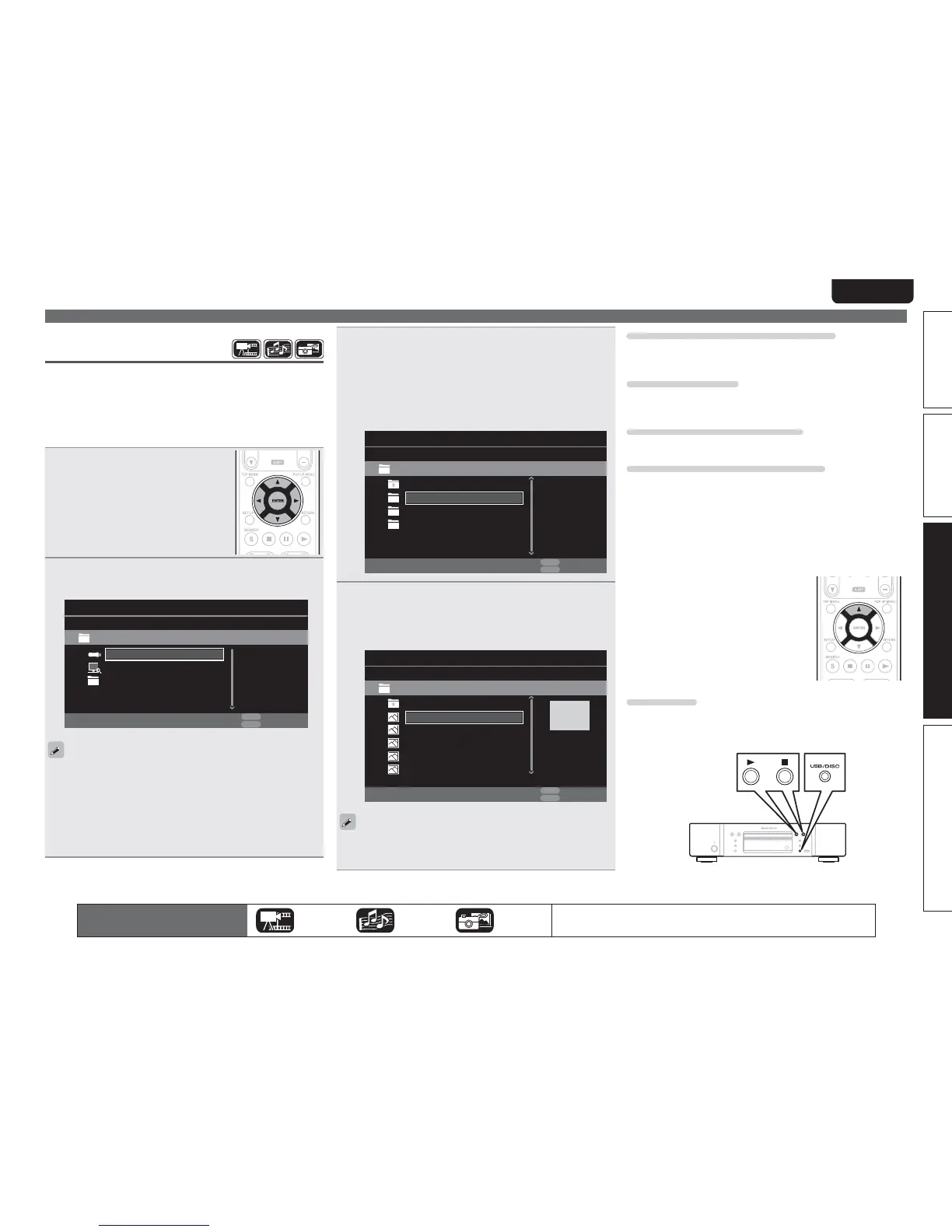
Select a folder to be played with uio, then press
ENTER
.
tFolders classified by file type are listed on the menu screen.
tFiles are classified as follows:
tVideo : DivX,MPEG,AVI,WMV
tMusic : MP3,WMA,AAC,LPCM
tPhoto : JPEG
Here, “Photo“ is selected as an example.
1IPUP
*UFN
.FEJB1MBZFS
.VTJD
64#
5ZQF'PMEFS
7JEFP
10161
&EJU.FOV
3&563/
&YJU
4
with
uio, then press
ENTER
.
Playback begins.
tA slide show begins and still images are switched at 1-10
second intervals.
5ZQF+QH
4J[F.
3FTPMVUJPO
$JUZ
*UFN
.FEJB1MBZFS
$JUZ
64#1IPUP#JH$JUZ
$JUZ
10161
&EJU.FOV
3&563/
&YJU
$JUZ
$JUZ
tWith a large image file, the image may display for longer than the
set time.
tFor the file types that can be played, see “Files” (vpage46).
The icons show the category of
content applicable to each operation.
Video Audio Photo
For details of the media corresponding to each icon, see “Playable Media”
(vpage45).
Changing the still image being played
Press 8, 9.
tBefore playback or display of next image.
Pausing the display
Press 3.
tTo cancel pause, press
1.
Changing interval of slide show
Press 6, 7.
Changing the still image orientation
Press uio p.
u ························································· Invert
i ························································ Mirror
o ·············································· Contrarotate
p ······································· Rotate clockwise
n Change the media for playback of a file
When the source of a file for playback is
changed to another media, press
uto return
to step 2 and select the media to be played.
DISC MODE
If the source of a file to be played is changed from the USB media
player or server to a disc, you can also change the media with the
procedures below.
Home menu screen
Playing files
(MEDIA PLAYER)
Files on a USB memory device, disc or a server connected to the unit
are played using the Media Player of the unit.
tBefore operation, start the server software of the computer
(Windows Media Player, etc.), and make settings for the server
contents so that files can be played via the network.
tFor details, refer to the operation manual supplied with the server
software.
1
Select “Media Player” on the
Home menu screen with
uio
p, then press
ENTER
.
Devices connected to the unit are listed
on the menu screen of Media Player.
2
with
ui then press
ENTER
.
64#
*UFN
.FEJB1MBZFS
%-/"4FBSDI
5ZQF64#
4J[F.
'4'"5
10161
&EJU.FOV
3&563/
&YJU
1MBZMJTU
tIf the server connected to the unit is not displayed on the menu
screen of Media Player, select “DLNA Search“ on the screen with
ui, then press ENTER to search for the server.
tIf the server is not displayed as a result of searching, check the
connection of the server to the unit once again.
tIf you perform such operations as adding or deleting a file on the
connected DLNA server, information of the DLNA server may not
be displayed. If this happens, turn off and on the unit’s power again.


 To Next Page