Need help?
Do you have a question about the marklin Central Station 3 and is the answer not in the manual?
Instructions for connecting the CS3 to the model railroad layout, emphasizing correct polarity.
Guidelines for connecting the programming track, ensuring isolation from the main layout.
Option to select the user interface language for the Central Station 3.
A guide to the CS3's introductory assistant for basic operation steps.
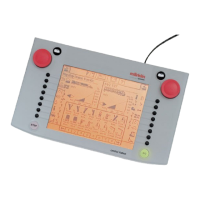
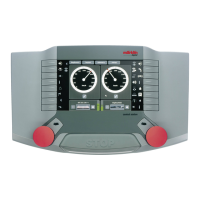
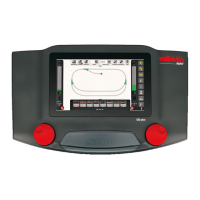
Explains the large display, touchscreen, track diagram, and locomotive controllers.
Details all available ports for peripherals, network, and power supply.
Covers tapping, wiping, dragging, and zooming gestures for operating the device.
Step-by-step process for automatically registering mfx locomotives with the CS3.
Accessing and manipulating locomotive and item lists via simple gestures.
How to select, run, control speed, and activate functions for locomotives.
Explains the central STOP button for emergency shutdown and its operation.
Guide for transferring data from a Central Station 2 to the CS3 using a USB stick.
Instructions for updating the CS3 operating software via USB or network connection.
Description of the CS3's advanced features, touchscreen interface, and ease of use.
Highlights the hardware distinctions between the CS3 plus and the standard CS3 models.
Essential safety information, including warnings for children and cleaning instructions.
Details technical data, limitations, and a comprehensive list of available device connections.
Overview of the locomotive list and how to access individual locomotive functions.
Visual representation of the speed control interface within the CS3 locomotive controller.
Step-by-step guide for automatically registering mfx locomotives into the CS3 list.
How to select and load locomotives into the active locomotive controller from the list.
Adjusting locomotive speed, activating functions, and managing direction.
Using the emergency stop button and managing locomotive control states.
How to view and filter the locomotive list by propulsion type.
Using the search function to find locomotives by name or partial name.
Options for sorting the locomotive list by name, type, history, or maximum speed.
Searching for locomotives within the CS3's database using item number or name.
Associating images from the database with locomotive entries.
Adding locomotive details manually when they are not found in the database.
Activating the editing mode to modify locomotive settings.
Changing main data, acceleration/braking, speed, and volume for locomotives.
Operations for reading data from and writing data to locomotive cards.
Retrieving the address directly from MM and DCC locomotive decoders.
How to assign specific functions (light, sound, mechanical) and test them.
Choosing between switching, impulse, or run-time operation for functions.
Setting the operational mode for mfx+ decoders, including consumption simulation.
Directly modifying configuration variables (CVs) for locomotive decoders.
Saving and loading CV templates for efficient decoder configuration management.
Overview of detailed settings available for mfx locomotives in the configuration tab.
Steps to combine multiple locomotives into a double or multiple unit configuration.
Instructions for directly controlling locomotives using their address and selected protocol.
Using a specific function to find mfx locomotives that are no longer visible in the list.
Displays the item list, showing various solenoid items like turnouts, signals, and lights.
Steps for adding new items and deleting existing ones from the item list.
Creating new Track Diagram Control Board (TDCB) sections for the layout display.
Process for adding turnouts to the item list and placing them on the track diagram.
Setting up signals by naming, selecting type, decoder, and protocol.
Quickly adding light items, configuring name, address, type, and switching duration.
Adding turntables to the item list and configuring their specific settings.
General procedure for adding various miscellaneous items to the item list.
Configuring S88 contacts, including device, bus, module, and contact number.
Connecting feedback modules via Link S88, including bus and module entry methods.
Using the L88 module for button matrices in track diagram control screens.
Performing live searches for solenoid items directly on the keypad.
Function to find mfx items that may have disappeared from the item list.
Sorting the item list by address, name, or item type.
Visual overview of the track diagram control screen showing various track items and elements.
Creating new track diagram panels, deleting them, and resizing them.
Pulling solenoid items from the list and positioning them onto the created track diagram panel.
Repositioning items on the track diagram panel after initial placement.
Rotating solenoid items on the track diagram panel to achieve desired alignments.
Adding non-functional track elements like bumpers, tunnels, and bridges to the diagram.
Linking track items by connecting docking positions using the connection mode feature.
Specific steps for connecting turnouts, track path items, and bumpers.
Placing and orienting signals accurately on the track diagram.
Connecting turnouts and track path items to complete the track diagram layout.
Steps to exit the editing mode and turn off track items in the diagram.
Using view options to filter and display specific item categories on the track diagram.
Switching between and managing multiple active track diagram panels.
Methods for selecting individual, multiple items, or defining areas on the track diagram.
Defining named areas on the track diagram for organization and selection.
Transferring selected items or areas to different track diagram panels.
Activating turnouts and signals directly from the track diagram control screen.
Overview of the interface for creating and editing events, procedures, and routes.
Creating and automating routes and locomotive procedures using the event system.
Adding locomotives and sound files to procedures for enhanced automation.
Assembling routes step-by-step using drag-and-drop functionality.
Modifying speed settings and time delays for events and procedures for precise timing.
Recording and replaying procedures for automated operation, similar to a video recorder.
Incorporating text descriptions for trains running on a schedule.
Easily creating turnout arrangements and routes by dragging items into the timeline.
Programming specific locomotive functions and procedures using the CS3 interface.
Activating routes and procedures based on feedback contact signals for automation.
Linking multiple routes and procedures with qualified execution for complex automation scenarios.
Introduction to the system settings menu and its main sections for device configuration.
Navigating to the system settings startup page to access various configurations.
Viewing and accessing settings for all connected network components like boosters and terminals.
Accessing core CS3 functions such as saving, restoring, restarting, language, and update settings.
Configuring track settings and automatic assignment for protocols like mfx, mm2, and dcc.
Setting up IP addresses and network configurations for CS3 connectivity and router integration.
Setting up master and slave devices for multi-CS3 system configurations.
Displaying hardware/software versions, serial number, and legal information.
Managing connected USB devices, including naming and safe ejection.
Connecting and integrating other Märklin control units like CS2 with the CS3.
Adjusting booster settings, query intervals, and transformer assignments.
Adding and configuring Connect 6021 control units and adapters with the CS3.
Removing saved settings for devices no longer connected to the CS3.
Installing CS3 software updates using a USB stick.
Using the web interface to import custom locomotive images into the CS3 database.
Recommendations for regularly backing up CS3 data to prevent data loss.
Using an SD card to increase the CS3's internal memory capacity.
Pictograms representing various light functions available for locomotives.
Pictograms representing sound functions like horns, whistles, and engine sounds.
Pictograms for mechanical functions such as blowers, cranes, and pantographs.
Schematic showing how CS3 and CS3 plus connect with boosters, terminals, and other devices.
Illustrates connections via WLAN routers and network interfaces for system integration.
Diagram illustrating the connections of the CS3 with boosters, terminals, and network devices.
Shows how the CS3 integrates with WLAN routers and other network elements.
 General
| Manufacturer | Märklin |
|---|---|
| Product Name | Central Station 3 |
| Product Number | 60216 |
| Display | Color LCD |
| Control | Touchscreen |
| Connections | USB, Ethernet |
| Sound | Yes |
| Locomotive Control | Yes |
| Update Capability | Yes, via USB or Ethernet |
| Control Interface | Touchscreen, buttons |

 To Next Page