Extreme 9" Monitor/DVR System© 2014 McNeilus Truck and Manufacturing, Inc.
12
OSD Main Menu Functions
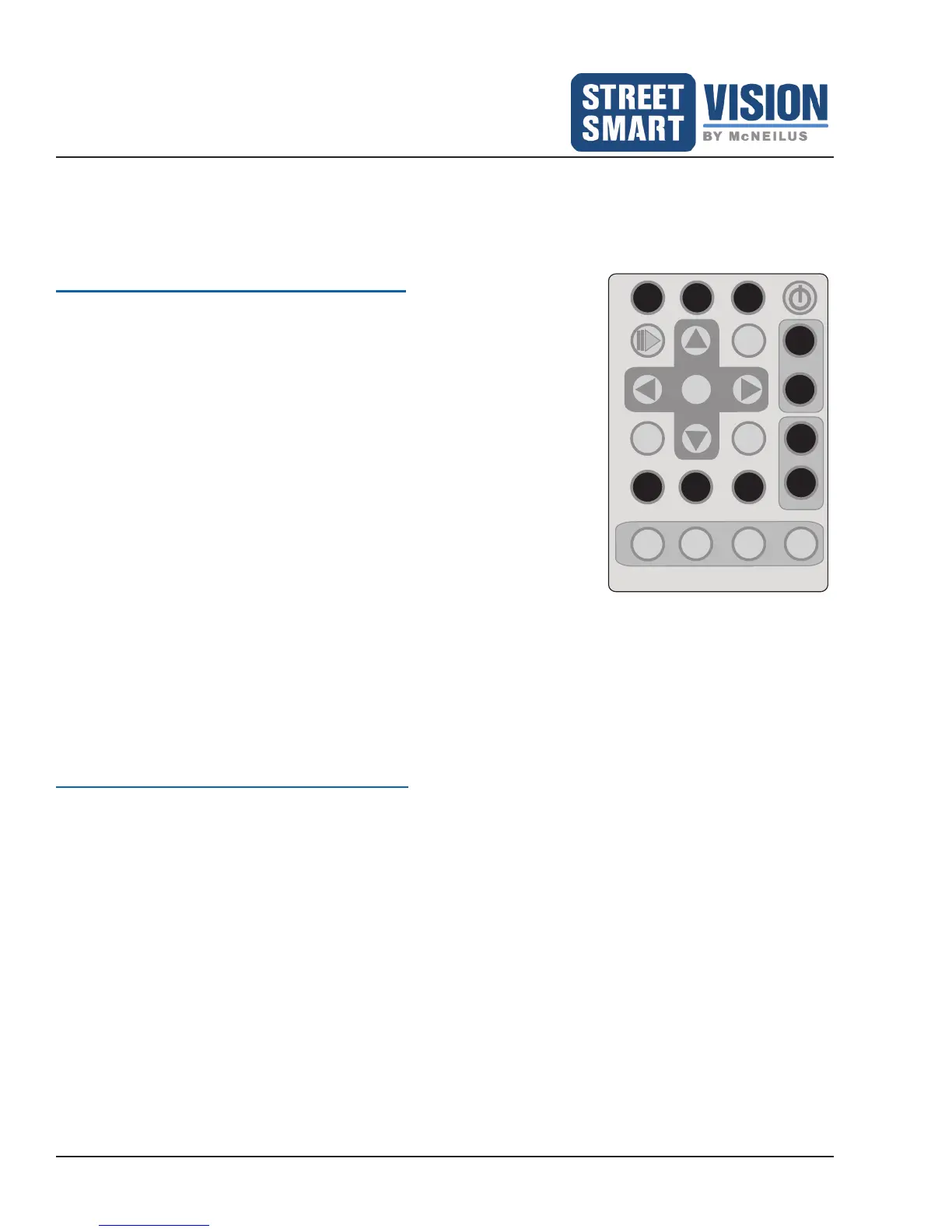
Remote Control for OSD Menu Functions
This system comes with a remote control.
• The remote control functions as a secondary operational tool when in the OSD or DVR menus (the
touchscreen is the primary operational tool for the menus)
Typically Used Remote Control Buttons
• Press MENU to display the OSD Menu
• Press DVR to see what is currently set for DVR
• Press MUTE to silence the speaker on the monitor
• Press SOURCE to page through all camera view combinations (A+B,
D(B+C), etc.) and to view DVR
• Press JUMP to “jump” or alternate views between Jump 1 camera
setup and Jump 2 camera setup. See Page 16 for set up of
Jump.
• Press VOL + to adjust the volume on the monitor’s speaker
• Press VOL ― to adjust the volume on the monitor’s speaker
• Press Up Arrow to navigate through the OSD menu
• Press Down Arrow to navigate through the OSD menu
• Press Stop/Return to exit the OSD menu
The following buttons on the Remote Control are not currently used for any applications.
• Pair
• Ch/Set
• Privacy
• VGA/QVGA
• CH+ or CH-
Access OSD Menu with Remote Control
When using the Remote Control,
• Press the MENU button to enter the OSD Main Menu. Do Not use the OSD button on the Remote Control.
• In the menu mode, navigate to a function by pressing the Up Arrow and Down Arrow buttons.
• Press ENTER to select a function when in the OSD Menu.
MUTE JUMPVIDEO
ENTER
MENU
CH
+
REC
CH
-
VOL +
VOL -
PAIR
SOURCE
OSD
DVR
STOP
RETURN
VGA
QVGA
PRIVACY
CH
SET


 To Next Page