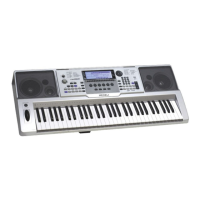
Need help?
Do you have a question about the Medeli A100 and is the answer not in the manual?
Details FCC compliance for digital devices and potential interference.
Provides essential safety guidelines for using the instrument.
Details the layout and functions of the keyboard's front panel controls.
Identifies and describes the ports and connectors on the rear of the instrument.
Explains the information displayed on the instrument's LCD screen.
Instructions for powering the instrument via batteries or AC adapter.
Guide on how to attach the included music stand.
How to connect headphones for private practice.
Instructions on connecting and using a sustain pedal.
Steps for connecting the instrument to a computer via USB.
Procedure for powering the keyboard on and off.
How to adjust the overall volume level using the slider.
Steps to select a user song before starting a recording.
How to begin recording your performance.
Methods for manually or automatically stopping a recording.
Playing back recorded user songs.
Instructions for erasing recorded user songs.
Procedure for choosing a specific voice from the available list.
How to layer two different voices for a richer sound.
Using the split keyboard function to play two voices.
Using styles for rhythm tracks without full accompaniment.
Activating full auto accompaniment using chord detection.
Overview of accompaniment parts: Intro, Main, Fill, Ending.
How to switch between different accompaniment patterns during playback.
Using fade-in and fade-out effects for styles.
Adjusting the volume balance between accompaniment and keyboard voices.
Explains how to play chords with the left hand for accompaniment.
How to adjust the tempo for styles and accompaniments.
Adjusting the overall pitch of the keyboard.
Setting the point to divide the keyboard into two sections.
Selecting the type of beat for rhythm patterns.
Configuring the function of the sustain pedal.
Choosing equalization presets for sound shaping.
Selecting different reverb effects for the sound.
Adjusting the intensity of the reverb effect.
Selecting different chorus effects for sound thickening.
Adjusting the intensity of the chorus effect.
Selecting automatic harmony effects to add to melodies.
Configuring MIDI input and output channels.
Setting the automatic shutdown timer for power saving.
Adjusting the pitch of the keyboard up or down by octaves.
Setting the keyboard's sensitivity to playing touch.
Using the built-in metronome for practice and timing.
Enabling the sustain effect for notes played.
Using the pitch bend wheel to alter note pitch.
Applying vibrato effects to the played notes.
Engaging Digital Signal Processing effects for sound enhancement.
Shifting the overall pitch of the keyboard.
Adding automatic harmony to melodies played.
Organizing panel settings into banks and memories.
Saving and recalling custom panel configurations.
Saving various instrument parameters to memory buttons.
How to select and play preset songs.
Features for controlling song playback, rewind, and repeat.
Interactive modes for learning songs with grading and practice.
Learn chord names and how to play them visually.
Test your chord playing accuracy against random chords.
Procedure to turn off the chord dictionary function.
Using the pedal to sustain notes like a piano.
Using the pedal to soften the played notes.
Using the pedal to recall register memory settings.
Using the pedal to start and stop accompaniment.
Explanation of MIDI and its capabilities for musical instruments.
Using the instrument as a tone generator or MIDI keyboard.
 General
| Number of Keys | 61 |
|---|---|
| Polyphony | 32 |
| Voices | 128 |
| Rhythms | 100 |
| Effects | Reverb, Chorus |
| Display | LCD |
| Connectivity | MIDI |
| Power Supply | AC Adapter / 6 x AA Batteries |

 To Next Page