page 22 of 73
• Shapes to cut – shows whether a selected shape is set to be cut or not. Inactive shapes are
displayed with dotted lines.
• Layers – only active when a drawing has been opened as a multi-layer one (see Multi-layer
drawings).
Opening a drawing
Opening a drawing
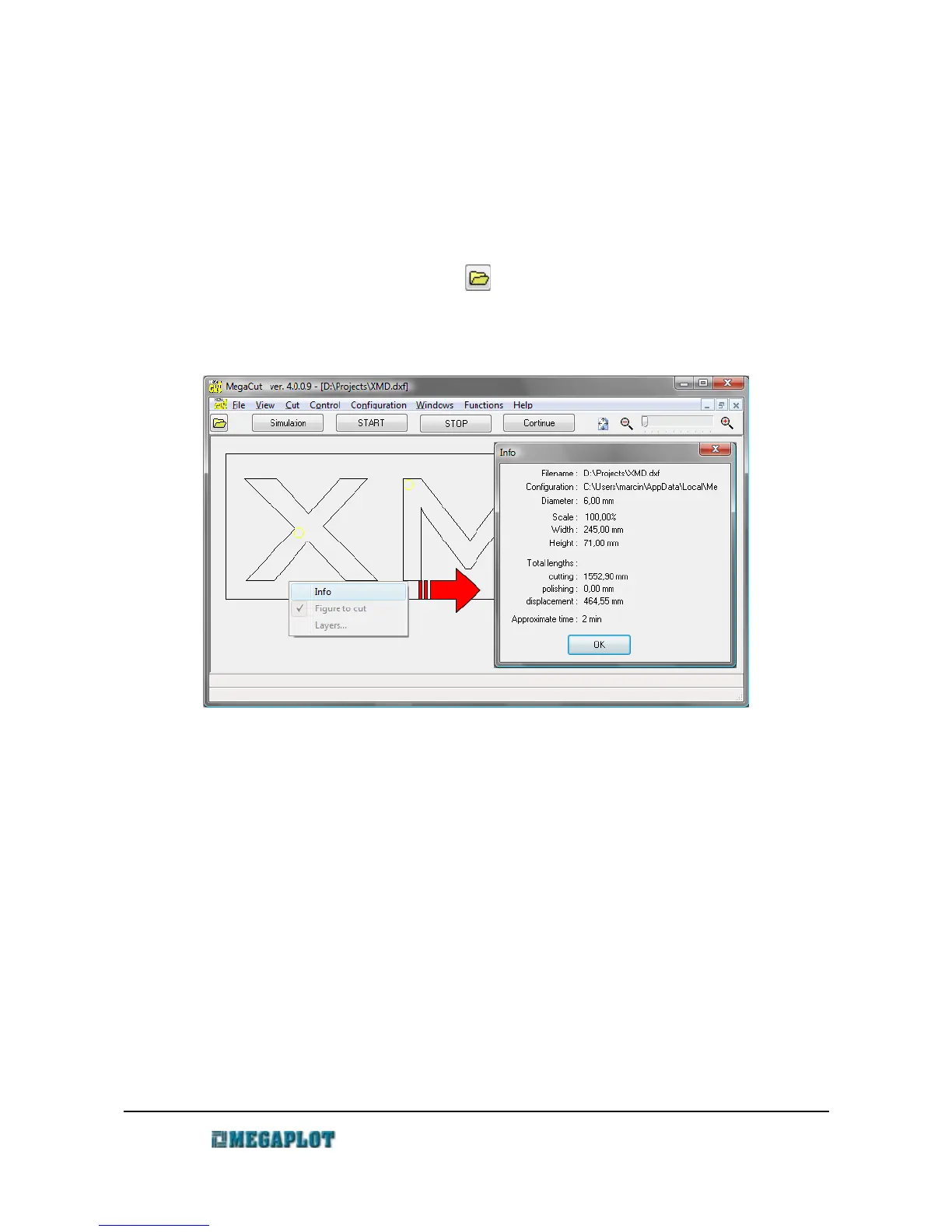
To open a file, go to File \ Open [F3] or click .
Once a drawing is opened, check its dimensions by going to File \ Info or by right-clicking on
the drawing and selecting Info from the window which pops up.
If the dimensions do not match the desired ones, it can be caused by e.g.:
• using a different length unit in the graphics software (e.g. inch instead of mm)
• errors in the export procedure in the graphics software - e.g. when exporting to plt from
CorelDraw 11 (in this particular case, setting the scale to 101,6% fixes the problem.
Alternatively, you can re-export from CorelDraw 11 to dxf which will have no such error).
The estimated cutting time shown in this window is based on the cutting parameters from
Configuration.
Simulation
Simulation
Prior to starting a cut, it is recommended you go through the Simulation to ensure the tooling
sequence will match the expected one. To simulate the cutting process, go to File \ Simulation or
press F1.
www.megaplot.com phone: +48 693 707 575 office@megaplot.com


 To Next Page