24
Troubleshooting
General
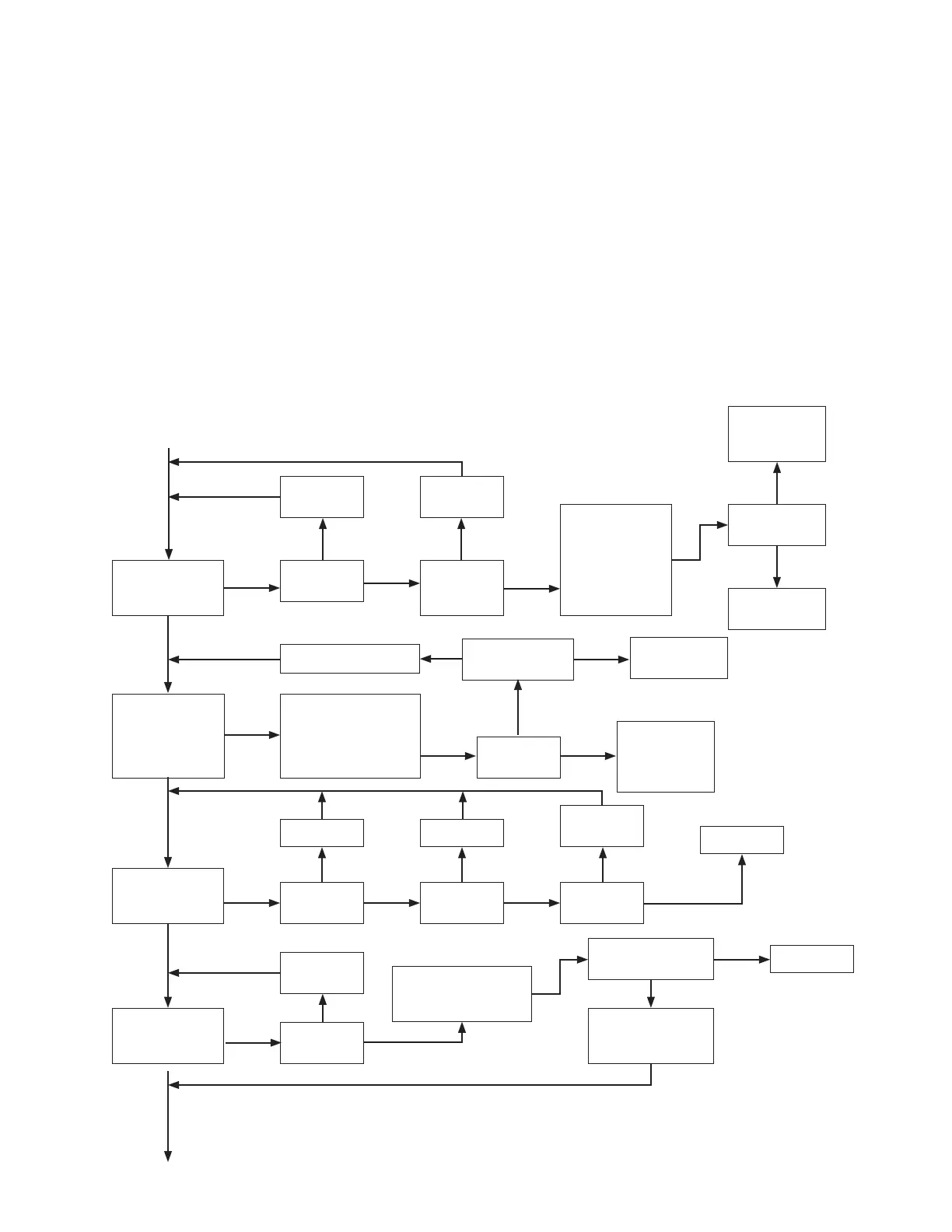
On the next few pages you will find a troubleshooting flow
chart. The purpose of this flow chart is to quickly identify the
source of the problem. To use this flow chart, simply go to
START and follow the arrows. Perform whatever operations
are required and correctly answer all questions. All questions
require a simple yes or no answer which determines the next
action taken.
The “Main Problem Questions” are numbered and on the
left side of the page. The middle of the page contains the
steps and any questions required to break down the “Main
Problem” and identify the component at fault. The right
side of the page shows the component most likely causing
the problem. Some boxes list more than one component
Don’t just assume one component to be bad, check them
all. Once the most likely component is identified, go to the
Individual Component Test Procedures section, for detailed
information on how to test each component.
If after performing all the test and operations and answering
all the questions pertaining to your problem, you cannot
identify or resolve your problem, our friendly factory
personnel will be glad is assist you. However, please try
this troubleshooting system BEFORE you call the factory
for assistance. Many times you can locate and correct the
problem on you own.
MT-3000 Troubleshooting Flow Chart
START
Does Display
Light and
Stay Lit?
Does Console
Appear Erratic
When Vehicle
is Stopped?
Turn Knob
from Cal
Repair as
Required
Is Knob
at Cal?
Is Power
OK? See
page 29
Temporarily
Disconnect
All Cables
w/Accessory.
Power
See page 29
Does Display
Light Up?
Overload on
Accessory
Power Line
Harness
or Console
N
Y
N
N
N
Y
Y
Y
Turn Off Engine
and ALL Electrical
Components Except
MT-3000 Console
Repair as Required
Is Display
Erratic?
Is Power OK?
See page 29
Electrical
Interference
Section
Page 29
Does Display
Light Up?
Y
Y
Y
N
N
Does Console
Enter and Stay
in Calibration?
1
2
3
Is Vehicle
Moving?
Is Master
in Hold?
Is Trak-Star
Connected?
Stop Vehicle Flip to Hold
Disconnect
Trak-Star
Console
Y Y
Y
Y
N
N
N
N
N
Can Calibrate
Numbers be
Changed?
Is Red
Light On?
Enter Cal.
page 20
Hold “+/-”
Switch in Opposite
Direction
Some Cal. Values
Have Upper and
Lower Limits
Do Cal. Numbers
Change?
Console
Continued on next page
Y
Y
Y
N
N
N
4


 To Next Page