Chapter 4 The Part Queue
4-2 Visionscape FrontRunner™ User’s Manual v4.1.3, April 2012
Setting Up and Starting the Part Queue
Use the following procedure to set up and start the Part Queue:
1. With a Job loaded in FrontRunner™, click
2. In the left pane of the editor, highlight the Inspection step in the Step
Tree.
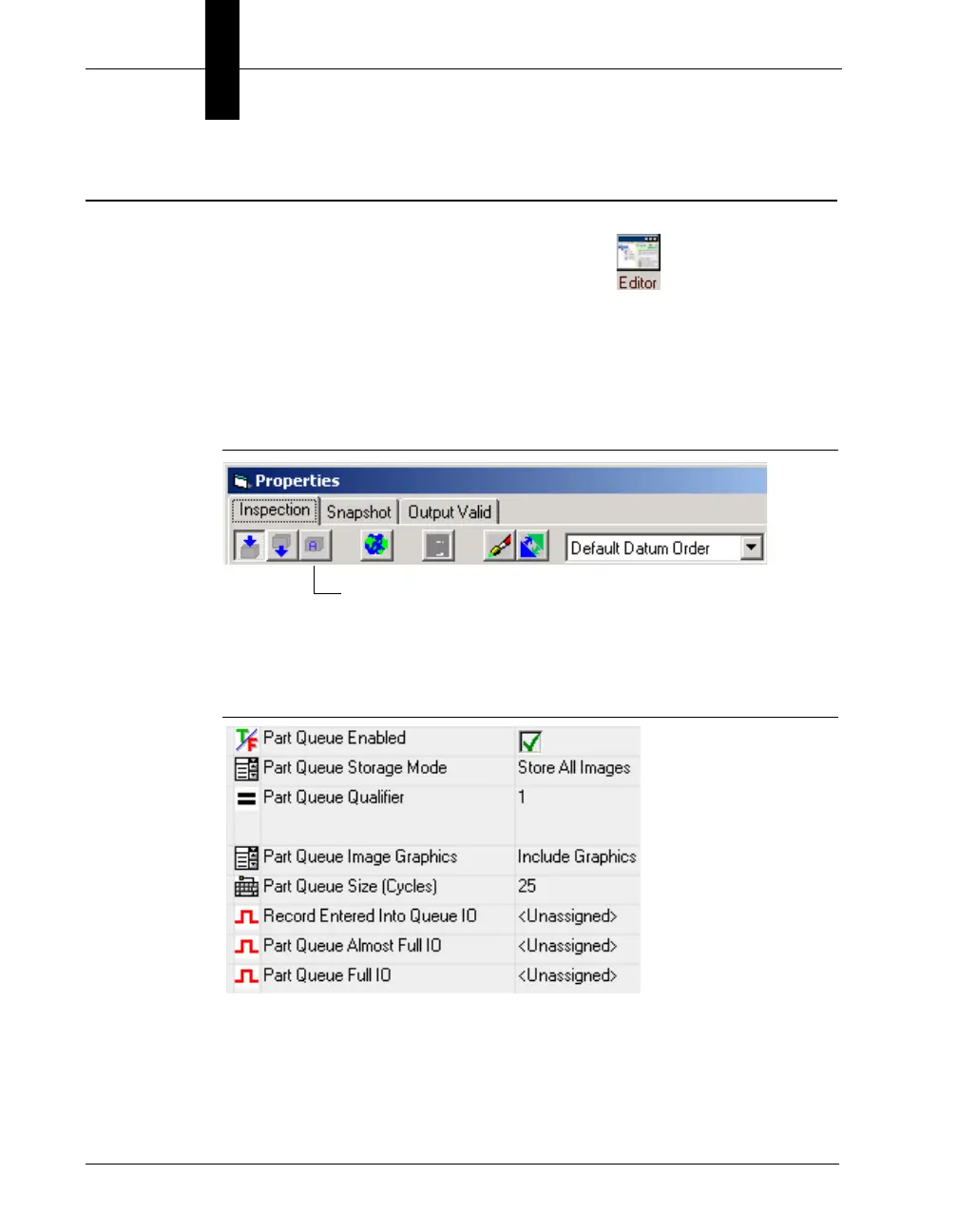
3. In the right pane of the editor, click Show Advanced Datums, as
shown in Figure 4–1.
FIGURE 4–1. Show Advanced Datums Button
FrontRunner™ displays the Inspection Step properties page with the
Part Queue properties displayed, as shown in Figure 4–2.
FIGURE 4–2. Inspection Step Properties Page (Partial Page Displayed)
4. Click to the right of Part Queue Enabled to enable the Part Queue.
5. Click to the right of Part Queue Storage Mode and select one of the
following options for storing images:



 To Next Page