Windows You’ll See In FrontRunner™
FrontRunner™
2
v4.1.3, April 2012 Visionscape FrontRunner™ User’s Manual 2-33
• Automatic Run Step after Change — When checked,
FrontRunner™ automatically runs the step after a change is
made to its ROI or properties. By default, this is checked.
• Acquire Images During Tryout — In Tryout mode, when this
option is checked, FrontRunner™ loads each image that you
specified in the Acquire step, one at a time. If you uncheck
this option, and click Tryout Program on PC Once and then
Stop repeatedly, your Job will run on only the image that is
loaded currently.
• Use I/O During Tryout — Enables/disables I/O during tryout.
• Use Triggers During Tryout — Enables/disables triggers
when running a tryout.
• Automatic Train Step after Change — When checked,
FrontRunner™ automatically trains (when appropriate) the
step after a tool is inserted, moved, or resized.
• Delay Between Steps in Tryout — When checked,
FrontRunner™ slows down the “action” by adding a delay
between each tool so that you can see specific tool activity.
• Show Properties — Allows you to specify where a tool’s
properties page is displayed in Tryout View:
– Hide
– Below View (default)
– Right of View
– Timing — FrontRunner™ allows you to enable or disable (default)
the uploading of timing data. To enable step timing:
a. Create a new Job or load an existing Job onto your PC.
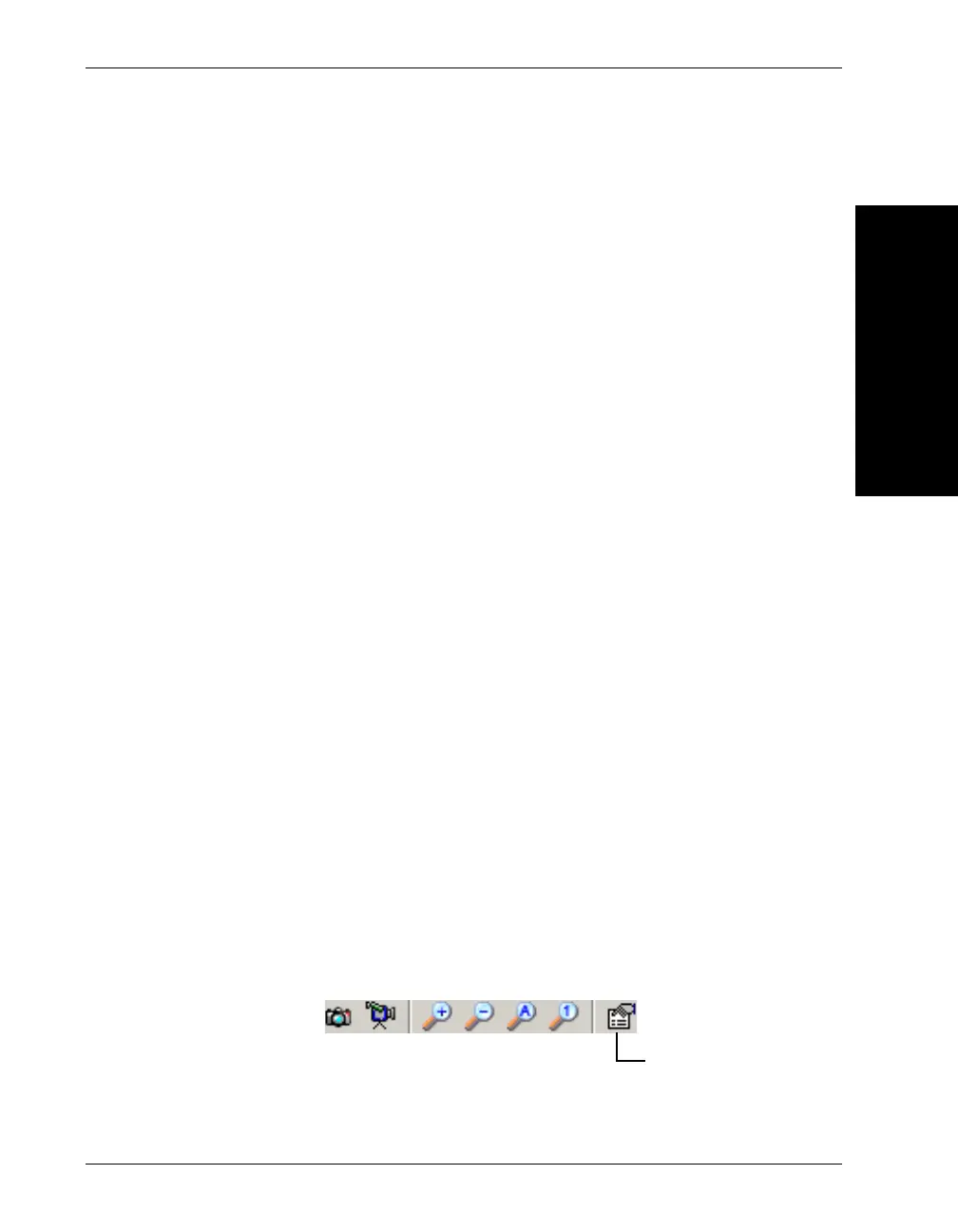
b. Click on the Settings button:



 To Next Page