Using the Other Input References
NTP server/peer associations. Also see Using GPS (on page 100), Using the Other
Input References, and Adding Server Associations (on page 113).
Backing Up/Restoring Configurations
SyncServer's configuration settings can be saved to a "backup" file, which is useful in the fol-
lowing scenarios:
n The user is testing multiple SyncServer configurations. The user saves the "original" con-
figuration before testing, and then saves some of the more promising test configurations.
When the testing is complete, the user selects the best configuration and applies it to the
SyncServer.
n The user needs to configure several SyncServers. The user configures a single Syn-
cServer, creates a backup file, and then uses the backup file to transfer the configuration
to the remaining SyncServers.
n The user needs a "known good configuration" in case the SyncServer's configuration is
inadvertently changed or lost.
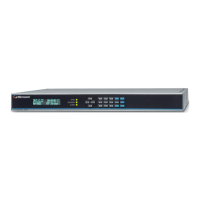
The SyncServer's backup and restore features are available from two locations:
n
From the web interface, using the WIZARDS - Backup and the WIZARDS - Restore pages.
n
From the front panel keypad, using the MENU button and the 4) USB menu item.
The backup/restore features can use a variety of media:
n A USB flash drive plugged into either of the USB ports on the front panel.
n Any directory that is accessible to a browser.
Note 1 - Not all USB flash drives are compatible with the SyncServer's USB ports.
Microsemi recommends using SanDisk cruzer micro USB devices.
Note 2 - The backup file includes the configuration of the NETWORK - Ethernet page. If restor-
ing a single configuration to multiple units, if the network ports have static IP addresses,
avoid IP address conflicts by changing these addresses.
Note 3 - Transferring configurations between a SyncServers with different hardware or soft-
ware might not work. The user may want to back up the configuration of the "destination"
SyncServer before applying the configuration of the "originating" SyncServer. One can also
restore the Factory Defaults if the transfer doesn't work. See the Restoring the Factory
Default Configuration (on page 119) topic.
CreatingaBackupFile
From the front panel keypad
1. Plug a compatible USB flash drive into either USB port.
2. Wait 10 seconds.
3.
Press the MENU button.
4.
Select 4) USB.
Page 118..........................................................................997-01520-02 Rev. G2



 To Next Page