Auto Home allows the PTZ camera to return to a predefined Home Position automatically after a
period of latency time. Check the checkbox to enable the Auto Home mode.
Table 4-5-13 Description of the buttons
Set a latency time to trigger Auto Home mode, 5-720s.
Preset: A preset point will take effect when triggering the Auto Home.
Select a predefined preset in the list, press “Call” to check the location. Also
support to select current location.
PTZ Limit
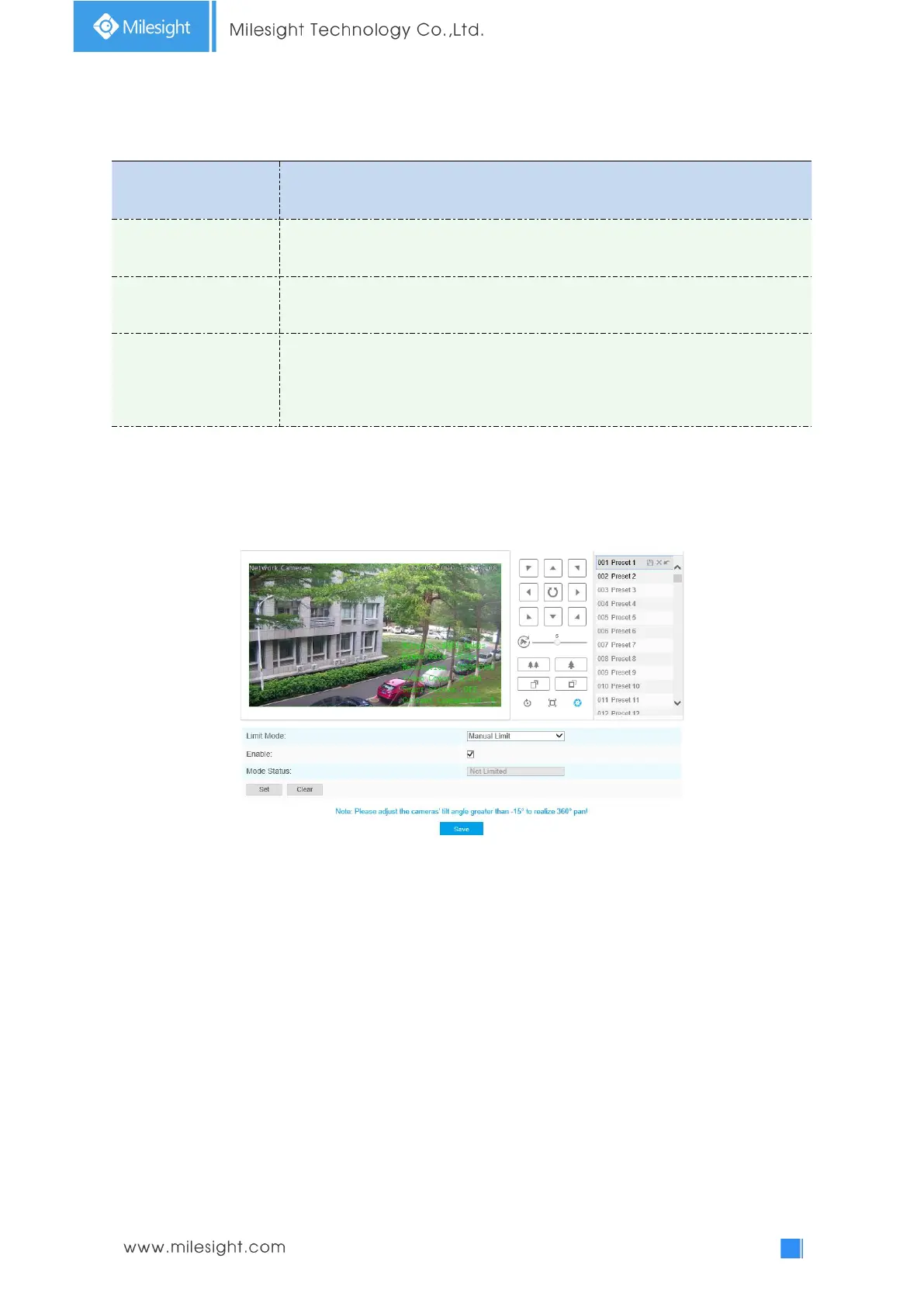
The PTZ camera can be programmed to move within the configurable PTZ Limits(Left/Right).
Step1: Check the checkbox to enable the PTZ Limit function.
Step2: Choose the limit mode as Manual limit or scanning limit.
Manual Limit:
When Manual limit stops are set, you can operate the PTZ control panel manually only in
the limited surveillance area.
Scan Limit:
When Scan limit stops are set, the auto scan is performed only in the limited surveillance
area.
Step3: Click the PTZ controller buttons to set the left/right limit stops; you can also call the defined
presets and set them as the limits of the PTZ camera.
Step4: Click Set to save the limits or Clear to clear the limits.
Initial Position



 To Next Page