- 12 -
MINGDA TECHNOLOGY CO.,LTD
www.md-3d.com
Tips:
The specific orientation of the product determines the smoothness of the surface and allows the printer to
provide the smoothest surface for a specific area. For example, if you print the Eiffel Tower, placing the Eiffel Tower
for vertical printing can get a smoother surface.
2. Model scaling
Click scaling icon
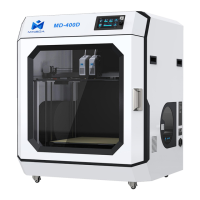
You can enter the scale of the zoom in any of the "Scale X", "Scale Y", "Scale Z" option boxes. As shown in the
figure, you only need to change the scale to 2.0 and the model will be magnified 2 times. If it is more appropriate to
determine the size of 4 times, change the ratio to 4.0.
3. Model mirror image
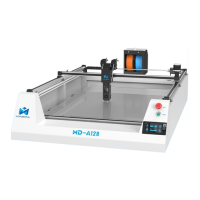
1) Click the mirror icon
2) Click on the corresponding icon to control the model to mirror
around the XYZ axis.
Model rotation, scaling, mirroring with Cura
1. Model Rotation
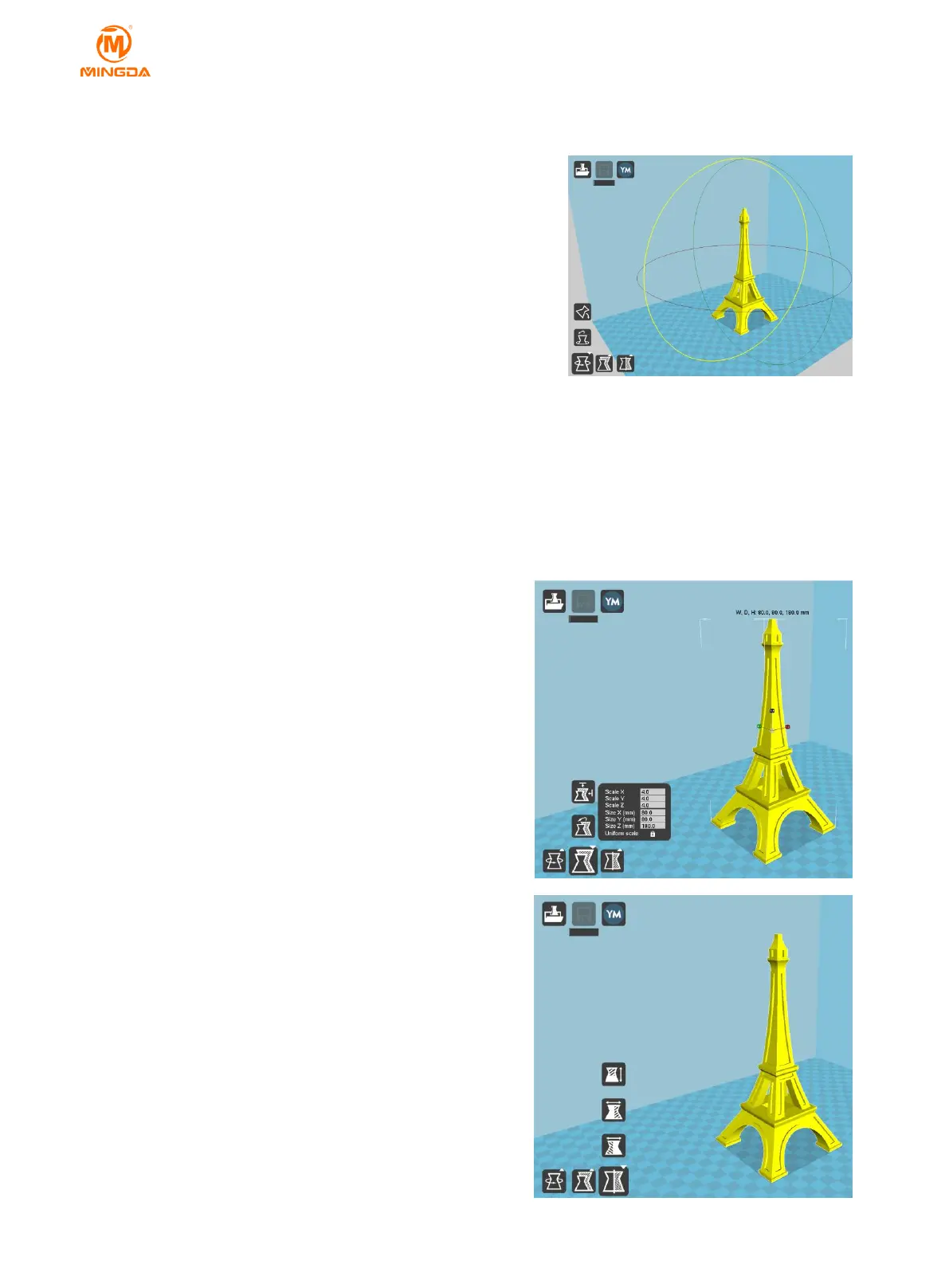
1) Click on the model and the rotation, zoom, and mirror icons will
appear in the lower left corner of the software window.
2) Click the rotation icon to drag the three axial control loops in
the view to rotate around the X, Y, and Z axes.
Tips:
The "lock" icon on the right side of "Uniform Scale"
indicates whether the XYZ axis direction ratio is locked. If the
icon is clicked, the unlock state is displayed, and the XYZ axis
direction size ratio is no longer maintained, and the ratio of
the XYZ axis direction can be arbitrarily modified.
Size X (mm), Size Y (mm) and Size Z (mm) mean the actual
size of the model at the current scale, you can adjust the size
to the size you need (Scale X, Y, Z will update accordingly).
If the scale is too large, the model will be out of print
scale and turn to gray, then you need to scale down the model
appropriately.



 To Next Page