EasyManua.ls Logo

Mingda MD-600 Pro - User Manual

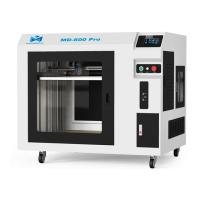
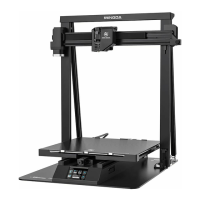
Mingda MD-600 Pro
24 pages
Print Icon
To Next Page IconTo Next Page
Loading...
User Manual
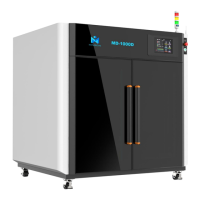
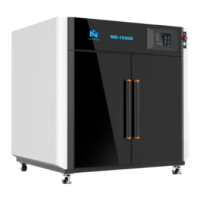
MD-600 Pro & MD-1000 Pro 3D Printer
Shenzhen MINGDA TECHNOLOGY CO.,LTD
V1.7
Question and Answer IconNeed help?

Do you have a question about the Mingda MD-600 Pro and is the answer not in the manual?

Summary

Important Notices

Filament Type and Temperature Guide

Lists recommended print and platform temperatures for various filaments.

Introduction to MD Series Printers

User Guide Structure

Explains the structure of the user guide for optimal printer usage.

Safety Precautions

Essential safety guidelines for printer operation and handling.

Printer Overview

3 D Printer Component Identification

Identifies and labels the key physical parts of the 3D printer.

Tool Box Accessories

Lists and illustrates the included accessories.

Printer Installation

Initial Setup and Power

Covers taking out the tool box, plugging in, and powering on.

Loading Filament

Step-by-step guide for loading filament into the printer.

Automatic Bed Leveling

Running the Leveling Process

How to start and perform the automatic bed leveling sequence.

Test Print Calibration

First Layer Adhesion Adjustment

Fine-tuning the first layer with babystep for proper adhesion.

Slicing Software Setup

CURA Software Installation

Guides on downloading and installing CURA software.

Configuring Printer in CURA

Configuring the printer model within the slicing software.

MD-600 Pro Software Configuration

MD-600 Pro Machine & Extruder Settings

Setting print size, heated bed, and extruder parameters for MD-600 Pro.

MD-1000 Pro Software Configuration

MD-1000 Pro Machine & Extruder Settings

Setting print size, heated bed, and extruder parameters for MD-1000 Pro.

Importing Print Profiles

Loading PLA+ Profile

Importing a specific filament profile (e.g., PLA+) into the software.

Managing Print Profiles

Activating and Checking Profiles

Activating the imported profile and checking parameter explanations.

Slicing and Print Preview

Model Preparation and Slicing

Loading, manipulating the model, and initiating the slicing process.

Analyzing Slicing Output

Checking print time, filament usage, and previewing the layers.

Print Job Execution

Starting and Monitoring Prints

Steps for starting a print job and monitoring its progress.

Controlling Print Jobs

How to pause, resume, or stop the printing process.

Post-Print Procedures and Maintenance

Removing the Printed Model

Procedures for safely removing the finished print from the platform.

Routine Printer Maintenance

Covers daily checks and 500-hour servicing for printer upkeep.

Hot End Swap and Troubleshooting

Replacing the Hot End

Instructions for replacing the high-temperature or normal hot end.

Troubleshooting Common Problems

Solutions for problems like no power, extrusion failures, or SD card errors.

Support Resources and System Requirements

Customer Support Contact

Contact details and web links for customer assistance.

Recommended Computer Specifications

Hardware and software requirements for optimal printer operation.

MINGDA Limited Warranty

Details the terms and conditions of the product warranty.

Warranty and Quality Policy

Warranty Terms and Service Procedures

Covers warranty periods, service procedures, and claim conditions.

Overview

This document is a user manual for the MINGDA MD-600 Pro & MD-1000 Pro 3D Printers, providing comprehensive information on their function, technical specifications, usage, and maintenance.

Function Description

The MINGDA MD Series Industrial 3D Printers are designed for rapid and easy product printing, even for novice users. They convert .stl documents into .gcode files using slicing software like CURA, which the printer then reads to print raw materials into 3D products. These printers are capable of producing strong and durable PLA models that can be drilled, tapped, ground, and painted. The MD Series creatively combines proprietary hardware, software, and filament technologies.

Key functions include:

  • High-Temperature Printing: Equipped with a high-temperature hot end, suitable for filaments requiring print temperatures above 250°C. This hot end can be replaced with a normal hot end for filaments below 250°C.
  • Resume Printing Function: In case of power loss during printing, the machine saves data and prompts the user to continue unfinished print jobs after power-on.
  • Filament Sensor: Automatically pauses printing if filament is not detected, allowing for new filament installation and continuation of the print.
  • Auto Bed Leveling: Simplifies the setup process by automatically leveling the print bed.
  • Slicing Software Compatibility: Works with various slicing software, including CURA, Simplify 3D, and Repetier-Host. The manual specifically details CURA setup.

Important Technical Specifications

The manual provides product and print sizes for two models:

MD-600 Pro:

  • Product Size (WDH): 12129321066 mm
  • Printing Size (WDH): 600600600 mm

MD-1000 Pro:

  • Product Size (WDH): 161213321465 mm
  • Printing Size (WDH): 100010001000 mm

Filament Compatibility and Print Temperatures: The printer supports a wide range of filaments, with recommended print and platform temperatures:

  • High-Temperature Filaments (Recommended for High-Temperature Hot End):

    • PET-CF, PET-GF, PA12-CF, HtPA-GF, HtPA-CF, HtPA: 280-320°C (Print), 60-90°C (Platform)
    • ABS-GF25, ASA: 250-270°C (Print), 90-110°C (Platform)
    • S-Mulit: 260-280°C (Print), 60-80°C (Platform)
    • S-HtPA: 270-280°C (Print), 60-80°C (Platform)
  • Normal Filaments (Recommended for Normal Hot End):

    • ABS: 240-260°C (Print), 80-100°C (Platform)
    • PETG: 230-250°C (Print), 80°C (Platform)
    • TPU 95A: 210-230°C (Print), 50°C (Platform)
    • PVA: 210-220°C (Print), 60-70°C (Platform)
    • PLA: 190°C (Print), 60°C (Platform)

Slicing Software Requirements (for CURA):

  • Operating System: Windows XP, Windows Vista, Windows 7, Windows 8, or Windows 10.
  • Processor: Minimum 2.4 GHz (faster recommended).
  • RAM: Minimum 1GB (2GB for Windows Vista/7 recommended).
  • Graphics Resolution: Minimum 1024x768 (1280x1024 wide-screen recommended).
  • Video Card: OpenGL accelerated graphics card with 128 MB memory recommended.

Usage Features

  • Intuitive Interface: Features a full touch resistance screen for easy navigation.
  • Filament Management: Each filament holder can hold at least 1kg of filament, allowing for approximately 120 hours of continuous printing. A second roll can be added for extended prints. High-temperature filaments should be stored in a dry box to prevent humidity from affecting print quality. Wet filament needs to be dried in an industrial oven.
  • Print Head Movement: The print head moves in the X-axis (left and right) and Y-axis (forward and backward), while the entire panel moves in the Z-axis (up and down). The printing platform remains fixed during operation.
  • Emergency Stop: An emergency stop button is available for immediate shutdown in case of collisions or other issues.
  • Printing Process Control:
    • Filament Installation: Detailed steps are provided for installing PLA filament, involving threading it through the sensor, feeding gear, and into the extruder.
    • Preheating: The nozzle can be preheated to 200°C before inserting filament.
    • Auto Bed Leveling: Initiated via the touch screen, ensuring proper bed calibration.
    • Babystep Adjustment: Allows fine-tuning of the nozzle-to-platform distance during the first layer to optimize adhesion.
    • Pause and Continue: Prints can be paused at any time, allowing for filament changes or speed adjustments.
    • Model Removal: After printing and cooling, models can be removed directly or by bending the PEI platform if necessary.

Maintenance Features

The manual outlines both daily preventive maintenance and 500-hour maintenance procedures to ensure optimal printer performance and longevity.

Daily Preventive Maintenance:

  • Z-axis Reset: Before printing, reset the Z-axis to check the nozzle-to-platform distance and prevent scratching.
  • Guide Rail Smoothness: Check and lubricate guide rails regularly for efficient and stable operation.
  • Nozzle Feeding: Preheat the nozzle to check for smooth filament feeding. Clean or replace the print nozzle assembly if feeding is not smooth.
  • Post-Print Cleaning: After printing, clean all accumulated filament and stains from the printing platform, guide screw, and inside the printer.
  • Filament Storage: Store unused filament in a sealed container to prevent moisture absorption, which can make it brittle.

500 Hours Maintenance:

  • Door Cleaning: Clean the printer door using an ethanol cleaner (avoid ammonia-containing cleaners).
  • Guide Rail Lubrication: Wipe guide rails with anti-rust paint and re-lubricate.
  • Screw Check: Inspect and tighten mounting screws for components like the synchronous wheel, optical axis, and motor if loose.

Hot End Replacement: Detailed instructions are provided for switching between the high-temperature and normal hot ends, involving removing screws, disconnecting cables, and reassembling.

Troubleshooting: The manual includes a troubleshooting section with common problems and suggested solutions, such as:

  • No Power: Check power cord, switch, and socket.
  • No Filament Extrusion: Check for stuck nozzle.
  • Print Misplacement: Check lubrication of optical axis; contact support if due to transport damage.
  • SD Card Read Errors: Check SD card integrity, slot condition, and insertion depth.
  • Temperature/Heat Issues: Check temperature sensor, heater contact, or main board functionality.

Warranty and Support:

  • Warranty: 12-month warranty on 3D printers (excluding nozzle assembly and PEI pad) and 3-month warranty on the nozzle assembly, starting from the production date. Free accessories are provided for damages not caused by user negligence.
  • Support: Free remote technical support is available via phone or email. Users are encouraged to check the manual or official website for solutions. Warranty services may be refused if instructions are not followed, or due to unauthorized modifications, incorrect installation, use of third-party components/software/low-quality filament, non-specified environments, misuse, or improper maintenance.

Mingda MD-600 Pro Specifications

General IconGeneral
BrandMingda
ModelMD-600 Pro
Category3D Printers
LanguageEnglish

Related product manuals