4. Commissioning
MiR Fleet PC Getting Started (en) 08/2020 - v.1.4 ©Copyright 2019-2020: Mobile Industrial Robots A/S. 23
3. Do not select Factory reset the robot before adding it when you are adding the model
robot. Factory resetting a robot removes all of the created site data from it. For all robots
added after the model robot, we recommend selecting to factory reset the robot to
minimize the time taken to add the robot and remove unnecessary data.
NOTICE
Be aware that all user settings on the robot are erased when you select the
Factory reset option. This ensures that all robots are running with the
same information as the fleet.
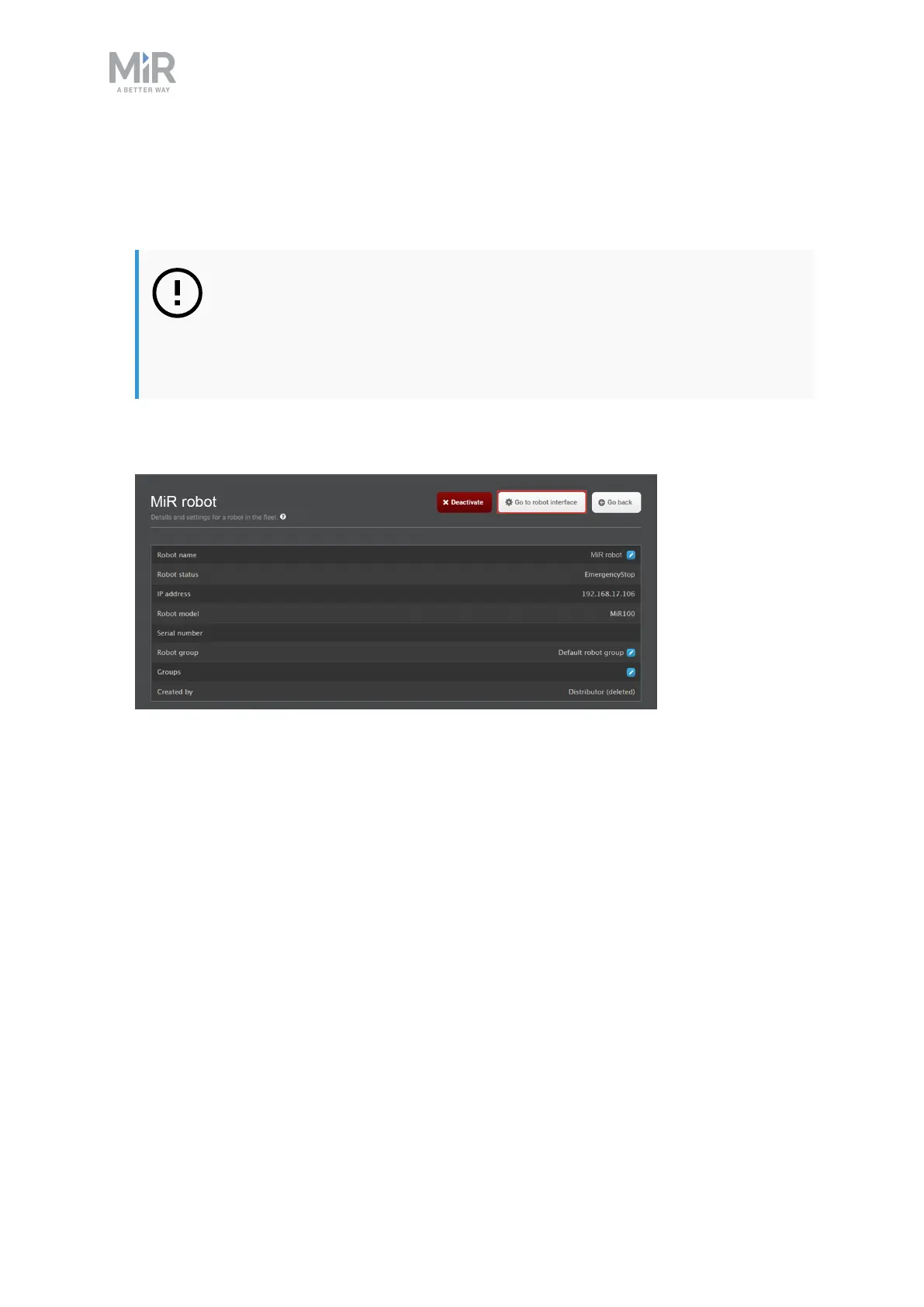
4. Once the robot has finished synchronizing with MiR Fleet, select Show info for the robot
you just added, and then select Go to robot interface.
5. Sign in to the robot interface, and go to Setup >Maps. Ensure that the active map on the
robot is a part of the active site on MiR Fleet (see Activating a site on page25 to activate
a specific site on MiR Fleet).



 To Next Page