4. Commissioning
MiR Fleet PC Getting Started (en) 08/2020 - v.1.4 ©Copyright 2019-2020: Mobile Industrial Robots A/S. 37
4. Select + Add floor to add a new floor and modify the settings for it. Positions and
missions must have been setup previously in the map editor (Setup > Maps > Create
map / Edit map).
• Floor: Enter a floor number.
• Map: The map must have been created in a robot and include two elevator positions
that will enable the switching from one map to another.
• Position in front of elevator: The elevator entry position in front of the elevator
where the robot waits for the elevator to arrive and the door to open.
• Position in the elevator: This elevator position represents the robot’s position inside
the elevator.
• Entry mission: An entry mission is not mandatory. An example of an entry mission
could be a sound as the robot enters the elevator. An entry mission must include a
Move action with a variable position.
• Exit mission: An exit mission is not mandatory. An example of an entry mission could
be a sound as the robot leaves the elevator.
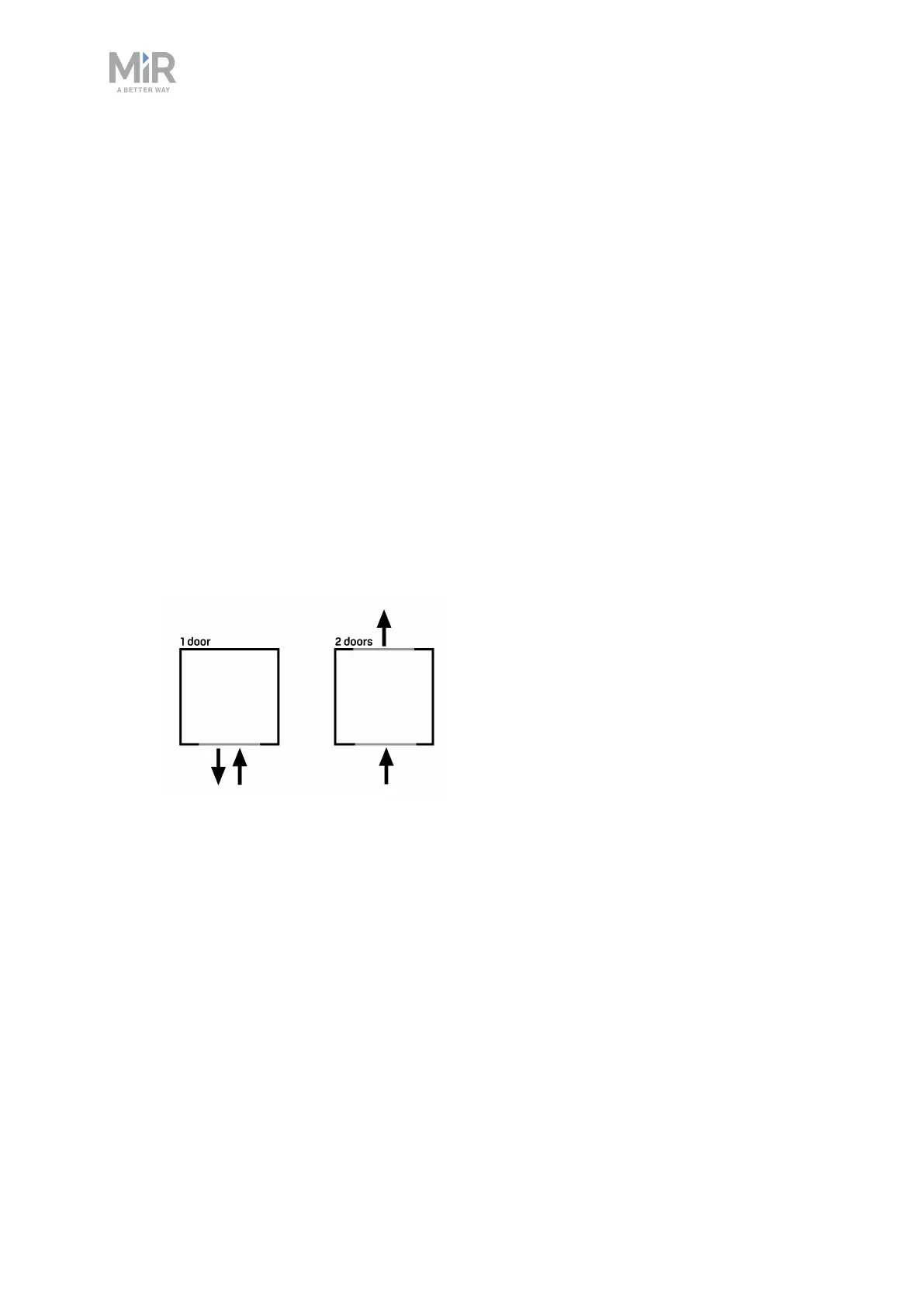
• Door: Select 1 if the elevator has only one exit and entry and 2 if the elevator has a
separate exit and entry and you want the robot to leave through the opposite door.



 To Next Page