20
Customizing Your Moto
Both the looks and the interface of your new Moto 360
can be personalized to your needs.
From sporty to classic, the face of your watch (dial) comes
in multiple styles and color schemes. The complications (fea-
tures on the face beyond time-telling) can also be adjusted
to contain the information relevant to you. Finally, the apps,
tiles, quick settings (See Status Panel), and the quick launch
button can be adjusted per your preferences.
Changing Watch Face (Dial)
To change the face of your smartwatch:
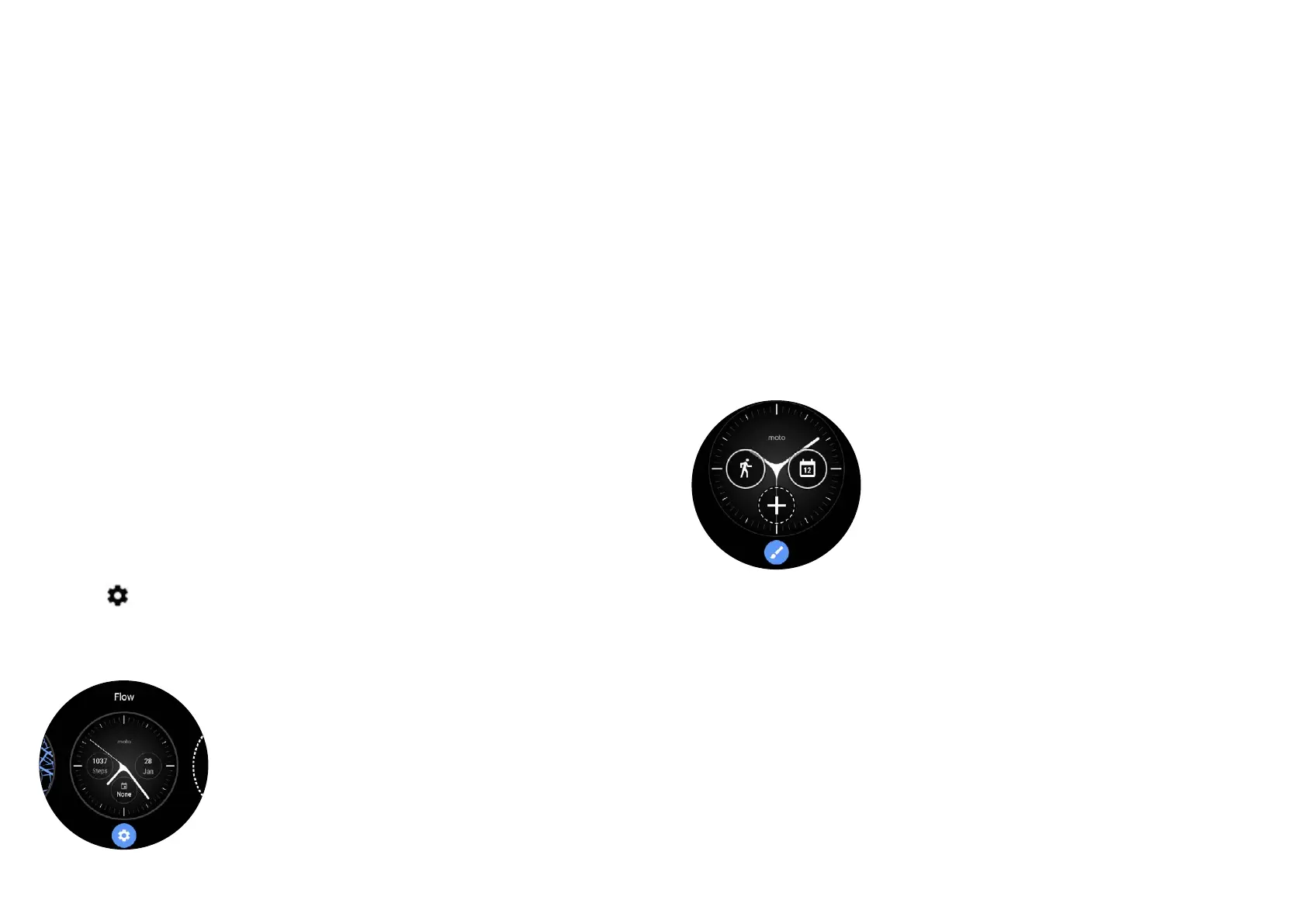
1. Touch and hold the screen to see all your watch faces.
2. Swipe left or right to find the watch face you want.
3. Tap
to customize the new watch face and select be-
tween dierent color options and elements or just tap the
new watch face to select it.
Changing Complications
1. Your typical watch face will feature (usually three) compli-
cations. These small widgets provide important, succinct
information such as date, weather, daily steps, etc. You can
also add shortcuts to the complications to launch gPay or
your calendar, for example.
To customize your complications,
simply tap on one when you are
selecting the watch face. From there,
you can tap again to switch between
other options.


 To Next Page