EasyManua.ls Logo

Motorola Symbol LS9208 - User Manual

Motorola Symbol LS9208
546 pages
Print Icon
To Next Page IconTo Next Page
Loading...
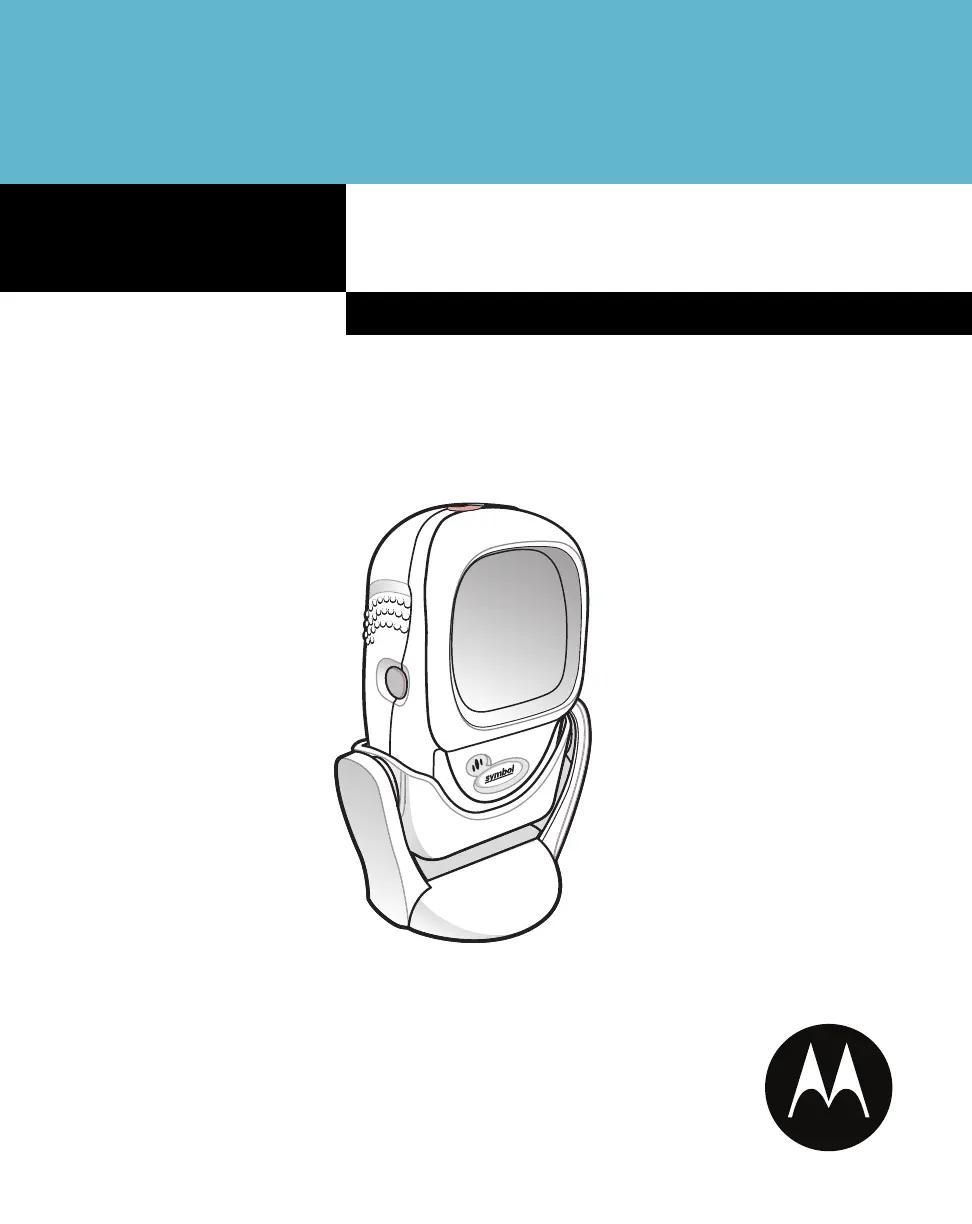
Symbol LS9208
Product Reference Guide

Table of Contents

Questions and Answers

  • G
    ginawarnerAug 16, 2025
    What to do if the Motorola Symbol LS9208 scans, but the bar code cannot be read?
    • K
      Kyle WelchAug 16, 2025
      If your Motorola Barcode Reader displays scan lines but cannot read the barcode, consider these potential causes and solutions: * Ensure the scanner is programmed to read the specific bar code type you are scanning. * Try scanning other barcodes of the same type to rule out damage to the original barcode. * Move the barcode closer to the scanner to ensure it is within the optimal scanning range. * If using triggered scanning, press the trigger to activate decoding. * Consult with the technical person in charge of scanning to check if the host has disabled scanning or overridden parameter settings.
  • T
    Tammy KennedyAug 19, 2025
    What to do if the Motorola Symbol LS9208 Barcode Reader decodes but doesn't transmit to the host?
    • K
      kbrooksSep 12, 2025
      If the Motorola Barcode Reader decodes the barcode but doesn't transmit the information to the host, it might not be programmed for the correct host type. To resolve this, scan the appropriate host type barcode.
  • A
    Aimee WeissAug 22, 2025
    How to fix Motorola Symbol LS9208 Barcode Reader when omni-directional scan pattern does not appear?
    • G
      gouldmichaelAug 22, 2025
      If the omni-line scan pattern does not appear on your Motorola Barcode Reader, here are a couple of things to check: 1. Ensure the scanner is receiving power and that the host is turned on. If the scanner uses a separate power supply, verify that it is connected to a working AC outlet. 2. Check the interface cable connections to make sure they are properly and securely connected.
  • C
    Cynthia ButlerAug 25, 2025
    Why is scanned data incorrectly displayed on the host with my Motorola Symbol LS9208?
    • A
      Aaron NunezAug 26, 2025
      If scanned data is incorrectly displayed, the Motorola Barcode Reader may not be correctly programmed to work with the host. Here’s what you can do: * Ensure the correct host is selected. * For RS-232, verify that the scanner’s communication parameters match the host’s settings. * For keyboard wedge, ensure the scanner is programmed with the correct country code and that the CAPS LOCK key is off. * Confirm that editing options, such as UPCE-to-UPCA Conversion, are properly programmed.
  • N
    nmarshAug 28, 2025
    What to do if Motorola Symbol LS9208 Barcode Reader doesn't scan though the green light is on?
    • G
      gillelizabethAug 28, 2025
      If the green Power LED is on, but the Motorola Barcode Reader does not produce the omni-directional scan pattern, the scanner may have entered a Low Power “Shut Down” Mode. Try pressing the trigger to awaken the unit. Alternatively, you can change the “Low Power Blink” parameter.
  • D
    Deborah OdomAug 31, 2025
    What to do if the scanned data is incorrectly displayed on the host using my Motorola Symbol LS9208 Barcode Reader?
    • A
      Andrew TerryAug 31, 2025
      If the scanned data is incorrectly displayed, the Motorola Barcode Reader might not be properly programmed to work with the host. Ensure the correct host is selected. If you are using RS-232, verify that the scanner’s communication parameters match the host’s settings. For keyboard wedge, ensure the scanner is programmed with the correct country code and that the CAPS LOCK key is off. Also, confirm that editing options, such as UPCE-to-UPCA Conversion, are correctly programmed.
  • J
    James BruceSep 3, 2025
    Why won't my Motorola Symbol LS9208 read the bar code even though the scan line(s) display?
    • J
      Jacqueline AllisonSep 3, 2025
      If the scan lines display but the bar code cannot be read, there might be several reasons: * The scanner may not be programmed to read that specific bar code type, so ensure it is. * The bar code might be damaged; try scanning other bar codes of the same type. * The bar code may be too far from the scanner; move it closer. * If using triggered scanning, ensure you are pressing the trigger to activate decoding. * The host might have disabled scanning or overridden parameter settings; consult with the technical person in charge of scanning.
  • C
    Christopher BarnettSep 6, 2025
    What to do if the Motorola Symbol LS9208 Barcode Reader decodes the bar code, but it is not transmitted to the host?
    • B
      Brent Torres DVMSep 6, 2025
      If the bar code is decoded but not transmitted to the host, the Motorola Barcode Reader may not be programmed for the correct host type. Scan the appropriate host type bar code to resolve this issue.
  • A
    Aaron CunninghamSep 9, 2025
    How to fix Motorola Symbol LS9208 when the green Power LED is on, but there is no omni-directional scan pattern?
    • N
      Nicole PenningtonSep 9, 2025
      If the green Power LED is on, but the Motorola Barcode Reader does not produce the omni-directional scan pattern, the scanner may have entered the Low Power “Shut Down” Mode. Press the trigger to awaken the unit, or change the setting for Low Power Blink.
  • B
    Brian GarrisonSep 12, 2025
    What to do if the omni-line scan pattern does not display on my Motorola Symbol LS9208 after installing the interface cable?
    • S
      Samantha ZhangSep 12, 2025
      If the omni-line scan pattern does not display after installing the interface cable on your Motorola Barcode Reader, it could be due to: * No power to the scanner. Ensure the host has power and is on. If the scanner uses a separate power supply, ensure it’s connected to a working AC outlet. * The interface cable is not properly connected. Check for loose cable connections.

Summary

Chapter 1. Getting Started

Unpacking and Initial Setup

Instructions for removing the scanner from packaging and inspecting for damage.

Scanner Interface Connections

Details on connecting various interface cables, including Synapse and standard connections.

Scanner Configuration Basics

Information on how to configure the scanner using bar codes or the 123Scan program.

Chapter 2. Scanning Operations

Scanning Modes: Single-Line and Omni

Explains how to use the scanner in both single-line and omni-directional scan modes.

Aiming and Decode Zone

Guidance on proper aiming techniques and understanding the scanner's decode zone.

Chapter 3. Maintenance and Technical Specifications

Scanner Maintenance Procedures

Instructions for cleaning the scanner's exit window and general care.

Troubleshooting Common Scanner Issues

Provides solutions for common problems encountered with the scanner's operation.

Chapter 4. User Preference Settings

Chapter 5. Keyboard Wedge Interface

Connecting the Keyboard Wedge Cable

Step-by-step instructions for connecting the scanner via a keyboard wedge Y-cable.

Chapter 6. RS-232 Interface Configuration

Connecting the RS-232 Interface

Instructions for making a direct connection from the scanner to the host computer.

Chapter 7. USB Interface Setup

Connecting the USB Interface

Steps for connecting the scanner to a USB host or hub.

Chapter 8. IBM 468 X;469 X Interface

Connecting to an IBM 468 X;469 X Host

Instructions for connecting the scanner to an IBM 468X/469X host interface.

Chapter 9. Wand Emulation Interface

Connecting Using Wand Emulation

Steps to connect the scanner to a portable data terminal or controller.

Chapter 11. Symbology Configuration

Chapter 13. Advanced Data Formatting (ADF)

ADF Rules: Linking Criteria to Actions

Explains how to create rules with criteria and actions to format scanned data.

Using ADF Bar Codes and Special Commands

Guidance on programming ADF rules using specific bar codes and commands.

ADF Criteria: Code Types and Lengths

Selecting criteria for ADF rules, including code types and character lengths.

ADF Actions: Sending Data and Keystrokes

Defining actions for ADF rules, such as sending data, characters, or keystrokes.

Modifying Data with Spaces and Zeros

Options to modify scanned data by removing/adding spaces and padding with zeros.

Motorola Symbol LS9208 Specifications

General IconGeneral
BrandMotorola
ModelSymbol LS9208
CategoryBarcode Reader
LanguageEnglish

Related product manuals