Bolt™ Jr+ Quick Start Guide
26
5. Once the CR800 start-up sequence is complete,
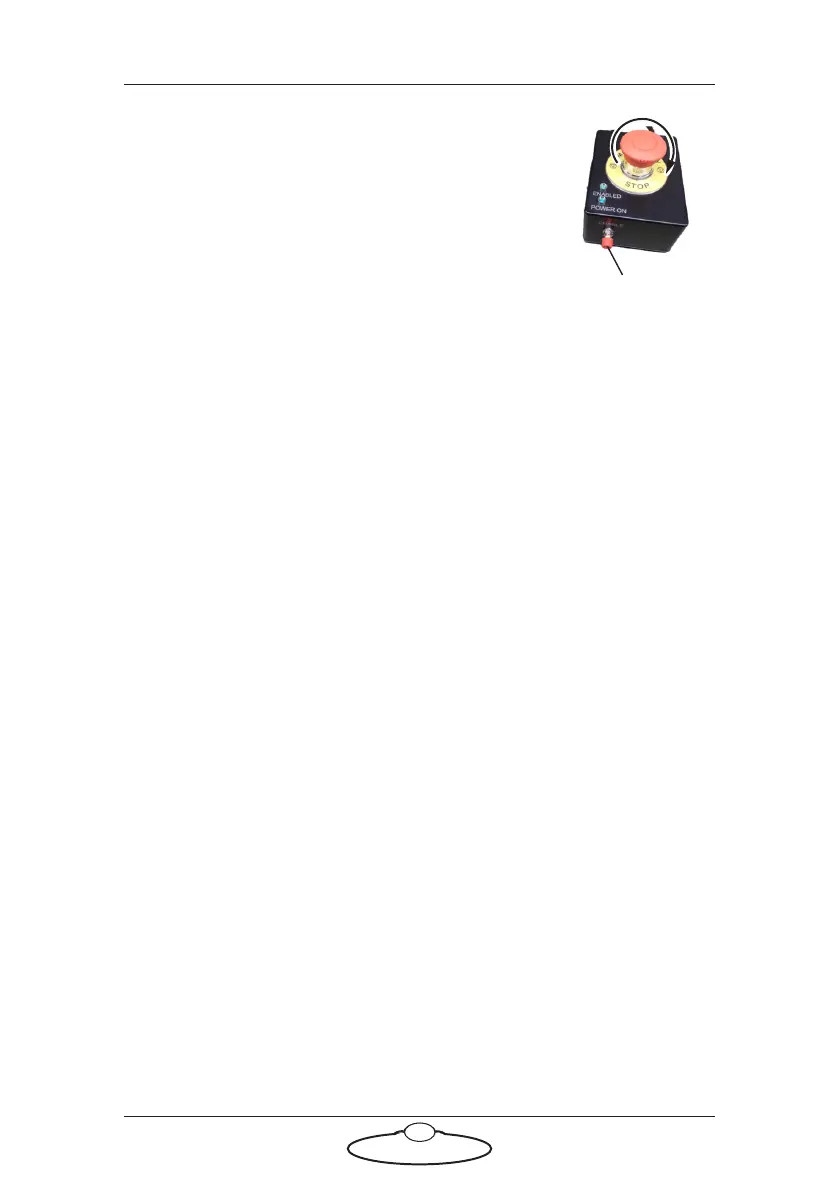
release the E-stop that is plugged into the
computer stack, by turning the button clockwise
until the red button pops up and then pressing
the Enable button.
6. Zero the axes as required in Flair. The Bolt Jr+
arm itself does not require zeroing but you need
to zero other axes such as:
Any external Lens Control Motors (LCMs) that you are using.
To zero these you first set the focus to infinity (), zoom to
wide-angle (zoomed out all the way), iris/aperture to wide
open and then use the relevant Zero > Direct Zero Axis menu
option to set those lens positions as the zero points in Flair.
Any model mover axes like Turntable.
7. In Flair, click on the Engage Robot button.
8. In Flair, move the Bolt Jr+ arm to its home position (rotated straight
forward and tucked under).
9. Set the soft limits for the rig axes in Flair as required:
Lens Control Motor limits (if using external LCMs)
Any model mover limits
It is not recommended that you change the soft limits on the
arm; if not done correctly it can lock up the arm.
Bolt™ Jr+ start-up summary
1. Secure the area
2. Switch on Bolt Jr+
3. Switch on the Flair PC
4. Check networking lights for robot in Ready state
5. Start Flair
6. Release the E-stop on the computer stack
In Flair:
7. Zero the track and Lens Control Motor axes
8. Engage Robot
9. Home the arm, carefully
10. Set the soft limits
The rig is now ready to use.
ENABLE button


 To Next Page