EasyManua.ls Logo

Multitech MultiConnect Dragonfly MTQ-MNG6-B02 - User Manual

Multitech MultiConnect Dragonfly MTQ-MNG6-B02
49 pages
Print Icon
To Next Page IconTo Next Page
Loading...
MultiConnect
®
Dragonfly
TM
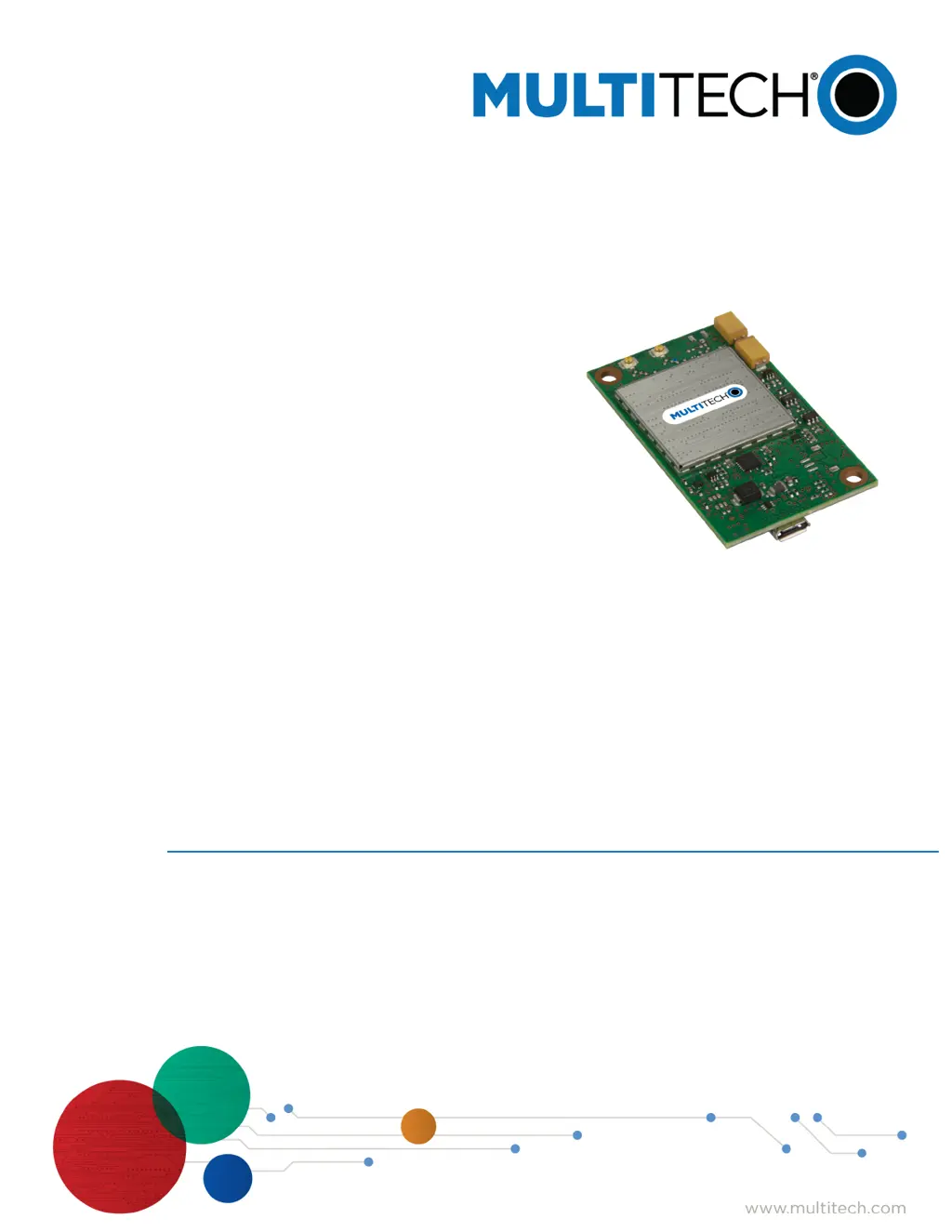
MTQ-MNG6-B02 Device Guide

Table of Contents

Questions and Answers

  • K
    Kenneth HernandezAug 11, 2025
    What to do if Multitech MultiConnect Dragonfly MTQ-MNG6-B02 Computer Hardware device is not detected?
    • L
      Leah JonesAug 11, 2025
      If your Multitech Computer Hardware device is not detected and shows a "No Device" error, here's what you can do: * Go to the Settings tab and ensure the correct modem type (USB or Serial) is selected. * For serial devices, verify that all serial modem settings match the modem and serial port configuration. * Try restarting Connection Manager. * Also, try disconnecting and reconnecting the device.
  • N
    Natasha KingAug 17, 2025
    Why is my Multitech Computer Hardware USB Modem not detected?
    • D
      Donna NewmanAug 17, 2025
      If the Multitech Computer Hardware USB Modem is not being detected, the issue might be with the power supply. Check the cable and connections to ensure they are secure. Also, make sure the device is properly connected to your PC using the correct USB cable.
  • K
    kenneth26Aug 23, 2025
    What to do if Multitech MultiConnect Dragonfly MTQ-MNG6-B02 Connection Manager is not working and the device is not detected?
    • A
      Alexandra DavidsonAug 23, 2025
      If the Multitech Computer Hardware Connection Manager isn't working and your device isn't detected, it might be due to missing drivers. Uninstall and then reinstall Connection Manager, ensuring you select "Install the modem driver" during the installation process.
  • S
    Samantha HillAug 28, 2025
    Why does Multitech MultiConnect Dragonfly MTQ-MNG6-B02 Connection Manager display "Device Error" for a serial device?
    • B
      bonnie89Aug 29, 2025
      If the Multitech Computer Hardware Connection Manager shows a "Device Error" for a serial device, it could be due to a COM port conflict or an incorrect COM port setting. First, try to free up the COM port being used by the device, if possible. Alternatively, on the Settings tab, choose the COM port that matches the one your device is installed on and click Apply. You can find the correct port in Windows Device Manager under Modems, by right-clicking your device and checking its Properties on the Modem tab.
  • P
    Pamela LeeSep 3, 2025
    How to fix Serial COM port not available in Multitech MultiConnect Dragonfly MTQ-MNG6-B02 Serial Modem Settings?
    • Q
      qgomezSep 3, 2025
      If the Serial COM port is not available in the Serial Modem Settings for your Multitech Computer Hardware, close the Connection Manager and then reopen it.

Multitech MultiConnect Dragonfly MTQ-MNG6-B02 Specifications

General IconGeneral
ModelMTQ-MNG6-B02
Product NameMultiConnect Dragonfly
CategoryComputer Hardware
ManufacturerMultiTech
Product TypeCellular Modem
ConnectivityCellular
Network SupportLTE
Humidity5% to 95% non-condensing
Cellular BandsB1, B2, B3, B4, B5, B8, B12, B13, B20, B25, B26, B28
GNSSGPS, GLONASS
Power Supply3.3V
Supply Voltage3.3V DC
InterfacesUSB
Operating Temperature-40°C to +85°C
Storage Temperature-40°C to +85°C
CertificationsFCC, IC, CE