USING CONNECTION MANAGER
38 MultiConnect
®
Dragonfly
TM
MTQ-MNG6-B02 Device Guide
10. Click Install. Windows may prompt you to allow the installer to make changes to your computer. Click
Yes.
11. In the Setup Wizard, click Finish.
Note: To open Connection Manager automatically after installation, check Start the MultiTech Connection
Manager when the installation is finished.
If using a USB device, you can connect the device to the carrier's network with Connection Manager. Refer to
Connecting a Device .
If using a serial device, you need to set up the device in Windows Device Manager before connecting the device.
Refer to Setting Up a Serial Device in Windows Device Manager.
Setting Up a Serial Device in Windows Device Manager
To set up the device in Windows Device Manager:
1. Make sure that your desired COM port for the serial device is available.
2. Connect the serial device to the PC.
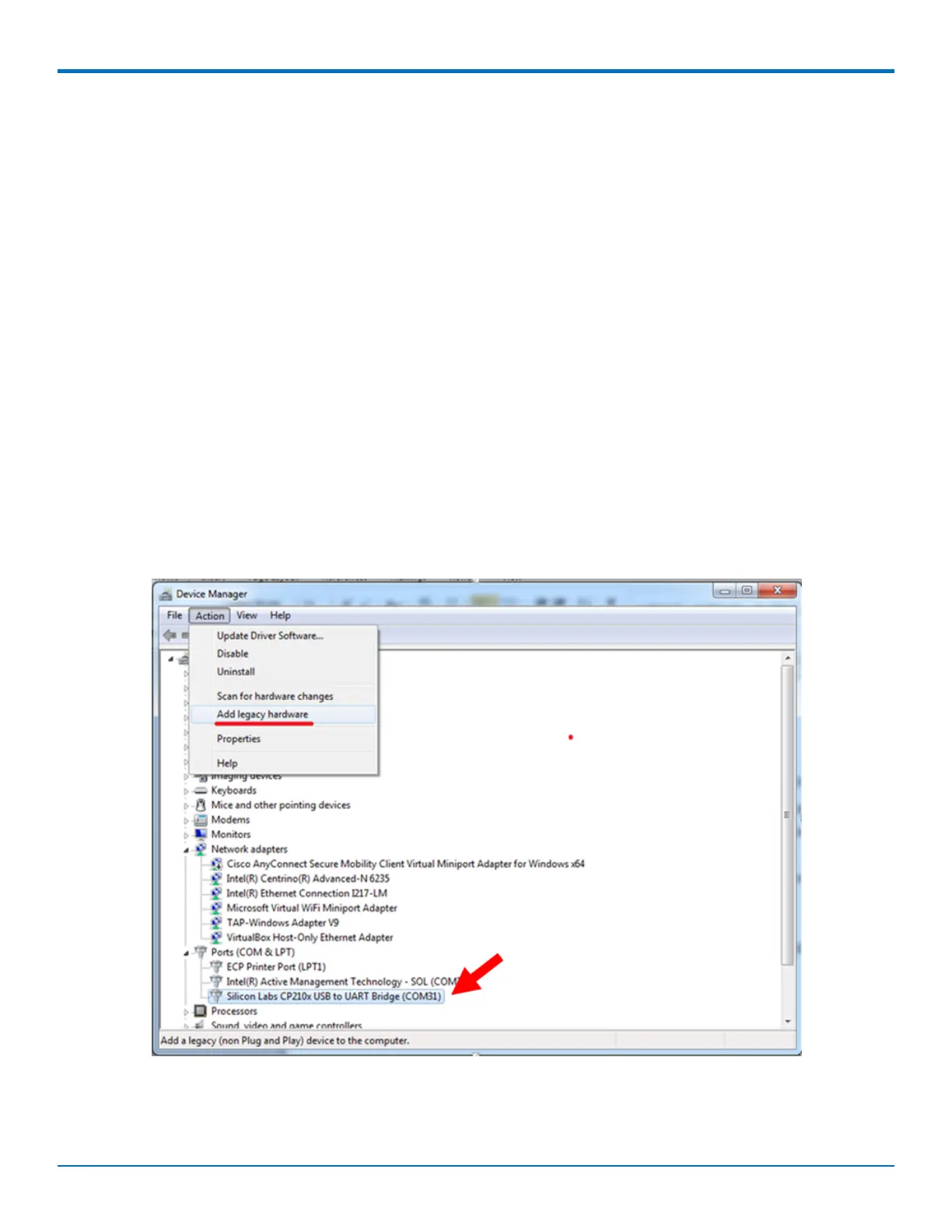
3. Go to Control Panel > Device Manager. Make a note of the COM port number for the connected device
(in COM Ports).
Example: The COM port is COM31.
4. Go to Action > Add legacy hardware.
5. In the Add Hardware Wizard:
a. Click Next.



 To Next Page