A3 Scanner User Manual (PC)
6
Configuring the Software
In order to scan with your scanner driver, you must
first configure the TWAIN-compliant application
software that came with your scanner or which was
purchased seperately.
The configuration process only has to be done once.
After the configuration process is complete, the
TWAIN driver will control all interactions between
your scanner and the host program. To configure the
software:
1. Make sure the scanner is still on.
2. Launch Windows.
3. Launch the host application software that came
with the scanner.
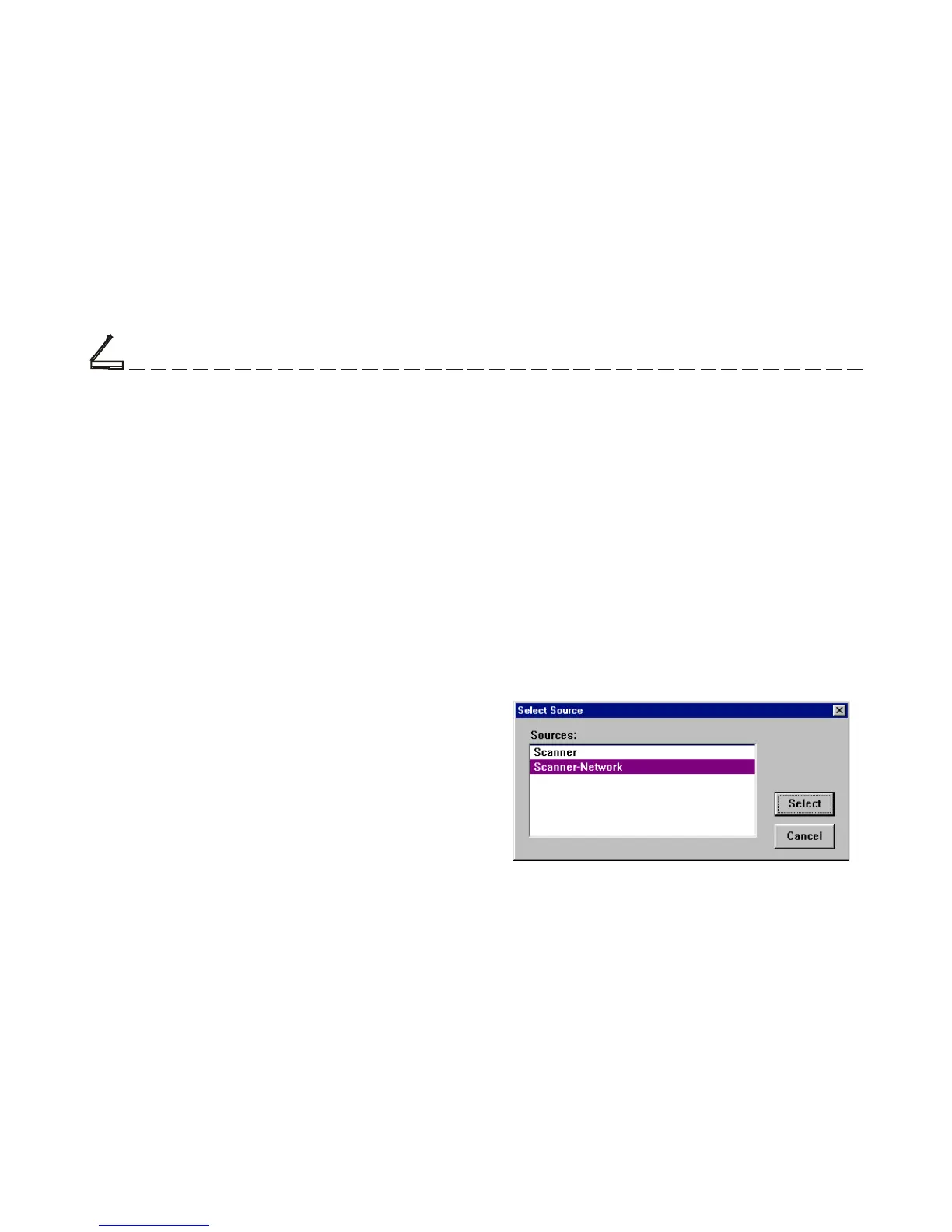
4. Open the host application’s Select Source
command (usually under the File menu) and
choose Select Source to display the Select
Source dialog box.
5. From the list of sources, choose your scanner
Setting Up the Scanner
as your image source and click Select. You will
return to the main screen of the host application.
Software configuration is now complete.
Network Scan
Enable users to search the installed A3 scanners in
the network and acquire images from this network
scanner.
Note: You must install TCP/IP Internet Protocol and
complete its required installation and setting.
To use the Network Scan:
1. When using any application program to Select
Source, choose Scanner-Network.
Chapter One






 To Next Page