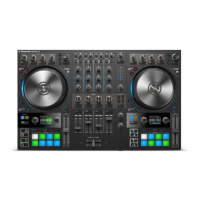
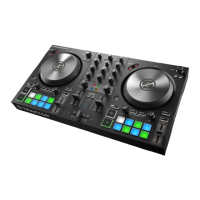
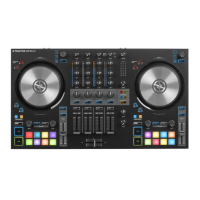
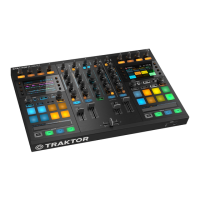
STEM Files allow you to interact with four different musical elements of a track independently. You
can modify these four STEM Parts individually to create spontaneous instrumentals, remixes, or
mashups. You can create transitions between musical elements STEM Part by STEM Part, or ap-
ply effects and EQ to a specific STEM Part, rather than the entire track. Furthermore, you can mix
musical elements across multiple STEM Decks, for example, taking the vocals from one STEM
File and mixing it with the beat from another.
Loading a STEM File
To load a STEM File into a Deck and switch the Deck Type to STEM Deck:
1. Press the VIEW button.
The TRAKTOR Layout switches to Browser view.
2. Press and hold the Star button + turn the Browse encoder to select the All Stems favorite
folder.
3. In the Track List, select the STEM File you want to load by turning the Browse encoder.
4. Press the Browse encoder to load the STEM File into the Deck.
The Deck Type automatically switches to STEM Deck. The display shows the Waveform for
the entire STEM File.
Playing Back the STEM File
In order to play back a STEM File:
Tutorials
71


 To Next Page
 Loading...