NComputing L-Series User Manual rev.05.07.12
Page 12 of 95
vSpace Server software installation
Per the instructions below, always check the NComputing website for the latest vSpace Server software.
The software on the CD in your package may not be the latest version.
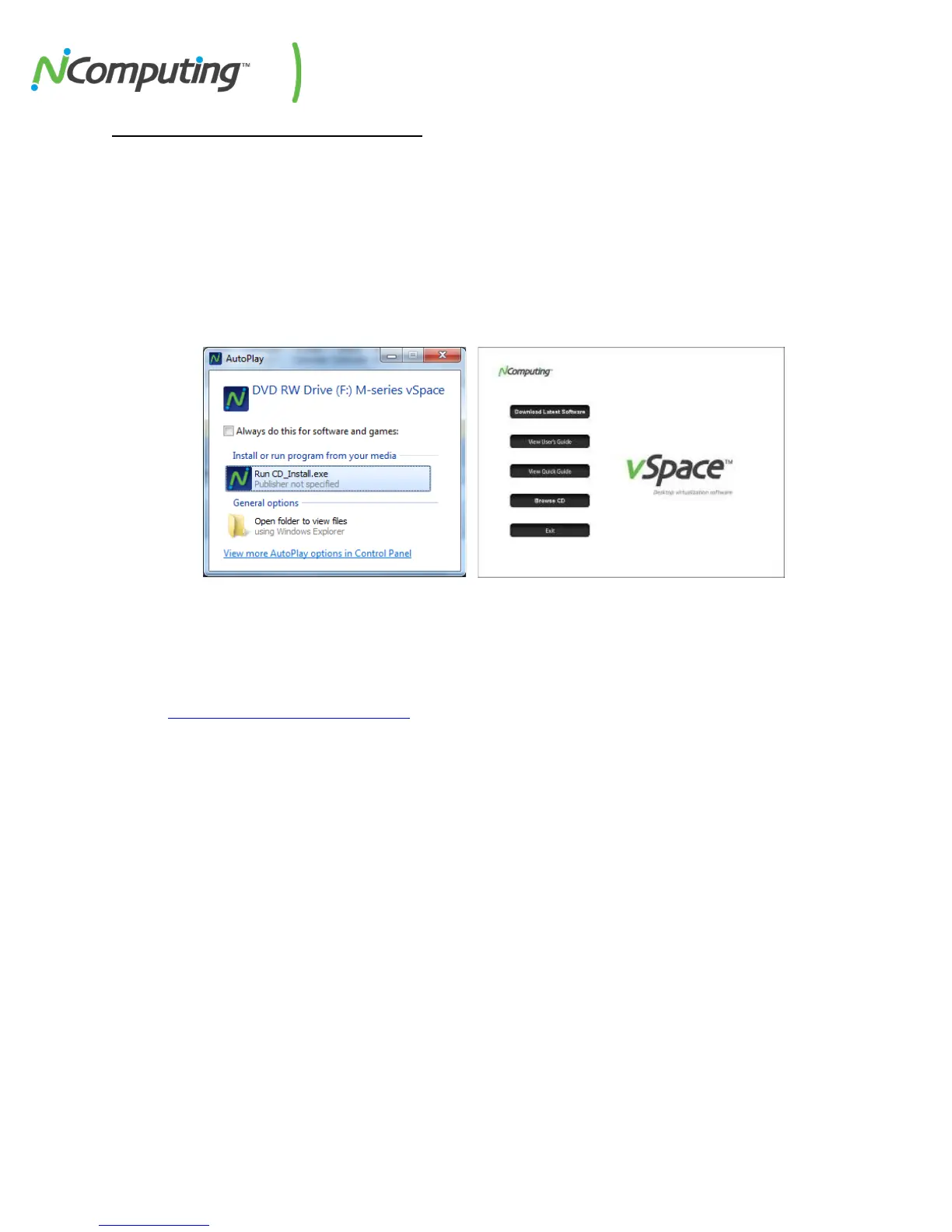
• Insert the software installation CD into the host computer's CD drive. In most cases, a window
will automatically appear after a few seconds with installation options. If the Windows
“AutoPlay” dialog appears (as seen below), select “Run CD_Install.exe”. If neither appears, go to
"My Computer," open the CD drive's icon, and start the "Setup" application.
• At the initial setup screen, click the "Download Latest Software" button. This will launch a
browser window at the NComputing Software Download Center. Locate the correct software
based on product model and operating system, and download the corresponding “zip” folder.
• Note that the current version of vSpace Server is always located at
www.ncomputing.com/downloads
• If internet access is unavailable, click “Browse CD” to locate the installer file per the next step
• After downloading and extracting the installer files, or alternately locating them on the product
CD, run the vSpace Server Installer by launching *.MSI installer for a first time installation. If you
are updating an existing vSpace Server installation, refer to the Release Notes for specific install
instructions.
• At the installer’s "Welcome" screen, click on the "Next" button which will take you to the
antivirus and firewall warning screen. Read and follow the instructions, then click on the "Next"
button.


 To Next Page