Tasks
8 task buttons are displayed on the screen at once.
Each task button displays the task number and task name. To activate the task, press the
required task button.
Some tasks maybe programmed by the installer to do internal task activations that may not
be intended to be activated by the keypad. These tasks will be greyed out to prevent them
from being accidentally activated.
The scroll bar at the right side of the screen can be used to scroll to other tasks. The
Previous and Next buttons can also be used to display the previous or next group of 8
tasks.
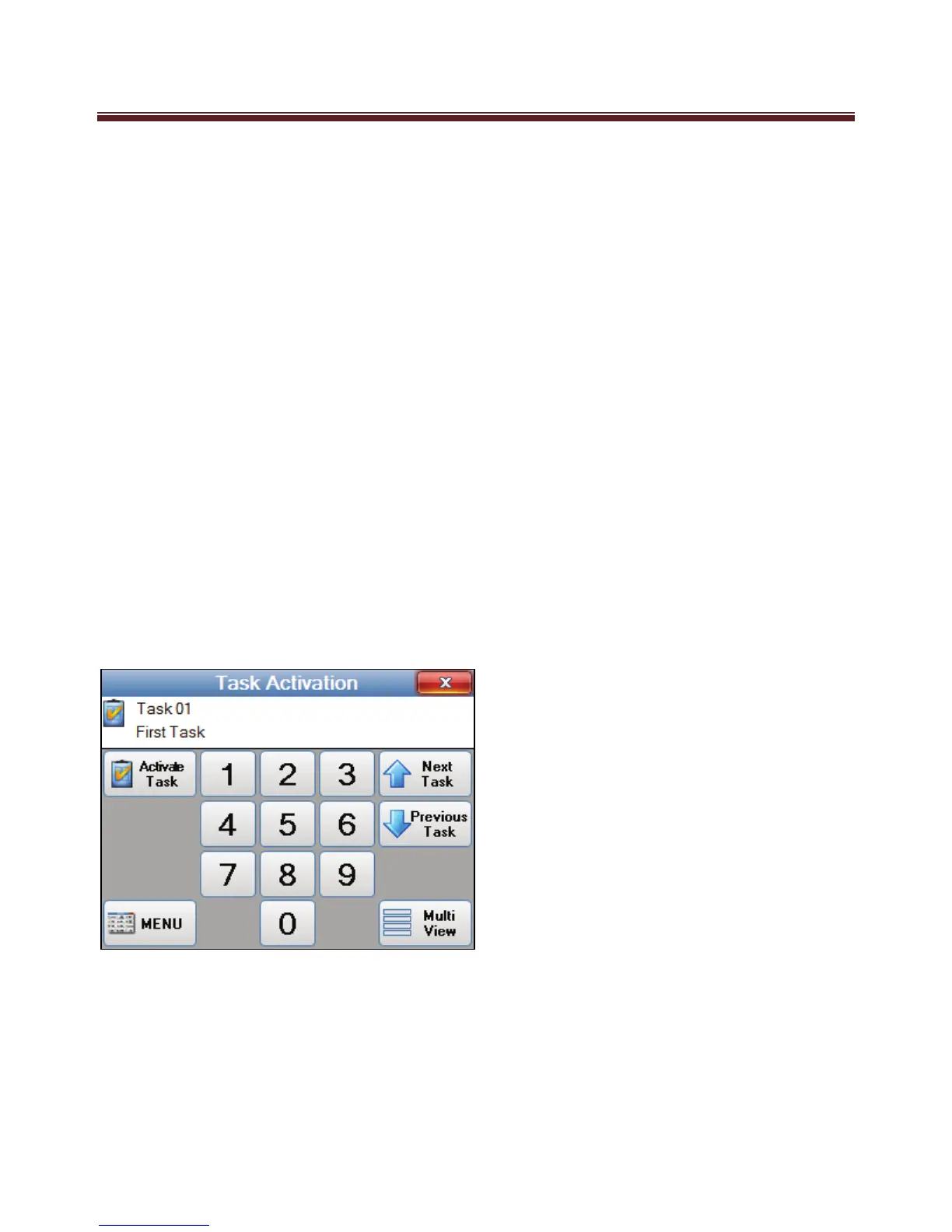
Display Screen – Task Activation Single View
If an advanced user wishes to activate internally activated tasks, these can still be
activated by using the “Single View button”. Advanced users who understand the
consequences from activating “Internally activated tasks may do so by pressing the Single
View button to display the Single View Tasks screen where all tasks can be selected and
then activated.
The task number can be selected with the numeric buttons.
Next Task and Previous Task buttons will move through task items that programmed with
show enabled.
Test selected task is activated by pressing the Activate Task button.
Pressing the MENU button will step back to the Automation Menu.


 To Next Page