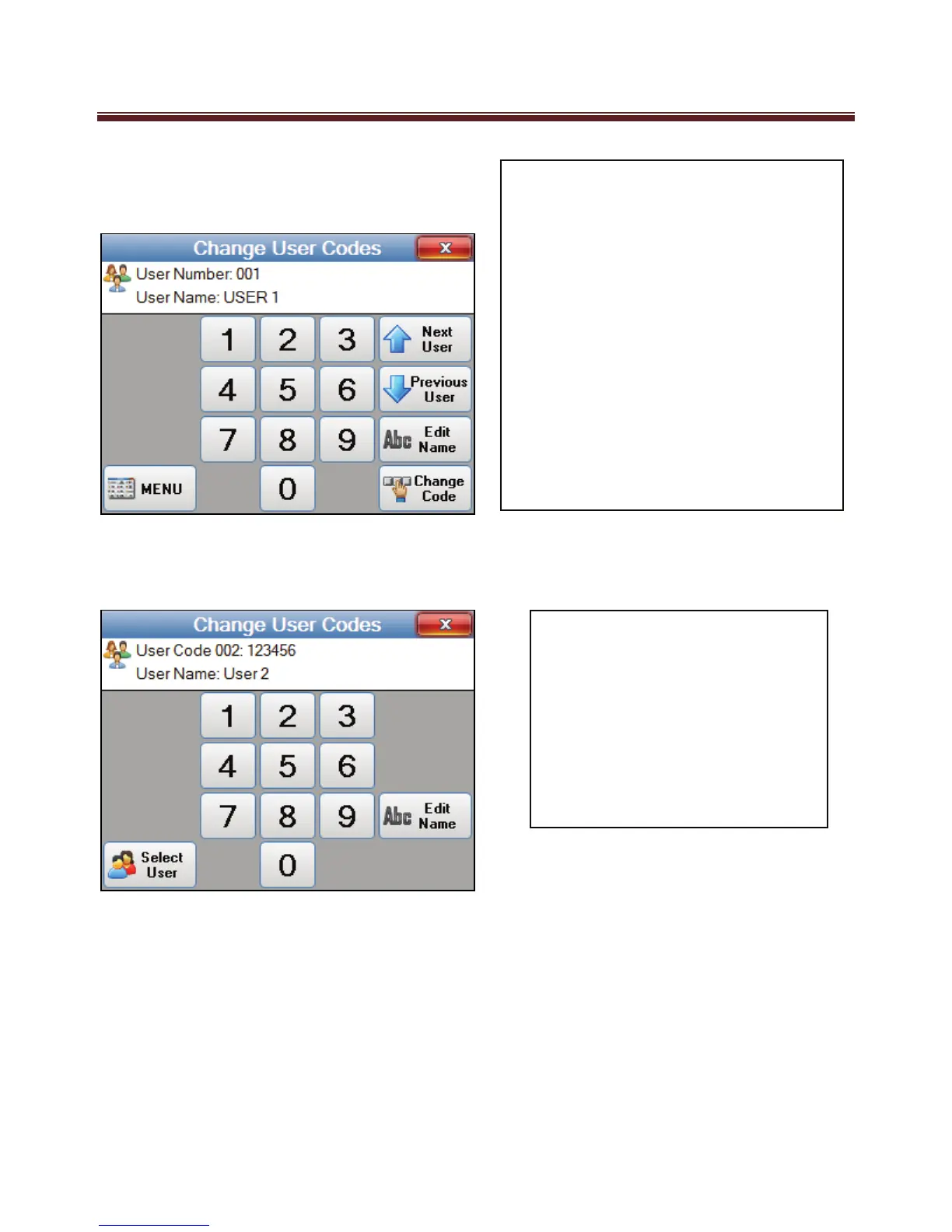
Change User Codes
(Requires Master Level User Code)
Once the user to be edited is selected press the “Change code” to change the user’s code
that will be used to Arm / Disarm your System, or “Edit Name” to change the name
assigned to the user code.
Once the user is selected
enter the new unique 4
digit code you wish to
allocate to the user.
If your system is set for a
6 digit number then enter
a new 6 digit number.
Your M1 system supports up to 199
User Codes. The installer at time of
installation and setting your system
up will have enabled the users.
From this “Change User Codes”
option you can change user codes
and users names.
To change a user’s code, select this
option and using the “Next User” or
“Previous User” move up and down
the user list to select the user you
wish to edit.


 To Next Page