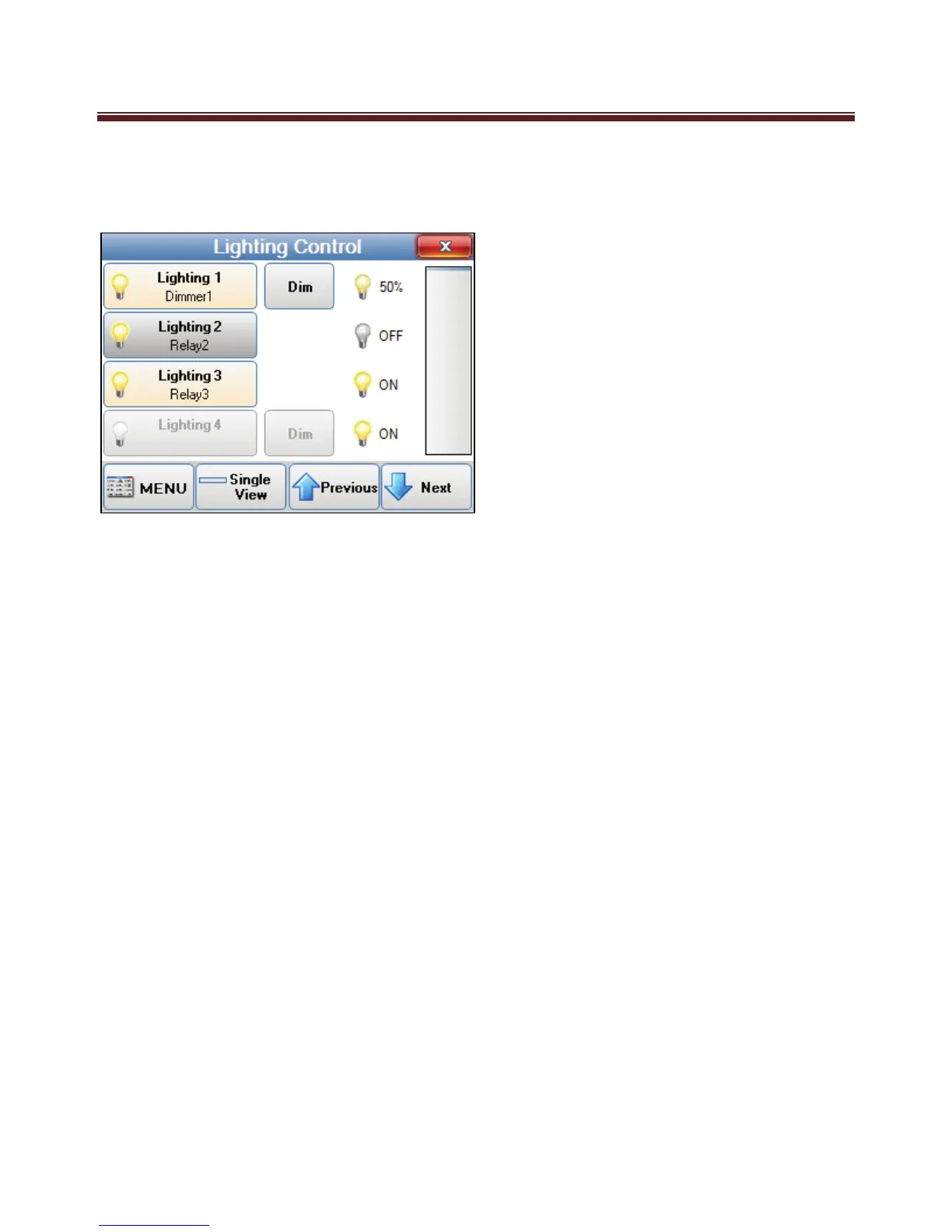
Lighting Control
The Lighting Control screen will be displayed when Lighting Control is selected from the
Automation window.
4 Lighting control options are displayed at one time.
These items may take a little longer to be displayed than Tasks or Outputs as the M1 panel
has to be polled for each item to ensure their status are 100 live.
Each Lighting button will display the lighting number and lighting name. If the ‘Light’ is
Dimmable then a Dim button will also be displayed.
Some lights maybe programmed by the installer not to be controllable by the keypad, or if
you don’t have a lighting system integrated with your M1 system. If so these lights will be
greyed out to prevent them from being accidentally activated. Lights programmed by your
installed not to be controlled by the keypad can still be controlled by advanced users using
the “Single View Mode”
A status icon is displayed for each lighting - either on, off or dimmed.
The current status of each lighting is also shown by text – ON, OFF or a percentage if
dimmed.
If the lighting is on or dimmed then the lighting button will also be highlighted.
The Previous and Next buttons can be used to navigate to other lighting.
The scroll bar on the right side can also be used to navigate to other lighting.


 To Next Page