The display of the date and time may vary slightly to that shown above, based on system
settings with the M1.
Status Window
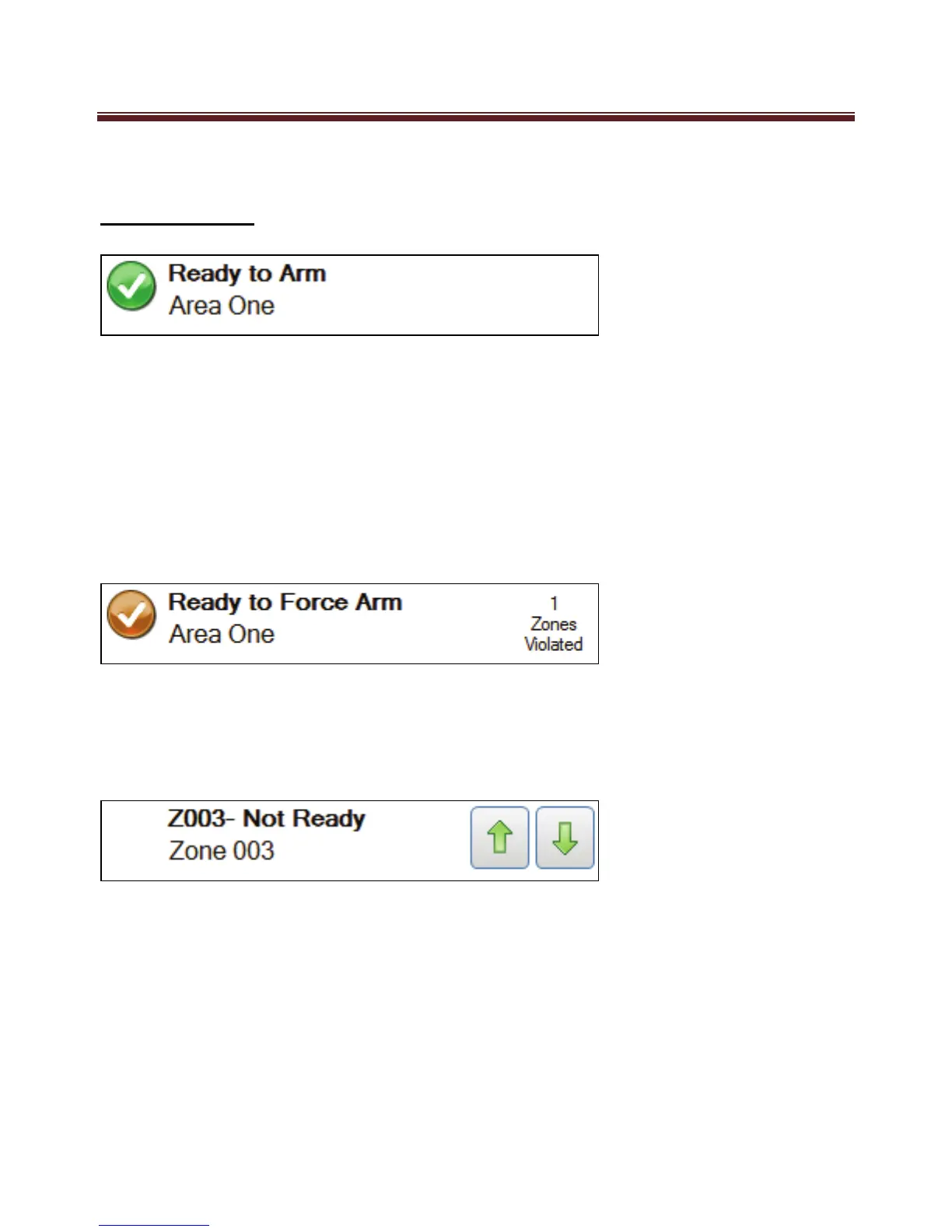
The status window located below the top display strip shows the current status of the
panel.
The icon on the left of the status window indicates the current arming status or the current
alarm status.
The top line of text of the status window displays the current arming status or the current
alarm status.
The bottom line of text of the status window may switch between displaying keypad area,
current trouble or custom message.
The right hand side of the status window may display number of zones violated.
View Violated Zones
When the View Violated Zones button is pressed the Status Window will display violated
zones. The Up and Down buttons that appear in the Status Window can be used to move
the previous and next violated zones.
To view zones that are “violated” (Unsealed) click on the “Violated Zones” button at the
top right corner of the ‘Main Screen button display’


 To Next Page