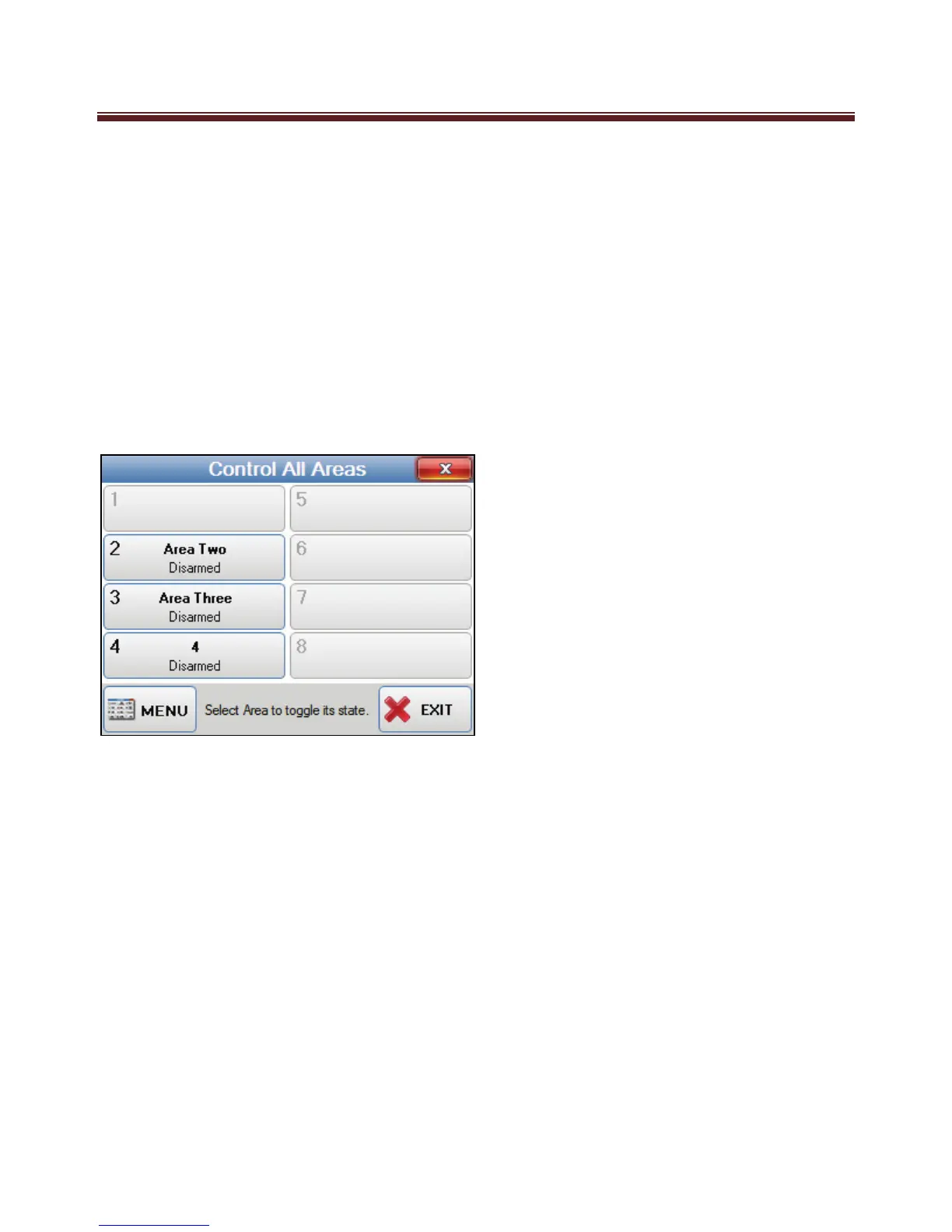
2. The second option this feature allows is the control of ALL areas from this one
screen.
To allow for the control of ALL areas (based on the Access level of the user code
used to access this option) Press the “Control All Areas” button at the bottom of
the screen.
Once selected the screen will change slightly to show the status of all areas the
user has access to control.
To change the status of any Area while in this mode, simply click on the Area
from this screen and the Area will change its state from Arm / Disarm or visa
versa. This also allows for multiple Areas to be selected to be changed from the
one screen.
Once completed press the “Exit” button to exit this screen and go back to the Main screen.


 To Next Page