33
Full Screen Mode
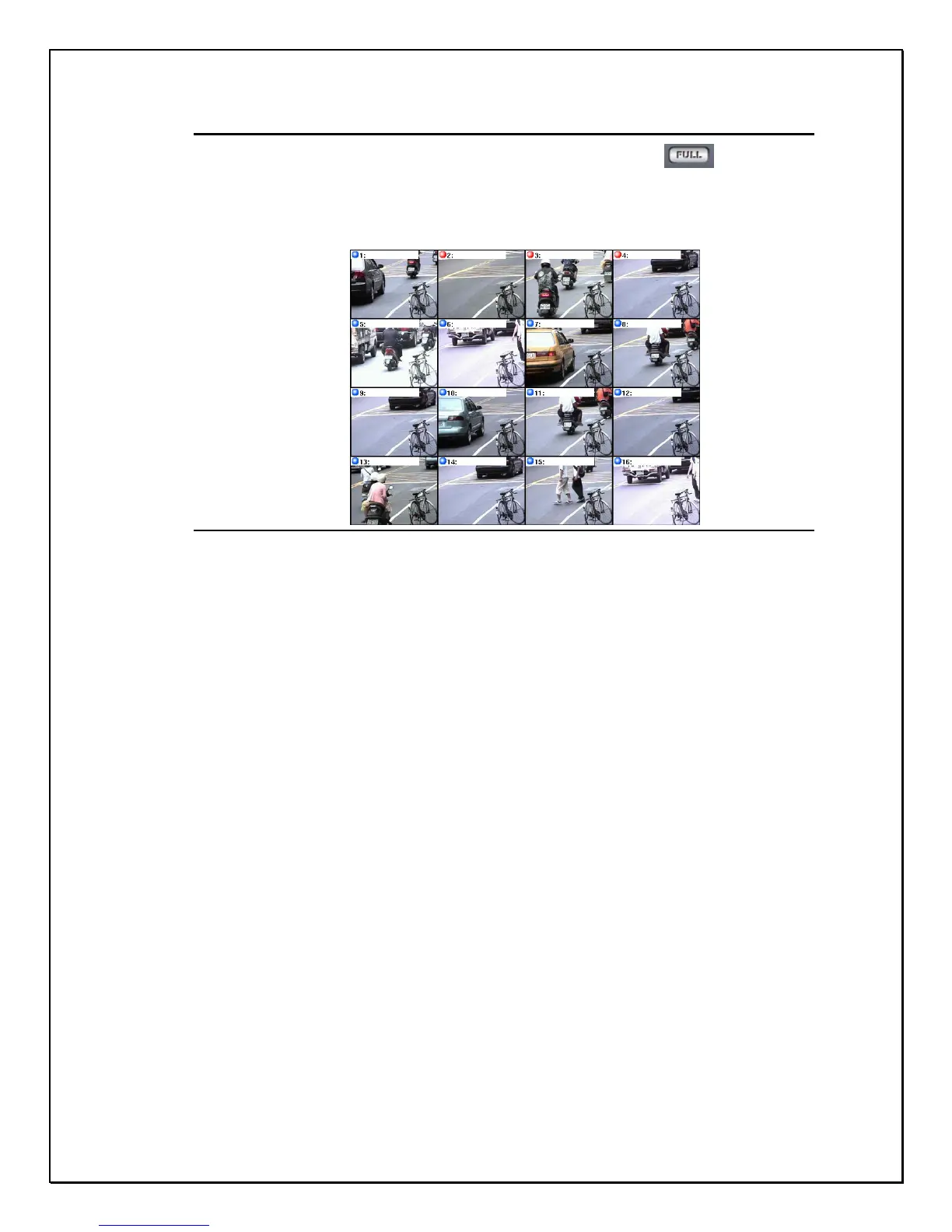
3. Step 1: Click the Full Screen view icon on the right-side toolbar….
4. Step 2: The screen will display all or the selected cameras connected to the DVR in Full
Screen Mode. If the system has 16 cameras, sixteen cameras will occupy the entire
screen.
Figure 3-8: The Full-Screen Camera View Screen
Depending how your system is configured, the PRO 16/8 RAID DVR can be
configured to display one to sixteen cameras in Full Screen Mode. This can be
configured in the main Settings Panel. This will be covered later in this manual.


 To Next Page