Configure System Information
55
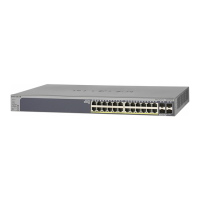
NETGEAR 24-Port Gigabit Smart Managed Pro Switch with PoE+ and 2 SFP Ports Model GS724TPv2
Remove an Entry From the Dynamic Host Mapping Table
To remove an entry from the dynamic host mapping table:
1. Connect your computer to the same network as the switch.
You can use a WiFi or wired connection to connect your computer to the network, or
connect directly to a switch that is off-network using an Ethernet cable.
2. Launch a web browser.
3. In the address field of your web browser, enter the IP address of the switch.
If you do not know the IP address of the switch, see Change the Default IP Address of the
Switch on page 9.
The login window opens.
4. Enter the switch’s password in the Password field.
The default password is password.
The System Information page displays.
5. Select System > Management > DNS > Host Configuration.
The DNS Host Configuration page displays.
6. Select the check box next to the entry to remove.
7. Click the Delete button.
Change the Host Name or IP Address in an Entry of the Dynamic Host Mapping Table and
View All Entries
To change the host name or IP address in an entry of the dynamic host mapping table
and view all entries:
1. Connect your computer to the same network as the switch.
You can use a WiFi or wired connection to connect your computer to the network, or
connect directly to a switch that is off-network using an Ethernet cable.
2. Launch a web browser.
3. In the address field of your web browser, enter the IP address of the switch.
If you do not know the IP address of the switch, see Change the Default IP Address of the
Switch on page 9.
The login window opens.
4. Enter the switch’s password in the Password field.
The default password is password.
The System Information page displays.
5. Select System > Management > DNS > Host Configuration.
The DNS Host Configuration page display.





 To Next Page