EasyManua.ls Logo

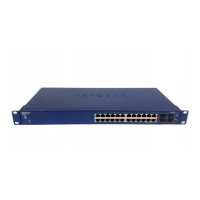
NETGEAR GS728TS - User Manual

NETGEAR GS728TS
329 pages
Print Icon
To Next Page IconTo Next Page
Loading...
350 East Plumeria Drive
San Jose, CA 95134
USA
February 2012
202-10995-01
v1.0
GS728TS, GS728TPS,
GS752TS, and GS752TPS
Gigabit Smart Switches
Software Administration Manual

Table of Contents

Other manuals for NETGEAR GS728TS

Questions and Answers

  • K
    Kristie DanielsJul 31, 2025
    Why is the ACT LED flashing continuously on all connected ports and the network is disabled on my NETGEAR GS728TS?
    • K
      Karen ThomasJul 31, 2025
      The continuous flashing of the ACT LED and network disability on your NETGEAR Switch indicates a network loop (redundant path). To resolve this, ensure there's only one path from any networked device to another. You can also configure the Spanning Tree Protocol (STP) through the switch management interface to prevent network loops.
  • J
    James BuckAug 7, 2025
    How to fix a NETGEAR GS728TS when the Power LED is off?
    • L
      laceyramosAug 7, 2025
      If the Power LED on your NETGEAR Switch is off, it indicates that no power is being received. Check the power cord connections and the connected device. Also, ensure all cables used are correct and comply with Ethernet specifications.
  • M
    Michael ChapmanAug 14, 2025
    Why is the Link LED off or intermittent on my NETGEAR GS728TS?
    • T
      Tyler MeyerAug 14, 2025
      If the Link LED on your NETGEAR Switch is off or intermittent, the port connection might not be working. Check the crimp on the connectors and ensure the plug is properly inserted and locked into the port at both the switch and the connecting device. Verify that all cables used are correct and comply with Ethernet specifications. Test for a defective PC adapter card, cable, or port by testing them in an alternate environment where all products are functioning.
  • J
    Jacob NolanAug 23, 2025
    What to do if a unit is linked to a stack, but does not join the stack on NETGEAR Switch?
    • A
      Alicia ArmstrongAug 23, 2025
      If a unit is linked to a stack but doesn't join it on your NETGEAR Switch, the stacking ports of the new unit might be configured differently from the stack, or the unit is configured as a stand-alone unit. Remove the unit from the stack. Use the Web Management to configure the unit as a stackable unit, with last two ports used as the stacking ports.

Summary

Getting Started

Connecting the Switch to the Network

Steps to connect the switch to the network and configure its IP address for remote management.

Configuring System Information

PoE;PoE+ (GS728 TPS and GS752 TPS Only)

Configuring Power over Ethernet settings for supported models, including port priority and power limits.

Configuring Switching Information

VLANs

Defining Virtual LAN groups and managing port membership for network segmentation and security.

Configuring Routing

Configuring IP Settings

Globally enabling routing and configuring IP settings for the switch's routing interfaces.

Configuring Quality of Service

Managing Device Security

Management Security Settings

Configuring login password, RADIUS, TACACS+, and authentication lists for secure access.

Port Authentication

Enabling and configuring port access control using 802.1X and MAC-based authentication.

Monitoring the System

Maintaining the System

Reset

Rebooting the switch or restoring factory default settings for system maintenance.

Troubleshooting

Using utilities like Ping and Traceroute to diagnose network connectivity issues.

NETGEAR GS728TS Specifications

General IconGeneral
Product TypeManaged Switch
Form FactorRack-mountable
Switching Capacity56 Gbps
MAC Address Table Size16K
PoENo
Power SupplyInternal
LayerLayer 3
Operating Temperature0 to 40 °C
Operating Humidity90% Max (Non-Condensing)
Ports28 (24 x 10/100/1000 Mbps + 4 x 1G/10G SFP+)
Forwarding Rate41.7 Mpps
Jumbo Frame Support9216 bytes
Dimensions17.32 x 10.24 x 1.72 in (440 x 260 x 43.7 mm)

Related product manuals