18
1073OPX Remote Control Software 1
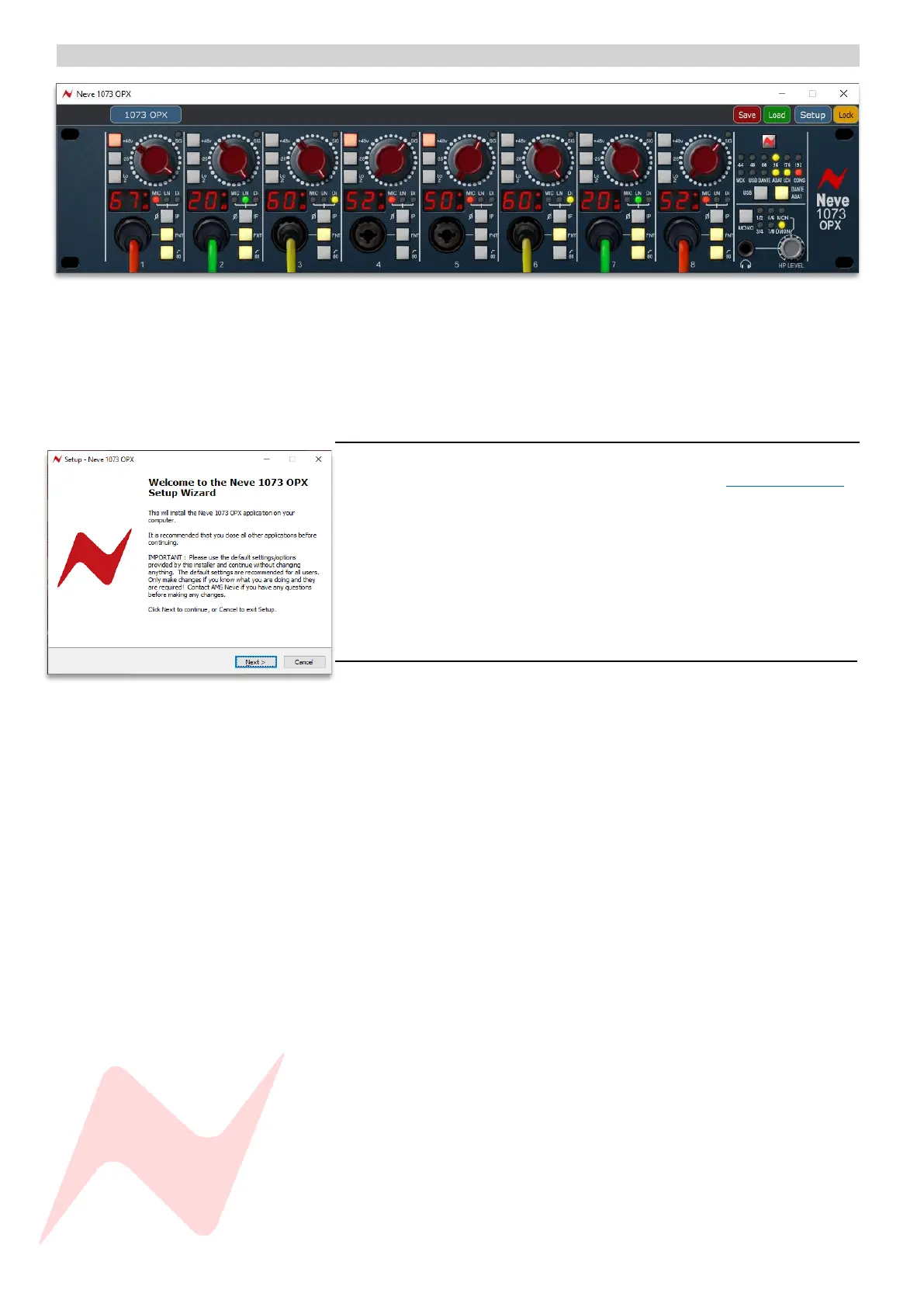
The 1073OPX proprietary Remote-control software application can be run
on Mac or PC and allows users to access and operate the 1073OPX control
features remotely. The unit’s front panel controls including gain level, Input
selection, phantom power, etc can be controlled remotely from any
connected computer.
Installation 1
Download the 1073OPX Remote Software installer from www.neve.coom
and follow the on-screen instructions.
Choose ‘Full Installation’
Click ‘Create a desktop shortcut’ if required
Tick ‘launch Neve 1073OPX’
Click ‘Finish’
Connecting Comms 1
The 1073OPX can be connected directly to the control computer or through
a network switch.
When making a direct ethernet connection from the computer to the
1073OPX, a Manual IP address must be assigned. See page 17.
To connect the 1073OPX directly to the computer, a connection via ethernet
CAT5e/CAT6 cable must be made from the computer ethernet port to the
COMMS CTL port on the rear of the unit.
Multiple units can be connected to the computer by connecting through a
network switch. DHCP protocol will assign each unit its own unique IP
address which will be recognised by the control computer and seen by the
remote software.
The Comms connector light on the unit front panel indicates two-way
communication between the software plugin and the 1073OPX unit.
Up to 8 1073OPX racks can be connected to the remote computer. When
using multiple OPX units, each rack must be selected by clicking the rack
name at the top of the screen, the plugin interface window will update to
display and control the settings of the chosen hardware unit.


 To Next Page