23
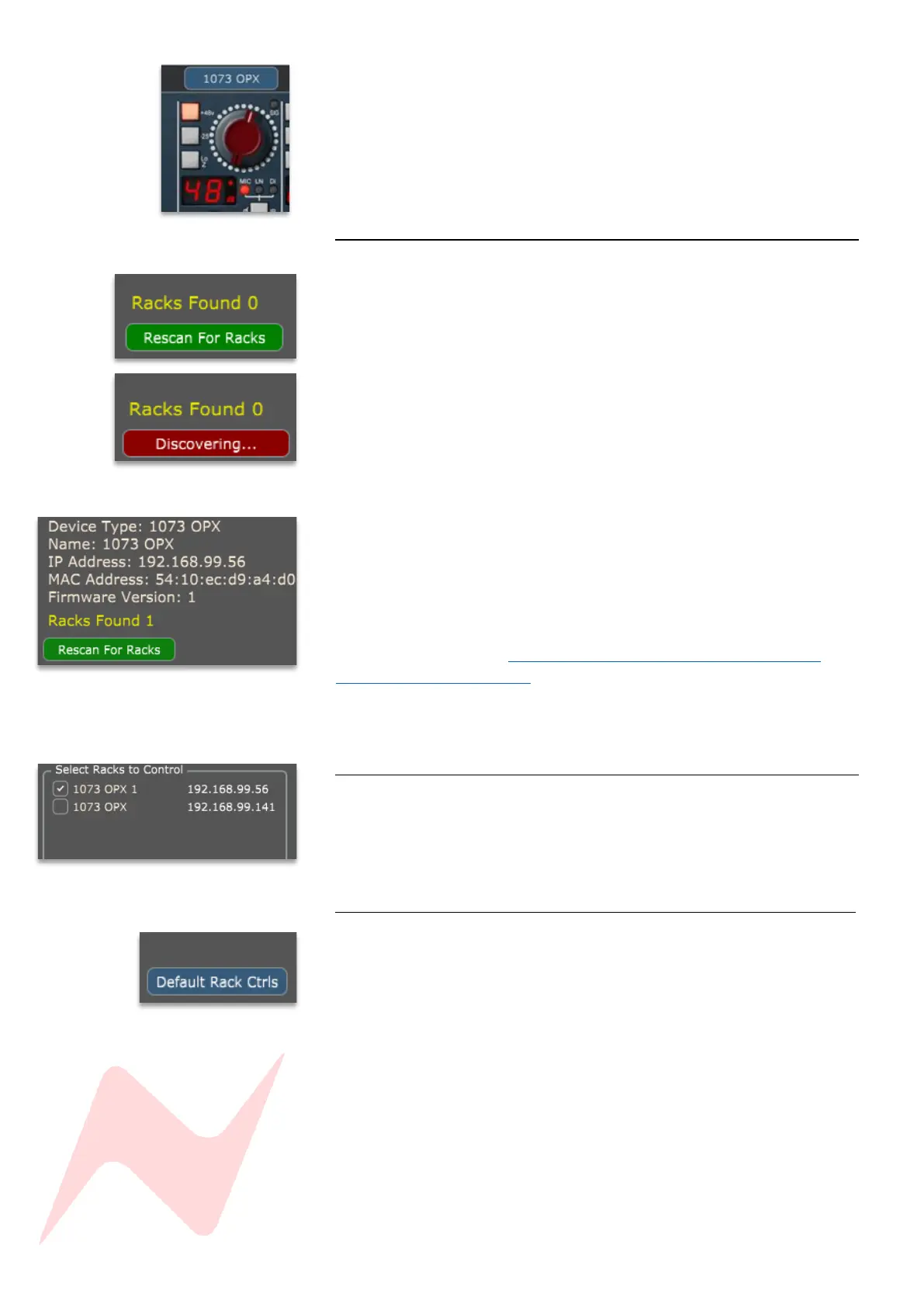
The device name will appear at the top of the main plugin window. Names
are locked to the units fixed MAC Address & stored in the device’s internal
memory, each time a device is connected or disconnected, the name
remains with the device.
Rescan for Racks 1
If no units are found,
check the IP address is set correctly by following steps on page 14.
Then click Rescan for Racks
Discovering will appear during the scan process.
Once a unit is found the device information will be displayed
Device type: will show as 1073OPX
Name: 1073OPX by default, unless renamed by user.
IP Address: will show the units current manual or auto-assigned IP address
MAC Address: Fixed address used to identify each unit.
Firmware version: displays the units current firmware version, firmware
updates can be found at www.AMS-Neve.com >1073OPXproductpage
>supporting documentation
Racks Found: Displays the number of racks visible on the network.
Select racks to control 1
Once available racks are found and ready to connect, the plugin can be
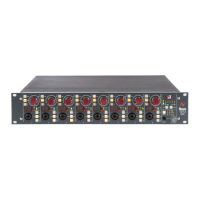
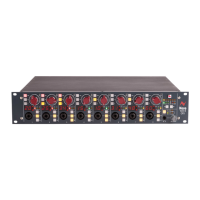
assigned to control up to 8 1073OPX racks.
As a safety feature, the software will not automatically connect, the user
must tick the racks they wish to control.
Settings Reset 1
To reset the front panel controls of the selected rack press Default Rack
Controls. All settings for the 8 preamplifier channels are reset to their
default state. Monitor control and digital section are exempt from the reset.
Use caution when multiple racks are connected, Default rack controls will
only reset one device at a time. Ensure that the correct rack is selected by
using the IDENTIFY button.


 To Next Page