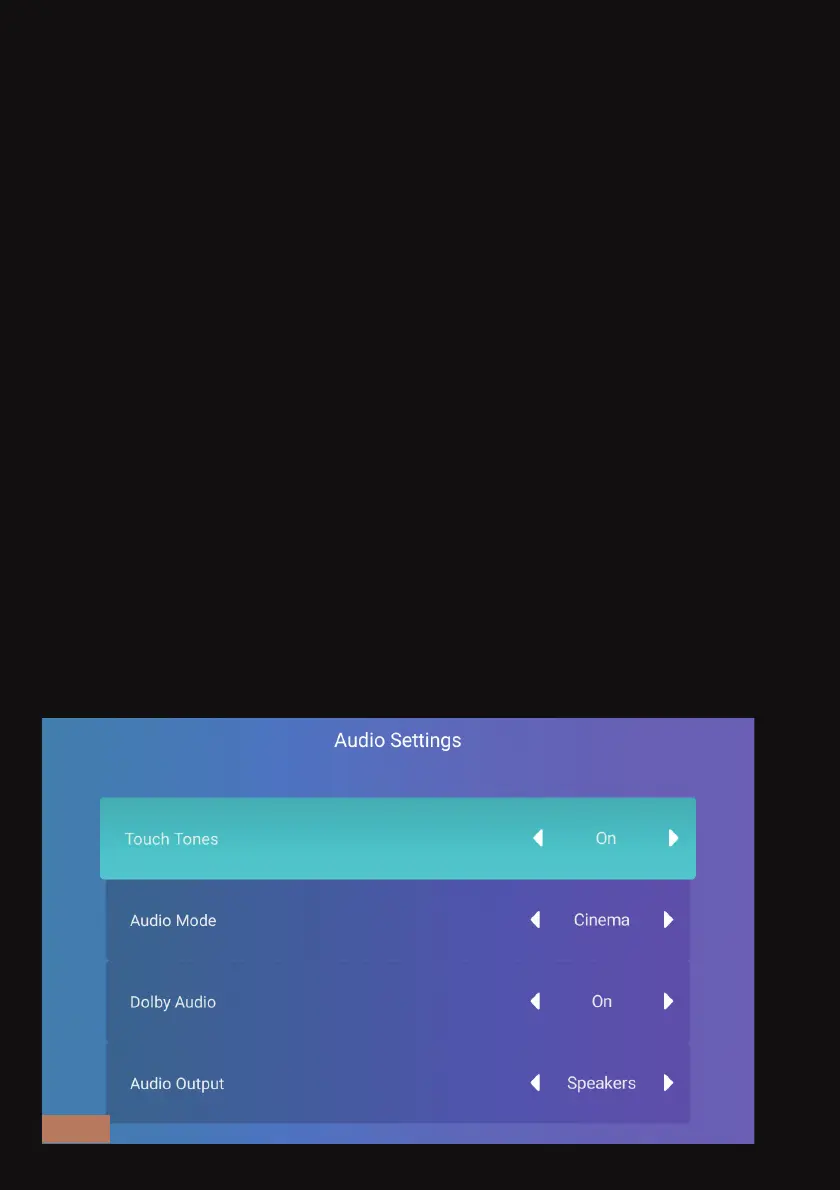
AUDIO
Touch Tones -
Toggle navigation sounds on or off.
Audio Mode -
Set the Audio Mode to either Music or Movies.
Dolby Audio -
Turn the Dolby Audio on or off.
Audio Output -
Set this to: Speaker, S/PDIF, Headphones, or HDMI ARC.
APPS
Install apps with an APK file.
Download the APK file you want to install from a trusted website, copy
it onto a flash drive, and then plug the flash drive into the projector.
On the projector, open the file by going to Settings > Apps > File
Manager and selecting the desired file.
Then, a pop-up will appear. Of the two options that the pop-up gives
you, choose Settings, scroll down to find the options Disclaimer
Customization, iMirror, and EDLNA, and then set all three to Allow.
When the projector asks if you want to install this application, tap Install.
EN 35


 To Next Page