EasyManua.ls Logo

Nikon DS-U2 - User Manual

Nikon DS-U2
49 pages
Print Icon
To Next Page IconTo Next Page
Loading...
DS Camera Control Unit DS-U2
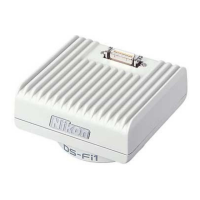
DS Camera Head DS-Fi1/DS-5M/DS-2Mv/DS-2MBW
DS Cooled Camera Head DS-Qi1Mc/DS-5Mc/DS-2MBWc/DS-Ri1
<Instructions>
(Ver.4.0)
M381E 07.12.NF.5
*M381EN05*

Questions and Answers

  • L
    lhintonAug 12, 2025
    How to fix a Nikon Camera Accessories that won't turn on?
    • H
      haleyjohnstonAug 12, 2025
      If your Nikon Camera Accessories won't power on, ensure the power cable is securely connected to the power plug, wall outlet, AC adapter, and the 12 VDC IN connector of the DS-U2. Verify you are using the power cord and specified AC adapter that came with the product, and that the power switch is turned on. If the product is used in a hot or narrow place, it may become hot. Check if there is foreign smell such as burnt odor. If there is, unplug the power plug and request a repair service.
  • J
    Jack SnyderAug 20, 2025
    Why can't I control microscope functions on my Nikon Camera Accessories?
    • J
      josephturnerAug 20, 2025
      If you're experiencing issues controlling microscope functions with your Nikon Camera Accessories, ensure you are using a Nikon 80i/90i microscope and that it is turned on and ready for operation (allow about 30 seconds to be ready). Verify the USB cable is securely connected between the DS-U2 and the digital imaging head on the microscope. The hub between the microscope and the DS-U2 should be within one level in the tree structure. Use the USB cable provided with the microscope to connect the microscope and the DS-U2. Confirm you're using application software designed for control of the Nikon 80i/90i microscope and that the microscope initial setting is performed. Change the registration if the objective or filters are replaced.
  • L
    Laura AndersonAug 27, 2025
    Why is my Nikon Camera Accessories image out of focus?
    • C
      Cole LeeAug 27, 2025
      If the image from your Nikon Camera Accessories is out of focus, verify that the edge enhancement is properly set using the application software and that electronic zoom is turned off. Ensure the microscope and lens are in focus and that the product is used in a place with little vibration. Check that the aperture diaphragm is adjusted correctly (70% to 80% of the numerical aperture of the objective, or 70% to 80% of the pupil of the objective) and that the enlargement factor is adjusted correctly (500 to 1000 times of the numerical aperture of the objective). Adjust exposure or tone using the application software and confirm the microscope's illumination intensity is appropriate.
  • J
    jedwardsAug 31, 2025
    How to improve poor color on Nikon DS-U2?
    • C
      Christopher SmithAug 31, 2025
      If the color appears poor with your Nikon Camera Accessories, check that the white balance is set using the application software. Ensure that color compensation and hue adjustments are not set too high within the software. Verify the color of your PC monitor is adjusted appropriately and that the color temperature of the illumination is at an appropriate level.
  • D
    Deborah ChapmanSep 4, 2025
    What to do if Nikon DS-U2 Camera Accessories contrast is low?
    • E
      Edward LaraSep 4, 2025
      If the contrast is low when using your Nikon Camera Accessories, check that the tone and black level are correctly adjusted within the application software. Make sure the size of the field diaphragm is adjusted so that it circumscribes the view field and that the aperture diaphragm is adjusted to approximately 70% to 80% of the numerical aperture of the objective lens. Verify an appropriate filter is used and that ambient light around the microscope does not affect the image. Finally, ensure the specimen's contrast is sufficient.
  • L
    Lisa Thompson MDSep 8, 2025
    What to do if fixed images appear on the screen of Nikon DS-U2?
    • G
      Gregory RoseSep 8, 2025
      If fixed images appear on the screen when using your Nikon Camera Accessories, ensure that the camera cable is correctly connected.
  • L
    laurenbarberNov 15, 2025
    What to do if Nikon Camera Accessories functions are not working?
    • K
      Kevin CampbellNov 15, 2025
      If you're unable to control camera functions or are getting incorrect settings with your Nikon Camera Accessories, make sure the specified device driver and the Microsoft standard USB 2.0 driver are installed on your PC. Also, verify that the application software is compatible with the DS-U2. Check that the DS-U2 and the PC are connected with the USB cable, and that the cables are connected to the specified locations correctly. Check the USB peripheral equipments such as the USB port, added. Ensure the hub connecting the USB port and the DS-U2 is within one level in the tree structure and that the connecting USB cable is compliant. Confirm the OS version is compatible (not Macintosh). If you obtain a high-resolution image by pixel-shifting on DS-Ri1, sound could be heard from the movable p...
  • K
    kristinfuentesNov 23, 2025
    How to troubleshoot no image on Nikon DS-U2?
    • M
      Melissa PenaNov 23, 2025
      If no image appears when using your Nikon Camera Accessories, begin by checking that all cables are securely connected to the correct locations, including the DS camera head. Ensure the C mount cap is removed from the DS camera head. Verify the subject is within the microscope or lens's viewfield and that the microscope's optical path is set to the camera side. Check the USB peripheral equipments such as the USB port, added. The hub connecting the USB port and the DS-U2 should be within one level in the tree structure, and the connecting USB cable should be compliant. Confirm that the OS version is appropriate for the product (it is not compatible with Macintosh) and that the application software is compatible with the DS-U2. Finally, ensure exposure is set correctly via the application so...

Summary

Warnings

Warning and Caution Symbols

Explains symbols used to highlight important safety instructions.

Intended Use and Disassembly

Covers product's intended application and prohibition of repair/disassembly.

AC Adapter and Power Cord Safety

Details safe usage of AC adapter and power cord, including specifications.

Handling Precautions

Safety guidelines for handling the equipment to prevent damage or fire.

Cautions

Installation Location

Precautions regarding environmental conditions for equipment installation.

Connection and Cable Handling

Guidelines for connecting cables and handling the product carefully.

Before Use

DS Camera Head Models

Lists eight models of DS camera heads with their features.

Package Components

Lists the items included in the package for the DS Camera Control Unit DS-U2.

Peripheral Equipment

PC and Monitor System Requirements

Details system requirements for the PC and PC monitor to connect with DS-U2.

Other Peripheral Devices

Covers USB cable, C mount lens, and Nikon 80i/90i microscope connections.

Names of Parts and Their Functions

DS Camera Control Unit DS-U2 Overview

Shows external appearance and labels parts of the DS-U2.

DS Camera Head Overview

Illustrates top, bottom, and rear views of the DS camera head.

Connecting and Installing the Equipment

Connection Diagrams

Provides a schematic diagram of the DS-U2 system connections.

Installing the DS-U2

Explains horizontal and vertical installation methods for the DS-U2.

Connection Methods

Details connecting the DS camera head, PC, microscope, and external devices.

Microscope Setting

Filter Usage

Guidance on using NCB and interference filters for color and monochrome images.

Adjusting Diaphragms and Focus

Instructions for adjusting field/aperture diaphragms, focus, and lamp voltage.

Exposure, Light, and Vibration

Covers adjusting exposure time, managing ambient light, and mitigating vibration.

Operation Method

Connecting a Camera Head

Lists applicable camera heads and how the DS-U2 mode switches.

Installing Application Software

Instructions for installing the NIS-Elements freeware package.

Installing the DS-U2 Device Driver

Pre-installation Steps

Pre-installation step to close other applications and screensavers.

Camera Driver Installation

Procedure for connecting the camera and installing the Nikon USB DS Camera driver.

Eclipse-i Microscope Driver Installation

Procedure for installing the driver for the ECLIPSE-i series microscope.

Verifying Driver Installation

Instructions to verify successful installation of the device drivers using Device Manager.

Operation

NIS-Elements Freeware Functions

Explains functions of icons and tools in the NIS-Elements Freeware Main Window.

Using Other Software

Notes for using other dedicated software and precautions for standby mode.

Care and Maintenance

Cleaning the System

Provides instructions for cleaning the DS-U2 and camera head.

Storage Guidelines

Guidelines for storing the product safely in appropriate conditions.

Troubleshooting

Power Supply Issues

Lists common power supply problems and their check points for resolution.

Image Output to PC Monitor

Troubleshoots issues related to no image, focus, brightness, color, and contrast.

Camera Settings on PC

Addresses problems with controlling camera functions and PC settings.

Microscope Control Issues

Troubleshoots issues with controlling the Nikon 80i/90i microscope via PC.

Before Contacting Us

Information to prepare before contacting Nikon support for inquiries.

Specifications

DS Camera Control Unit DS-U2 Specs

Lists detailed specifications for the DS Camera Control Unit DS-U2.

DS Camera Head Specs

Details specifications for various DS Camera Head models (Qi1Mc, Fi1, Ri1, etc.).

DS AC Adapter Specs

Provides model names, manufacturer, and specifications of the DS AC adapter.

Overall Specifications

Lists operating/storage environment details and conforming standards.

Nikon DS-U2 Specifications

General IconGeneral
TypeCamera Control Unit
InterfaceUSB 2.0
Power SupplyUSB bus power
SoftwareNIS-Elements
CompatibilityNikon Digital Sight Series Cameras

Related product manuals