COOLSCAN
IV ED
60
5
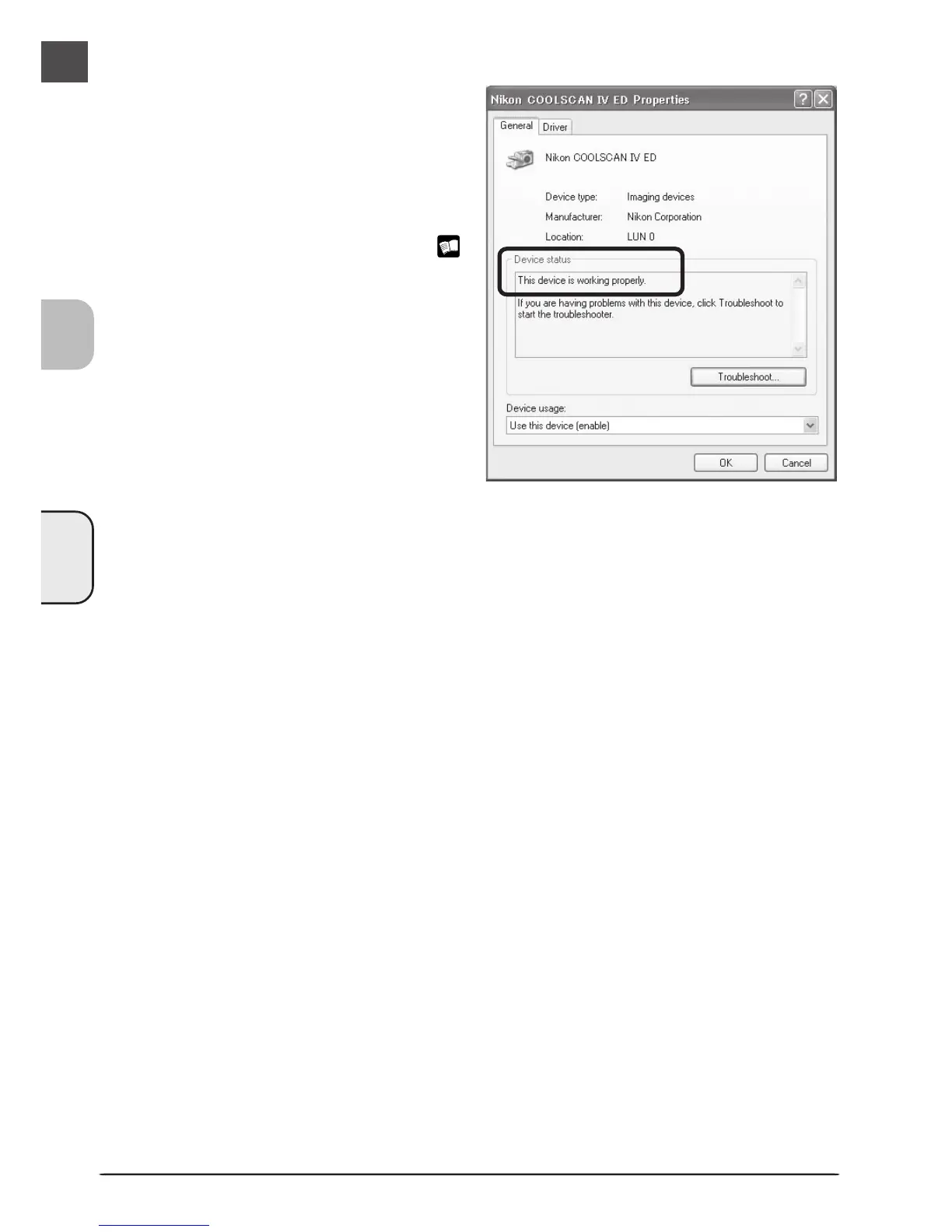
Confirm that the scanner is working properly
Double-click the listing for your scanner
that appears under “Imaging devices.”
The scanner Properties dialog will be dis-
played. Click the General tab and con-
firm that “This device is working properly”
appears under “Device Status.” If another
message is displayed, proceed to “Updat-
ing the Device Driver (Windows XP)” (
61).





 To Next Page