COOLSCAN
IV ED
69
4
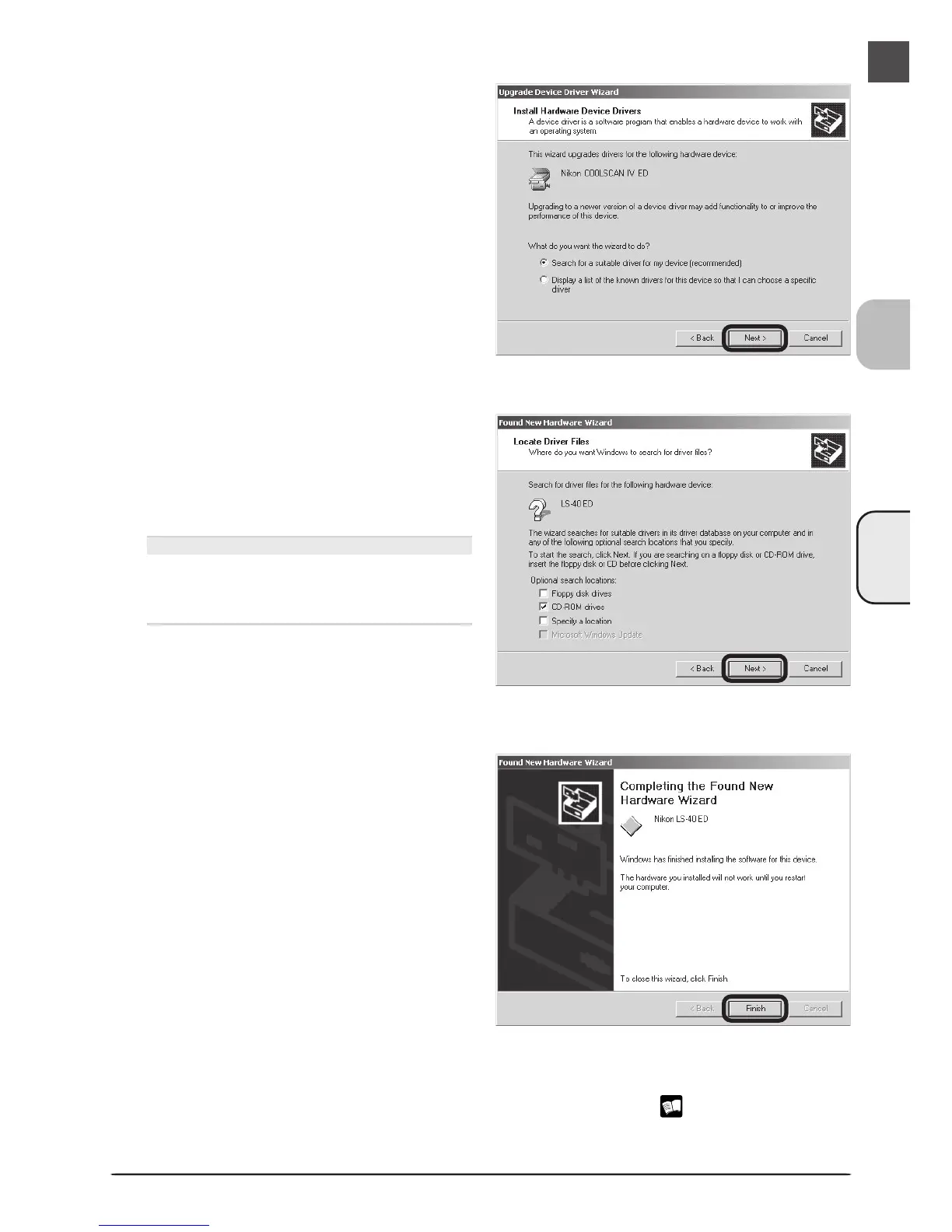
Select the search option
Select the search option and click Next.
5
Insert the Nikon Scan 3 CD
Holding down the shift key to prevent the
Welcome program from starting automati-
cally, insert the Nikon Scan 3 CD into the
CD-ROM drive. Select CD-ROM drives
and click Next.
The Welcome Window
If the Welcome program starts automati-
cally when you insert the Nikon Scan CD,
click Exit to close the Welcome window.
7
Confirm device registration
Confirm that the scanner has been correctly registered with the system as described in
“Confirming Device Registration (Windows 2000 Professional)” ( 66–67).
6
Click Finish
When the wizard displays a message stat-
ing that it has found the drivers for your
scanner, click Finish to complete installa-
tion. If prompted to restart the computer,
click Yes.





 To Next Page