18
12
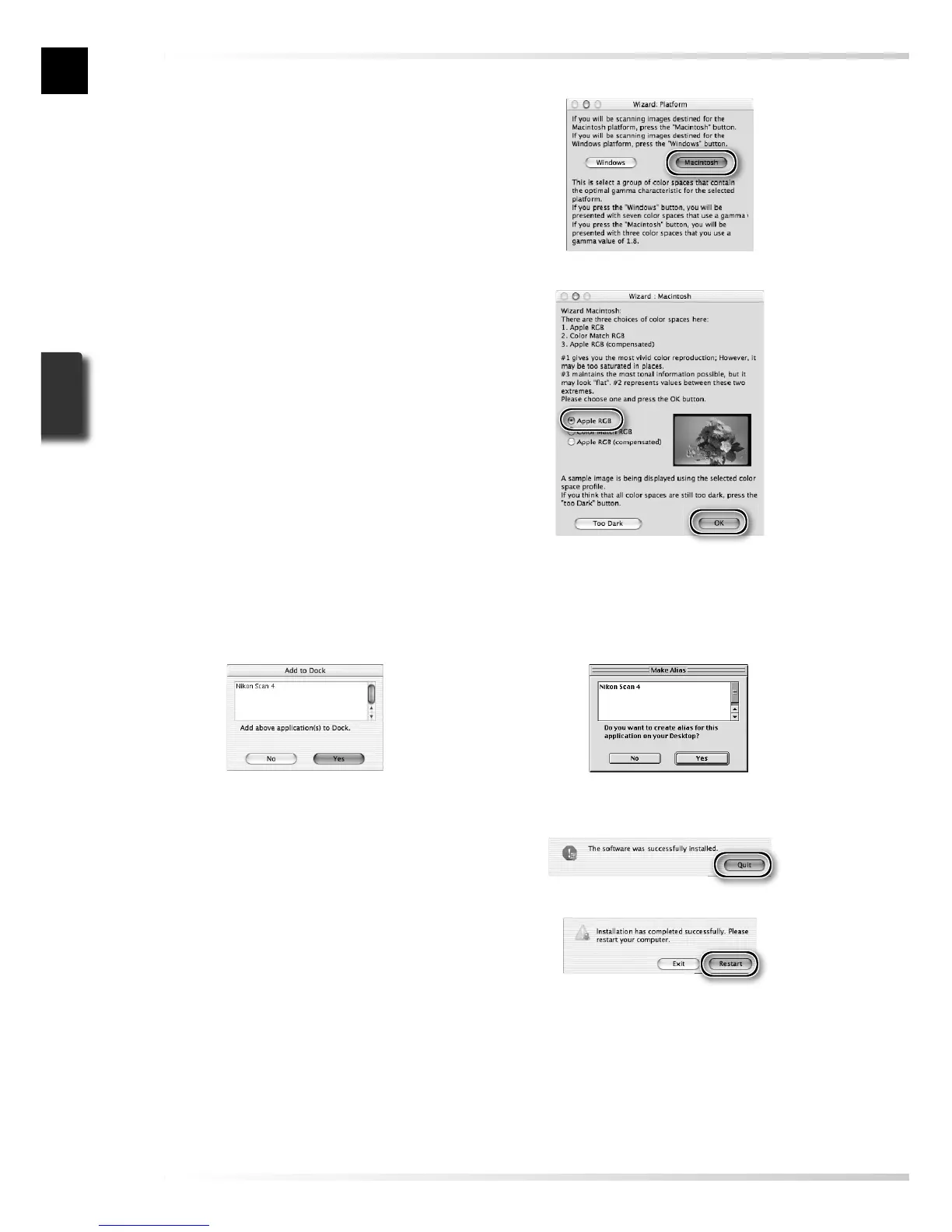
Click Quit
Click Quit to exit the installer.
13
Restart the computer
Click Restart to restart the computer.
This completes installation of Nikon
Scan.
10
Select Apple RGB
In the Windows Color Space Wizard,
select Apple RGB (recommended) and
click OK. For more information on
color-space profi les, see the Nikon Scan
Reference Manual.
Mac OS 9Mac OS X
11
Add Nikon Scan to the Dock (Mac OS X) or create an alias (Mac OS 9)
Click Yes to add Nikon Scan to the Dock (Mac OS X) or to create an alias for Nikon Scan
on the desktop (Mac OS 9). Click No to proceed without adding Nikon Scan to the Dock
or creating an alias.
9
Click Macintosh
Clicking Use Wizard in the opening
dialog of the Color Space Wizard dis-
plays a platform selection dialog. Click
Macintosh.







 To Next Page