30 Barnes & Noble NOOK User Guide
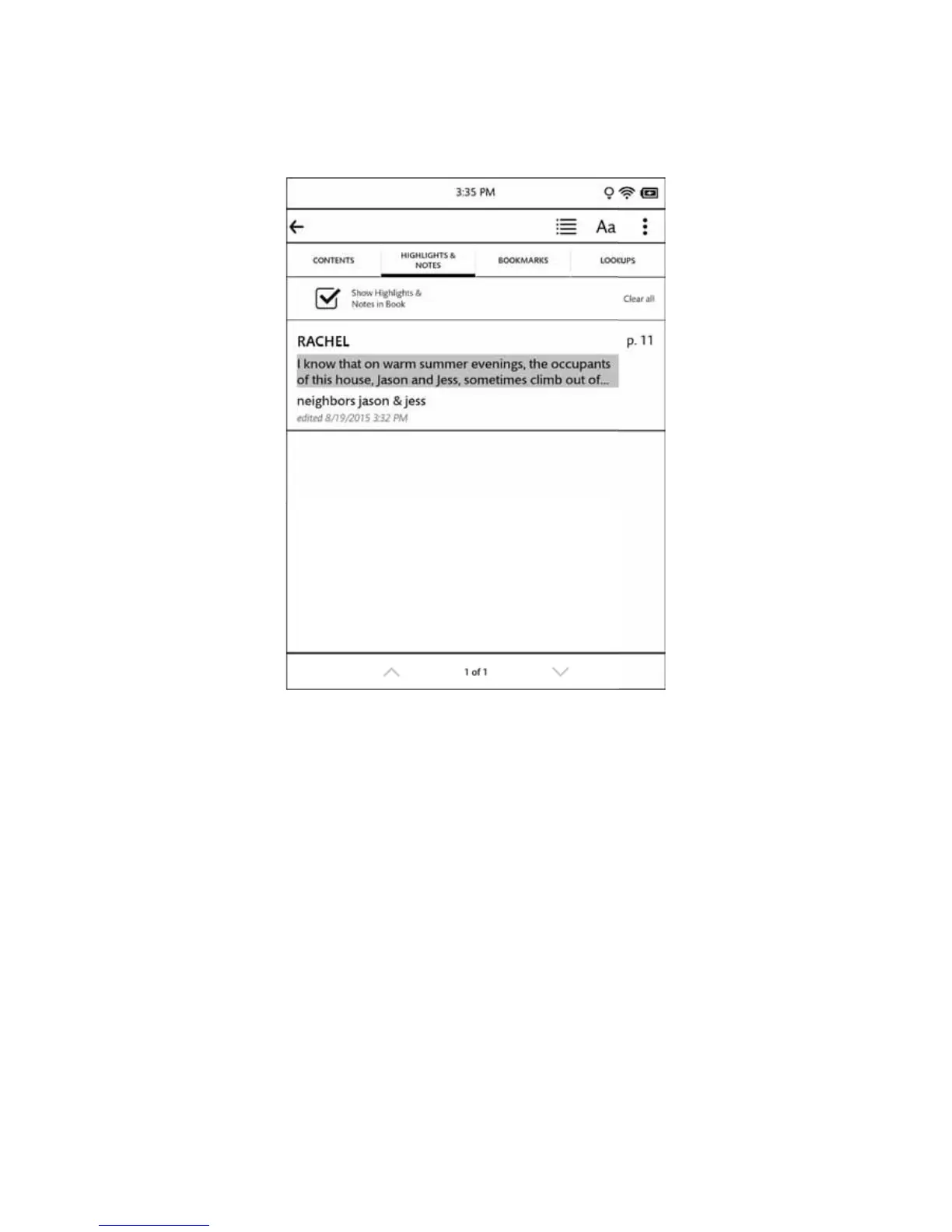
Tapping on the Highlights & Notes tab displays the Highlights & Notes screen, which looks like this.
The Highlights & Notes screen.
The Highlights & Notes screen lists all the passages you have highlighted or written notes about. Each passage is iden-
tified by its page number and opening line. If the list of notes and highlights runs longer than one screen, you can tap
the arrows at the bottom of the screen to scroll down and up through the list.
To jump to a particular passage, tap on it.
To erase all the notes and clear all the highlights, tap the Clear all button.
You can control whether or not your NOOK shows highlighted passages and note symbols in the NOOK Book
you’re reading. Tap the check box labeled Show Notes & Highlights. Leave the box checked to show Notes & High-
lights. Leave it unchecked to hide them.
NOTE: When you hide Notes & Highlights, they are still visible on the Highlights & Notes screen, but in the
pages of the NOOK Book, highlighted passages no longer appear with a tinted background, and Note
symbols do not appear in the margin.
To close the window without making a selection, tap the left-facing arrow at the top of the screen.



 To Next Page